50
Vu :
Your Smart Linux TV Player
+
Vu User Manual
+
3
Frequency
You need to enter the exact frequency of the transponder that you want to scan.
4
Symbol Rate
You need to enter the exact symbol rate of the transponder that you want to scan
5
Polarity
Here, you have options for Horizontal, Vertical, Circular Left and Circular Right. You need to know the
polarity of the transponder that you want to scan.
6
FEC (Forward Error Correction)
You need to enter the exact FEC value of the transponder that you want to scan
7
Modulation
Here you have two options for QPSK (SD) and 8PSK (HD).
8
Network Scan
Here you have two options for
YES
and
NO
.
NO
is used to scan the transponder (TP) based on the
data that your Vu+ currently has.
YES
is used to scan the TP not just based on the existing TP data
but also using new TP data, if there is TP data newly transported from the TP. Naturally,
YES
option
takes longer while it may results in a better scan result.
9
Clear Before Scan
YES
is used when you want to delete the existing channel list before you start the automatic scan. If
you want to keep the existing list, select
NO
.
10
Only Free Scan
Here you have two options for
YES
and
NO
. If you want to scan only Free To Air channels without any
encryption, select
YES
. Otherwise, select
NO
to scan all FTA and CAS channels.
Press
OK
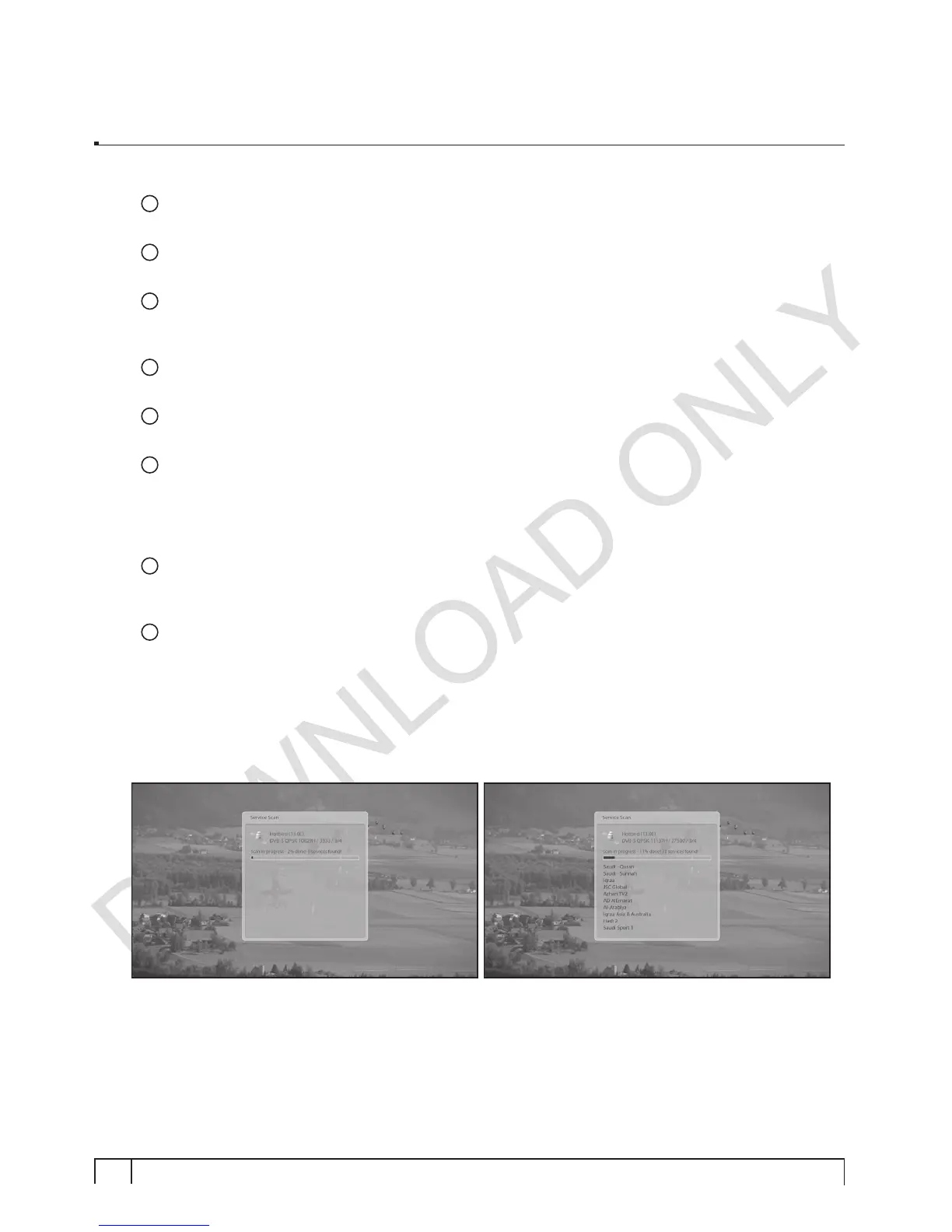
to activate the manual scan. This will take some minutes. As the scan proceeds, you will see
the progressive bar and the newly found services underneath.


 To Next Page