67
Vu User Manual
+
2-7. Wi-Fi Dongle Installation
Vu+ provides USB Wi-Fi dongle for convenient network connection. Please read the following guide
carefully in order for successful setup.
1. Insert the dongle into the UBS port of Vu+.
2. Turn on the power of Vu+.
NOTE
- If the set is already turned on, you can try the following sequence as well.
Go to Menu >Standby / Restart > Restart GUI (or Restart).
- “Restart GUI” is displayed on the menu only on Expert mode.
Go to Menu > Setup > System > Customize > Setup Mode. Set the Setup Mode as in “Expert”
by using Left/Right button.
3. Go to Menu
>
Setup
>
System
>
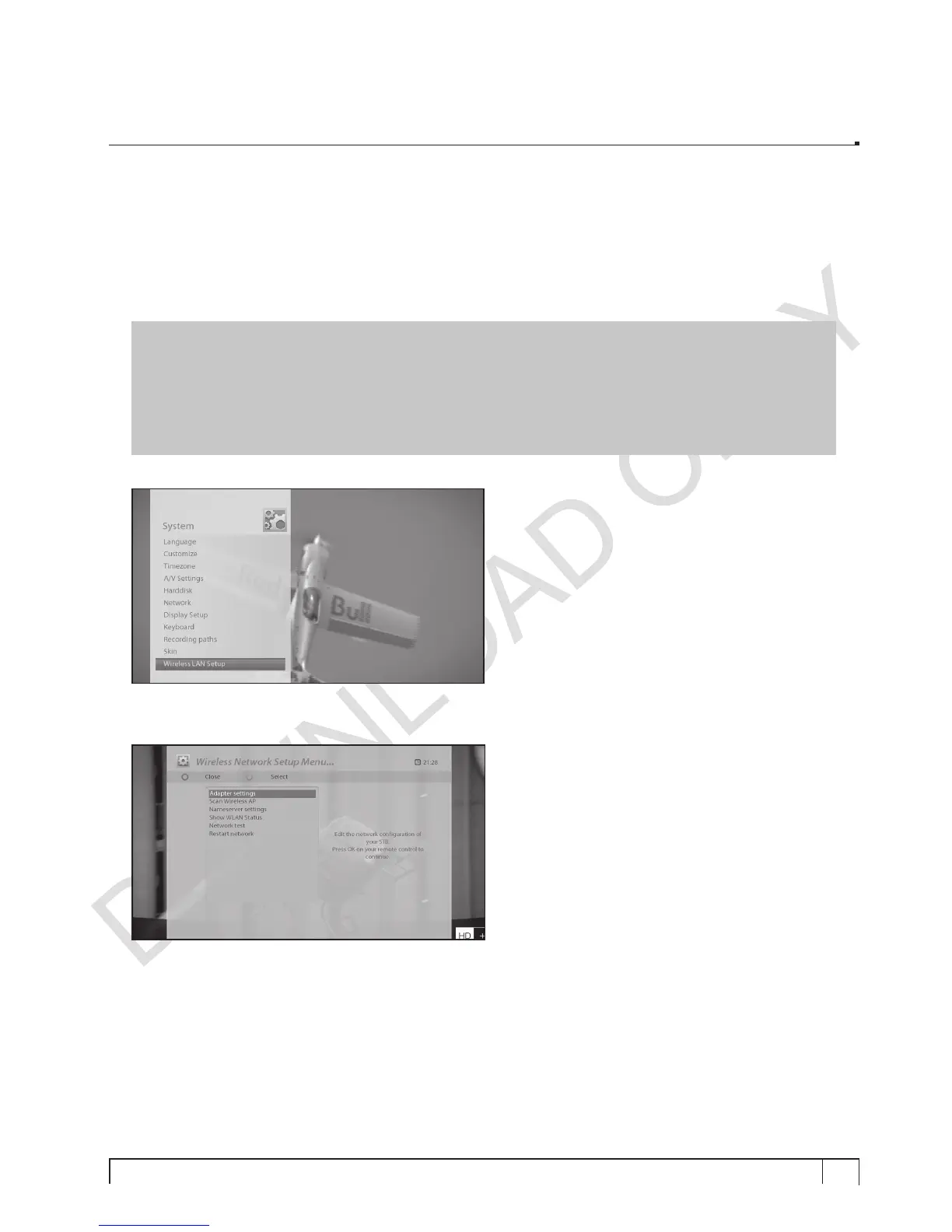
Wireless LAN Setup. Press
OK
.
4. The connected USB Wi-Fi device will be listed. Select the device by pressing “Green” button.
5. Select “Adapter Settings” for wireless configuration.
6. Configure each setting by using Left/Right button and save the changed settings by using Green
button.
(a) Use Device: Activate/Deactivate Wireless LAN module.
(b) Use DHCP: If select “NO”, “IP, NETMASK, GATEWAY need to be configured manually.
(c) ESSID: Select AP
(d) Input Hidden ESSID: If the AP to select is set as “hidden mode”, select “Input hidden ESSID” in “ESSID”,
and enter ESSID of AP directly.


 To Next Page