64
Vu :
Your Smart Linux TV Player
+
Vu User Manual
+
Edit service list
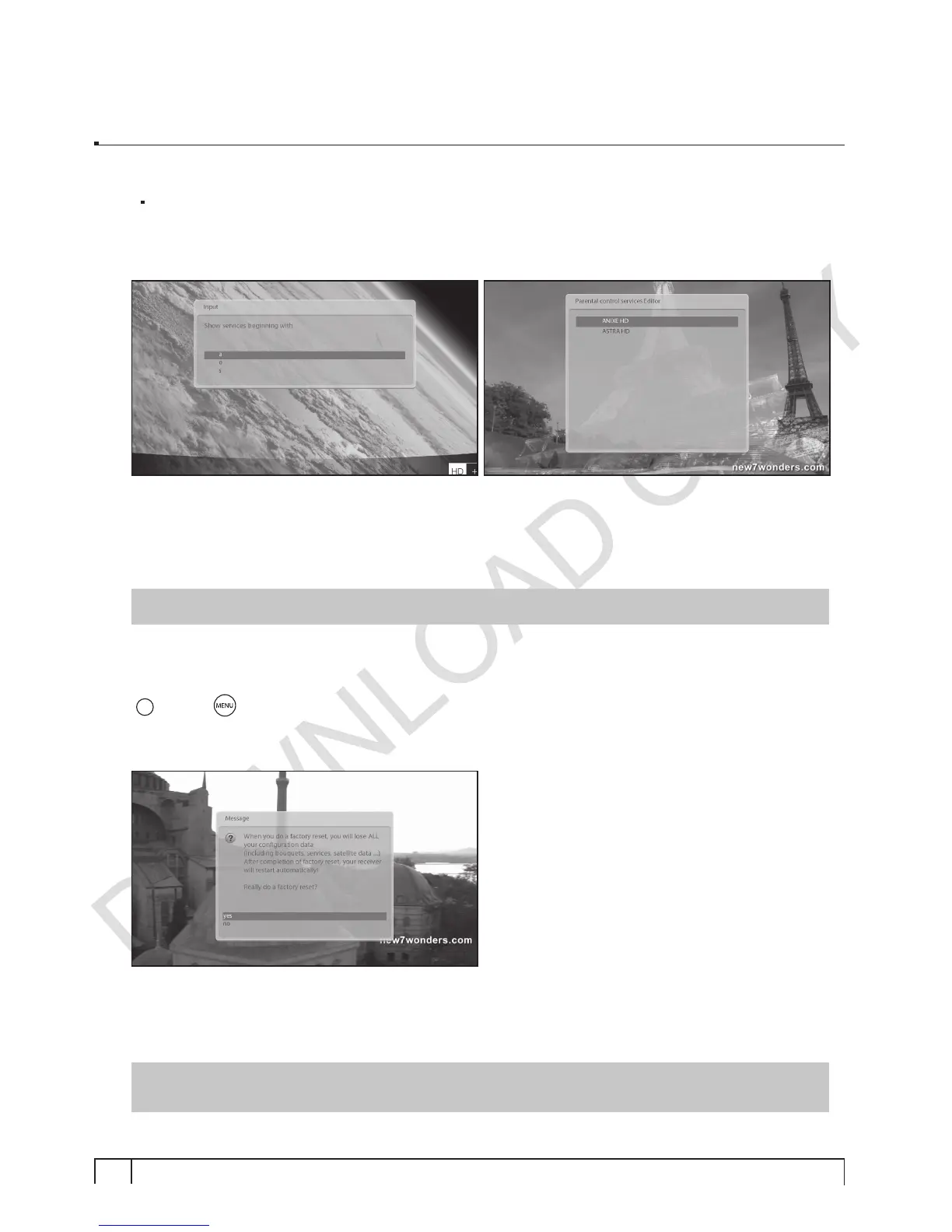
Here you can add services that you want to lock with PIN code. Services will be arranged in the
alphabetical order and you can select an alphabet to enter into the list where you can find the channel
that you want to lock.
Here, T is selected and TV5 is locked in the list as an example.
Next time when you or anyone else want to tune into this service, the menu asking for PIN code will
appear instantly as below.
NOTE :
It is very important not to lose this PIN code.
2-5. Factory Reset
[
i
: MENU
> Setup > Factory Reset]
If you want to erase all installed service list as well as all configurations, run the
Factory Reset
process.
Select
YES
in the below menu to run the factory reset.
Upon the completion of factory reset process, your Vu+ will reboot automatically and start the
First Time
Installation
process.
NOTE :
If you do this factory reset, all of your configuration data including bouquets, service lists,
satellite parameters, and so on will be erased.


 To Next Page