5 Prometer 100 and M-Cubed BCS
This section describes the various operations that can be performed using the M-Cubed BCS with Prometer 100
meter.
5.1 M-Cubed BCS
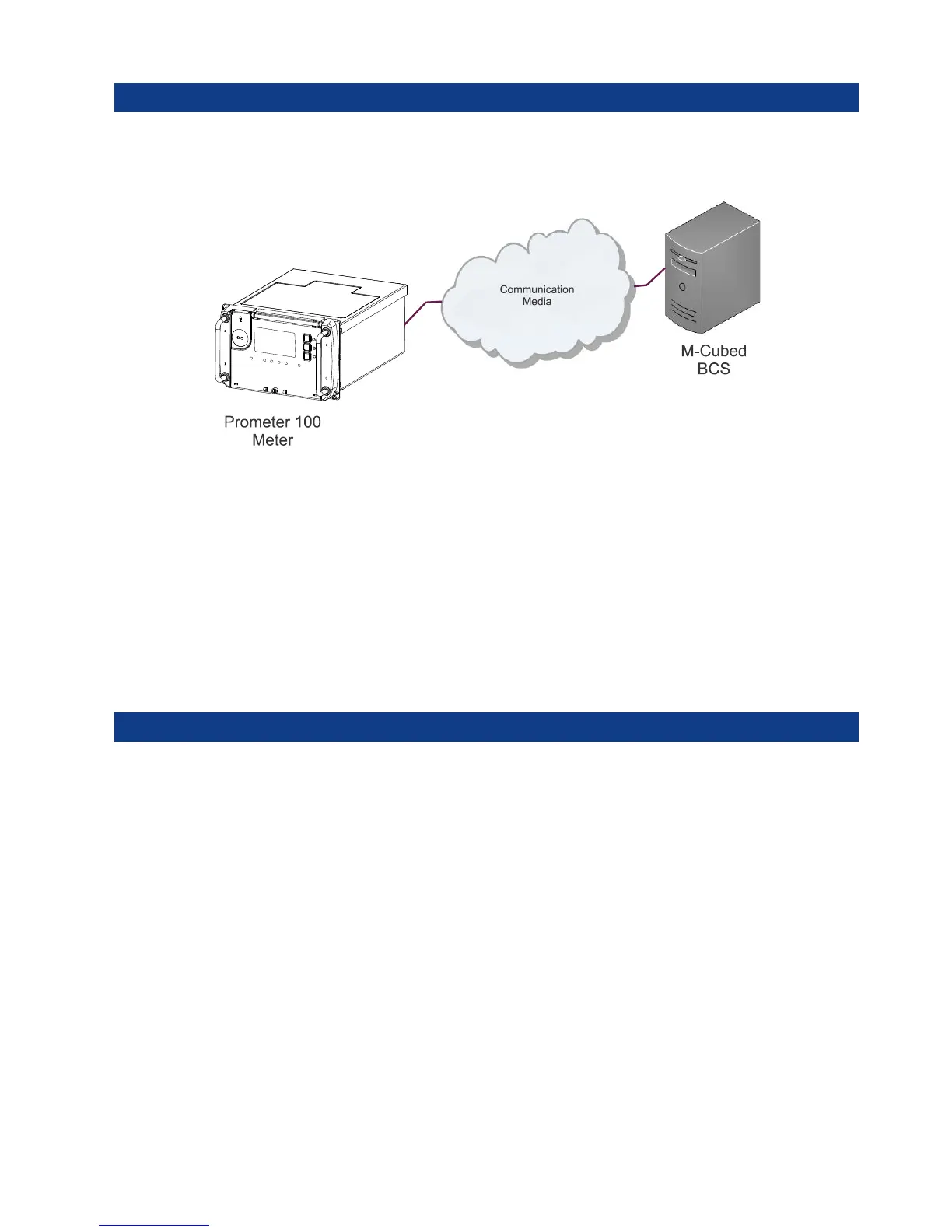
Figure 16: Prometer100 and M-Cubed BCS
M-Cubed stands for Modular Meter Management and is the name of Secure’s software suite for programming
meters, reading data and reporting from energy meters. M-Cubed has separate modules that can be configured
to suit particular applications and access rights required by individual users.
M-Cubed can be used for:
• Configuration
• Commissioning
• Meter Reading
• Data Viewing
The M-Cubed helpfile contains a detailed description of all these functions.
6 Using the Display
There are two types of display mode: Auto Scroll and Manual Mode. The two types of display modes and their
associated settings and parameters are discussed in this section. All single parameters, e.g. voltage, will be
displayed with their OBIS codes. A large selection of parameters (Auto + Manual) can be chosen for display.
6.1 Auto Scroll
Auto Scroll is the default mode. A large number of parameters can be chosen for this mode. The display time
out time can be configured in the field using M-Cubed or by the display keys. Once the display button is
pressed, the Auto Scroll mode will be interrupted and will switch to manual mode. If no button is pressed in
manual mode, the display will time out and revert to auto mode. The display will resume from the last displayed
parameter. The display LCD backlight is always on.
The Auto Display pages will look as shown below (details can be checked as agreed in purchase order):

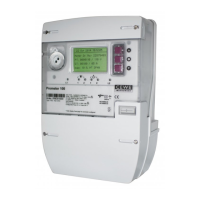

 To Next Page