Restoring Factory Defaults
46 | Check Point 5000 Appliances Getting Started Guide
Restoring Using the Console Boot Menu
To restore the appliance using the console boot menu:
1. Connect the supplied serial cable's RJ45 or miniUSB connector to the console port
on the front of the appliance.
2. From the computer, open a terminal emulation program such as Microsoft
HyperTerminal or PuTTY.
3. Configure the terminal emulation program:
x In the HyperTerminal Connect To window, select a port from the Connect using
list.
x In PuTTY select the Serial connection type.
4. Define the serial port settings: 9600 BPS, 8 bits, no parity, 1 stop bit.
5. From the Flow control list, select None.
6. Connect to the appliance.
7. Turn on the appliance.
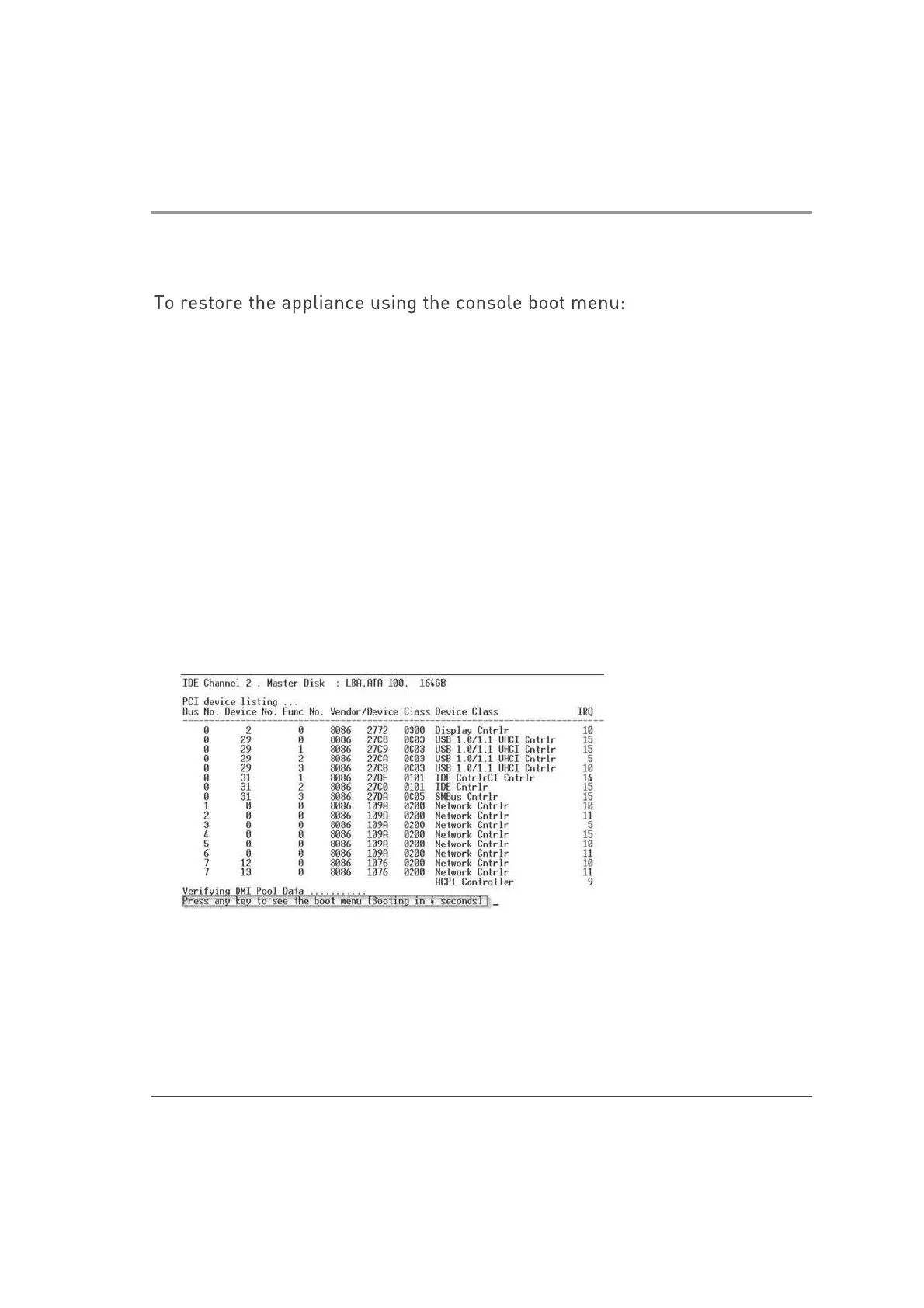
The appliance initializes and status messages are shown in the terminal emulation
program.
8. When this message is shown, you have approximately four seconds to hit any key
to activate the Boot menu.
9. From the Boot menu, select the relevant Reset to factory defaults image.
10. Press Enter.













 To Next Page