1
2
2
3401
1401
1409
1132
1131
1100
1120
3456
1137
1144
1140
1133
1384
1302
1301
3
Upload Arm/ Disarm Report to CMS Center
When this function is enabled, all arm/disarm reports will be uploaded automatically to
CMS center, so that CMS center can know the status of the alarm system.
After the User ID is set, press or to choose “Arm Upload” or “Disarm Upload”, [ ] [ ]
press .[Enter]
Press or , Choose “On”, press .[ ] [ ] [Enter]
When choosing “Off” during setup , press , arm/ disarm report will not be [Enter]
uploaded to CMS center.
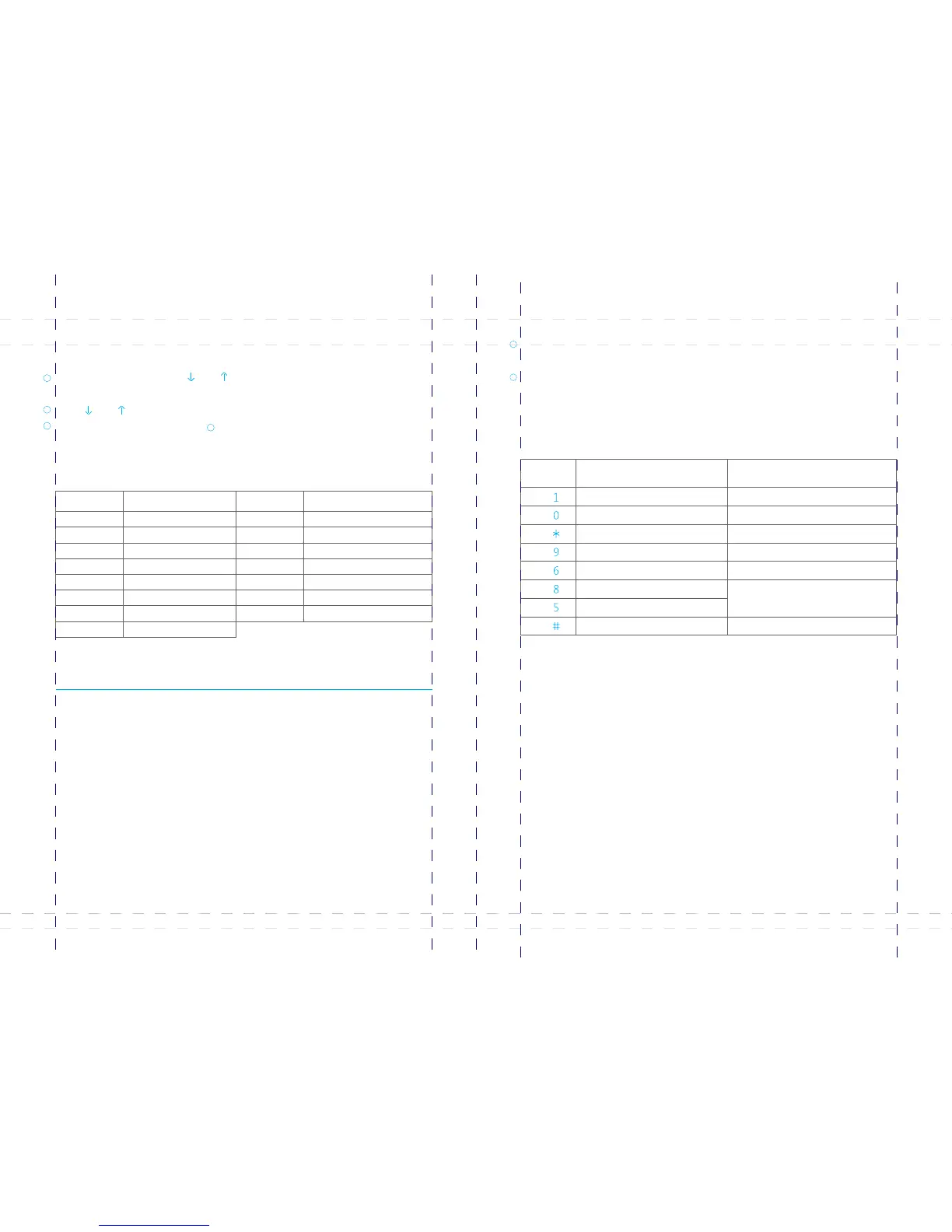
Contact ID Reports
Arm
Disarm
Disarm by RFID tag
PIR detector alarm
Door contact alarm
Emergency call
Duress alarm
Home mode (part arm)
Control panel tamper alarm
Sensor tamper alarm
Normal zone alarm
24H zone alarm
Sensor low battery
Control panel low battery
Control panel AC failure
Event Code
Event Event
Event Code
Remote Control Instruction
Users can operate the system by the control panel or remote control. Besides, using
phone call, SMS or App on the phone can also operate the system remotely.
Phone remote control can be achieved through two ways:
Answering Alarm Phone Call to Start Remote Control
When an alarm occurs, the control panel will call the stored phone numbers. When
answering the call, the user will hear the recorded voice message firstly. Then you can
press the telephone keys to operate the system remotely.(See instruction table on the
next page) The control panel will call these numbers for three rounds at most. when
user pick up with key operation, control panel stops dialing. if not, control panel keeps
dialing until three rounds are finished.
1
2
Remote Control by Calling Telephone Number
Call the telephone number of alarm system. After getting through, input user code or
admin code, and press to confirm.[#]
Users can choose the related instruction to make remote control operation. (See
instruction table below). If there is no operation within 30 seconds, the system will
hang up.
Remote Phone Control Instruction Table
Phone
Buttons
Function
Explanation
Press [ ]
Press [ ]
Press [ ]
Press [ ]
Press [ ]
Press [ ]
Press [ ]
Press [ ]
Arm the system
Disarm the system
Monitor on site
Turn on siren
Turn off siren
Turn on relay
Turn off relay
To exit Remote Phone Control
Arm succeed
Disarm succeed
Press [*] to prolong monitor time
Deter the intruders
Siren stops ringing
Available when relay is used
Or hang up the phone
The system will enter monitor state directly when stored phone number called the SIM
card number of control panel. User is able to continue the operation by input relative
command. While any phone number can proceed this function without phone number
is stored. So, it is command to store the phone number at the first beginning of the
setting.
Remote Control by Calling SIM Card Number
41
42


 To Next Page