3-26
Cisco Video Surveillance 5010/5011 Indoor Fixed HD IP Dome Camera User Guide
OL-22669-01
Chapter 3 Operation
A/V Streams Tab
• Configuring a Custom Video Stream Configuration, page 3-27
• Compression Standards, page 3-28
• Available Camera Resolution, page 3-28
• Image Rate, page 3-28
• Bit Rate, page 3-28
• Quality of Service for Differentiated Services Code Point, page 3-28
• Rate Control, page 3-29
• Rate Control, page 3-29
• Profile, page 3-29
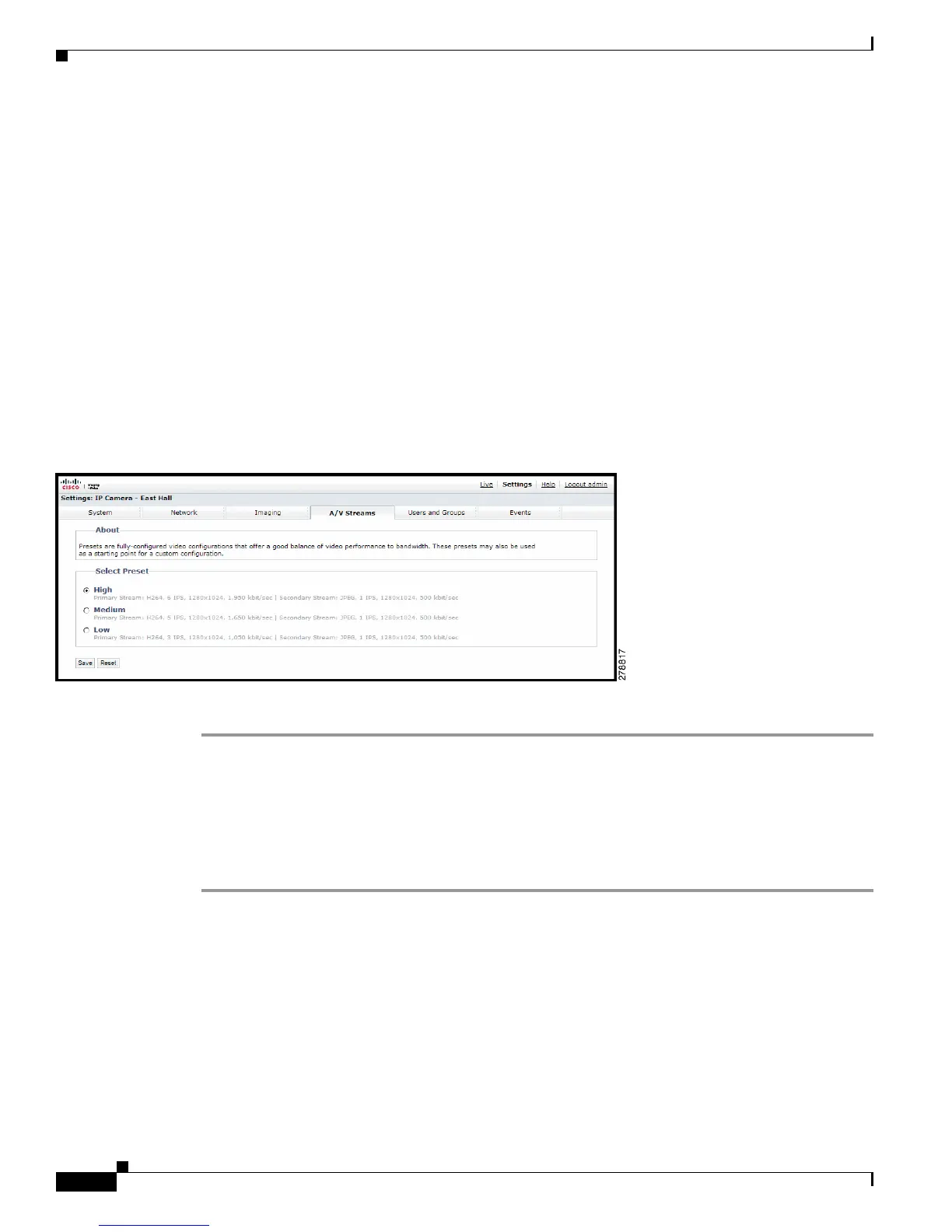
Selecting a Video Preset Configuration
Figure 3-12 Select Video Preset Configuration Page
Step 1 Place your mouse pointer over the A/V Streams tab.
Step 2 Select the Video Preset option from the drop-down menu.
Step 3 Click the button next to the video preset stream configuration (High, Medium, or Low) that you want to
select.
Step 4 Click the Save button to save the settings, or click the Reset button to clear your selection without saving
it.













 To Next Page