3-31
Cisco Video Surveillance 5010/5011 Indoor Fixed HD IP Dome Camera User Guide
OL-22669-01
Chapter 3 Operation
Users and Groups Tab
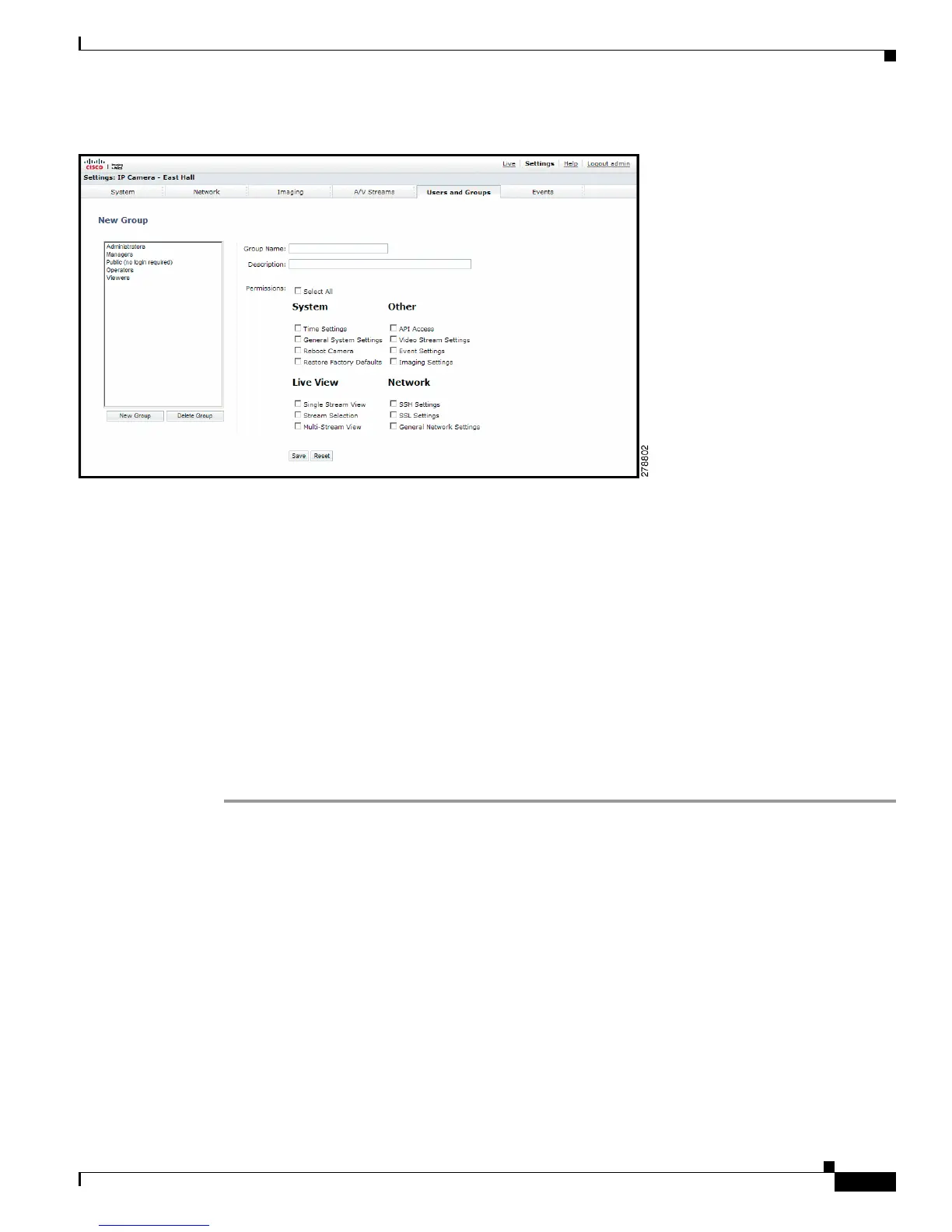
Figure 3-15 Group Page
Refer to the following sections for more information.
• Creating a New User, page 3-31
• Editing a User, page 3-32
• Deleting a User, page 3-32
• Creating a New Group, page 3-33
• Editing a Group, page 3-33
• Deleting a Group, page 3-33
• General Settings for Users and Groups, page 3-34
Creating a New User
Step 1 Place your mouse pointer over the Users and Groups tab.
Step 2 Select Users from the drop-down menu.
Step 3 Click in the Username box and type a user name (2 to 23 alphanumeric characters). User names are not
case-sensitive and are saved in lowercase characters.
Step 4 Click in the Password box and type a password (4 to 16 alphanumeric characters). Passwords are
case-sensitive.
Step 5 Click in the Retype Password box and retype your password.
Step 6 Click in the First Name box and type the user’s first name (1 to 32 alphanumeric characters).
Step 7 Click in the Last Name box and type the user’s last name (1 to 32 alphanumeric characters).
Step 8 Click in the Email box and type the user’s email address.
Step 9 Select the appropriate check boxes to choose the groups you want to assign to the user. The Users page
includes default accounts for the following groups:













 To Next Page