EasyManua.ls Logo

Clarion VX603AU - User Manual

Clarion VX603AU
42 pages
Print Icon
To Next Page IconTo Next Page
Loading...
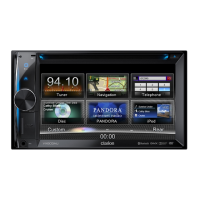
VX603AU
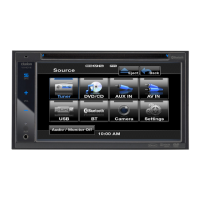
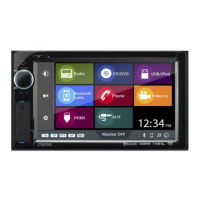
Owner's manual
DVD MULTIMEDIA STATION WITH BUILT-IN
BLUETOOTH & 6.2" TOUCH PANEL CONTROL
NAVIGATION READY (SD603AU SOLD SEPARATELY)

Questions and Answers

  • A
    Anthony GomezSep 9, 2025
    What to do if my Clarion VX603AU Car Video System SD card or USB device cannot be inserted?
    • G
      Gabriela GillSep 9, 2025
      If you're unable to insert an SD card or USB device into your Clarion Car Video System, it might be due to incorrect orientation. Try reversing the connection direction. If it still doesn't work, the SD card or USB connector may be broken, requiring replacement.
  • L
    lutztheodoreSep 12, 2025
    Why is my Clarion VX603AU not recognizing SD card or USB device?
    • D
      Deanna DunnSep 12, 2025
      If your Clarion Car Video System isn't recognizing an SD card or USB device, the card or device may be damaged. Disconnect and reconnect it. If it's still not recognized, try a different card or USB device.
  • S
    Shawn SotoSep 13, 2025
    How to fix a disturbed iPod/iPhone video image on Clarion VX603AU Car Video System?
    • S
      Susan BrownSep 13, 2025
      If the video image from your iPod/iPhone is disturbed on your Clarion Car Video System, the TV Signal setting of the iPod/iPhone may be incorrect. Set the TV Signal setting (NTSC/PAL) of the iPod/iPhone correctly.
  • J
    James JenkinsSep 15, 2025
    Why can't I pair my Bluetooth device with Clarion Car Video System?
    • J
      john30Sep 15, 2025
      If you cannot pair your Bluetooth enabled device with the Clarion Car Video System, it could be due to the following reasons: * The device may not be supported. Try connecting with another device. * The Bluetooth function of the device may not be enabled. Refer to the user manual of the device to enable it.
  • B
    Brandy BeckerSep 18, 2025
    What to do if my Clarion Car Video System Unit can not power on and display is not accurate?
    • T
      tamara17Sep 18, 2025
      If your Clarion Car Video System unit can not power on, nothing happens when buttons are pressed and the display is not accurate, the microprocessor may have malfunctioned. Press the [RESET] button with a thin rod. Note: When the [RESET] button is pressed, turn the power.

Summary

NOTICES; WARNINGS

Navigation System

Explains adding optional navigation via SD card.

GPS Antenna Installation

Details the supplied GPS antenna and its recommended installation.

Reverse Camera Safety

Safety warning about reverse camera usage while driving.

Legal Safety Requirement

Outlines legal requirement for park brake wire connection.

Warranty Information

Points to warranty card and extended warranty registration.

FEATURES

Expanding Systems Overview

Illustrates unit expansion with audio and visual features.

PRECAUTIONS

CAUTIONS ON HANDLING

Unit Handling and Care

Cautions for front panel, body, USB port, and SD slot.

Disc Handling and Care

Guidelines for handling, cleaning, and storing discs.

CONTROLS

Operational Panel and Buttons

Details the unit's operational panel layout and button functions.

Remote Control Operations

Explains remote control usage, including battery replacement.

MAIN MENU OPERATIONS

Source Selection and Navigation

How to navigate main menu, select sources, and use custom settings.

SYSTEM SETUP

General System Settings

Covers language, operation bar, menu icons, beep, and LED settings.

Audio and Display Configuration

Settings for sound, equalizer, display dimmer, and visual aspects.

Advanced System Features

Includes parental control, navigation, Pandora, and anti-theft settings.

DISC OPERATIONS

Disc Playback Features

Details multi-sound, multi-angle, and subpicture functions for DVD playback.

Playable Discs and Media

Lists compatible disc types and media file formats.

Disc Compatibility and Access

Notes on playable discs, region numbers, and disc loading.

SD;USB OPERATIONS

Accessing SD and USB Devices

Steps for inserting and accessing SD cards and USB memory devices.

SD;USB Media Playback

How to play audio and video files from SD/USB storage.

BLUETOOTH OPERATIONS

Bluetooth Pairing and Connection

Guide to pairing mobile devices and connecting via Bluetooth.

Telephone and Audio Functions

Managing calls, history, phonebook, and audio streaming.

RADIO OPERATIONS

Tuning and Band Selection

How to select radio bands and manually tune stations.

Auto Tuning and Presets

Using auto-tuning, preset scans, and auto-store features.

Station Storage and Local Seeking

Manual storage, recall, and activating local seeking mode.

PANDORA OPERATIONS

Streaming and Connecting iPhone

How to connect an iPhone and stream Pandora music.

Pandora Playback Controls

Using skip, thumbs, bookmarking, and station selection.

iPod & iPhone OPERATIONS

Connecting and Accessing Devices

Steps to connect and enter iPod/iPhone mode via USB.

Playback Control and Features

Managing playback, track selection, and video playback.

NAVIGATION OPERATIONS (SOLD SEPARATELY)

Accessing and Controlling Navigation

Steps for inserting map card and navigating the interface.

AUX OPERATIONS

TROUBLE SHOOTING

General Unit and Display Issues

Solutions for no power, unresponsive buttons, and display problems.

Audio and Sound Quality Problems

Troubleshooting no/low audio, distortion, and sound quality issues.

Unit Reset and Reset Button

How to reset the unit and address issues resolved by the reset button.

ERROR DISPLAYS

Disc Related Errors

Solutions for disc loading, unsupported, unknown, and region errors.

Mechanism and General Errors

Handling illegal mechanism operation and other error messages.

SPECIFICATIONS

Tuner, Disc, and Media Specs

Technical details for tuners, disc player, MP3/WMA, USB, SD, and Bluetooth.

Audio, Display, and General Specs

Specifications for audio amplifier, LCD display, power, dimensions, and weight.

WIRING AND CONNECTIONS

Main Unit Wiring Diagram

Visual guide for connecting antenna, microphone, iPod, cameras, and speakers.

Connector Pin Assignments

Explains the function of each wire in the 18-pin connector extension lead.

Clarion VX603AU Specifications

General IconGeneral
Resolution800 x 480 pixels
TouchscreenYes
BluetoothYes
USB PortYes
DVD PlayerYes
SD Card SlotYes
Rear View Camera InputYes
Steering Wheel ControlYes
AM/FM TunerYes
Display Size6.2 inches
Audio Format SupportMP3/WMA/AAC

Related product manuals