44
6. Other Features
Windows Only
Using ArcSoft VideoImpression (PC Mode)
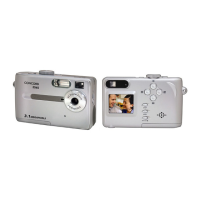
The Concord Eye-Q Duo 2000 has the ability to capture live video clips on
your computer by using the ArcSoft VideoImpression software.
To Capture Video Clips on the Computer:
1. Set the camera to PC Driver mode.
2. Connect the camera to the computer.
3. Launch the ArcSoft VideoImpression software by clicking on Start-
Programs-ArcSoft Camera Suite and choose VideoImpression from the
application list on your screen.
4. Click on the NEW icon.
5. Click on the CAPTURE icon.
Note: If the video is not displayed, select “Concord Eye-Q Duo 2000
Video Clips” in the Driver List and click on the Live icon to view live
video.
Recording Video Clips:
1. Follow steps 1-5 above.
2. Click on the RECORD icon. To stop recording, press the ESC button on
your keyboard or click the PAUSE icon on your screen.
To save your video, simply click on the SAVE icon and follow the on-
screen instructions.
To edit, manipulate or create video clips using all the features that
VideoImpression offers, refer to ArcSoft’s software guide for further
instructions.



 To Next Page