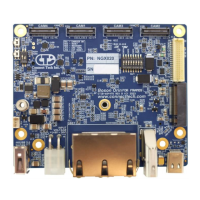
Hadron/ Hadron DM Carrier
Users Guide
www.connecttech.com
Document: CTIM-00088
Revision: 0.08
TYPICAL INSTALLATION
1. Ensure all external system power supplies are off and disconnected.
2. Install the NVIDIA® Jetson Orin™ NX/ NVIDIA® Jetson Xavier™ NX Module into the DDR4 260 Pin
SODIMM Connector (P1).
Be sure to follow the manufacturer’s directions for proper installation of mounting hardware,
heatsink / heat-spreader, and any other applicable requirements from the manufacturer.
3. Install the necessary cables based on your application:
1. Connect Power cable to the input power connector (P8)
2. Connect a 3.3V TTL FTDI Serial cable to UART2 pins on Pin 37 and Pin 38 of the I/O
Header (P4)
3. If network connectivity is required, plug-in CBG117 at P2
4. Connect the Power Cable of the Power Supply into the Power header (P8)
Plug the AC cable of the Power Supply into the wall.
5. Access the debug UART port using a standard 3.3V TTL FTDI cable to any computer over USB.
Another TTL UART interface is required to use the debug port. The default serial settings are
115200 8N1 (standard settings) but hardware flow control must be turned off.
If using minicom in Linux based systems, serial into the system through disabling the hardware
flow control:
1. Press CTRL+A
2. Press o
3. Go to Serial Port Setup
4. Press F (To change hardware flow control to off)
5. (optional) save as default in previous menu
If using putty in Windows based systems, in the left menu go to serial>flow control>None.
DO NOT power up your system by plugging in live power.
ES France - Mobilité & Systèmes Embarqués
127 rue de Buzenval BP 26 - 92380 Garches
Tél. 01 47 95 99 80
Fax. 01 47 01 16 22
e-mail : mse@es-france.com
Site Web : www.es-france.com


 To Next Page