Scanning 28
Scan destinations
Scan destinations can be independent or they can be related to a specific user that you select on the scanner screen. The following scan destinations are
available:
Independent scan destinations – USB, Email
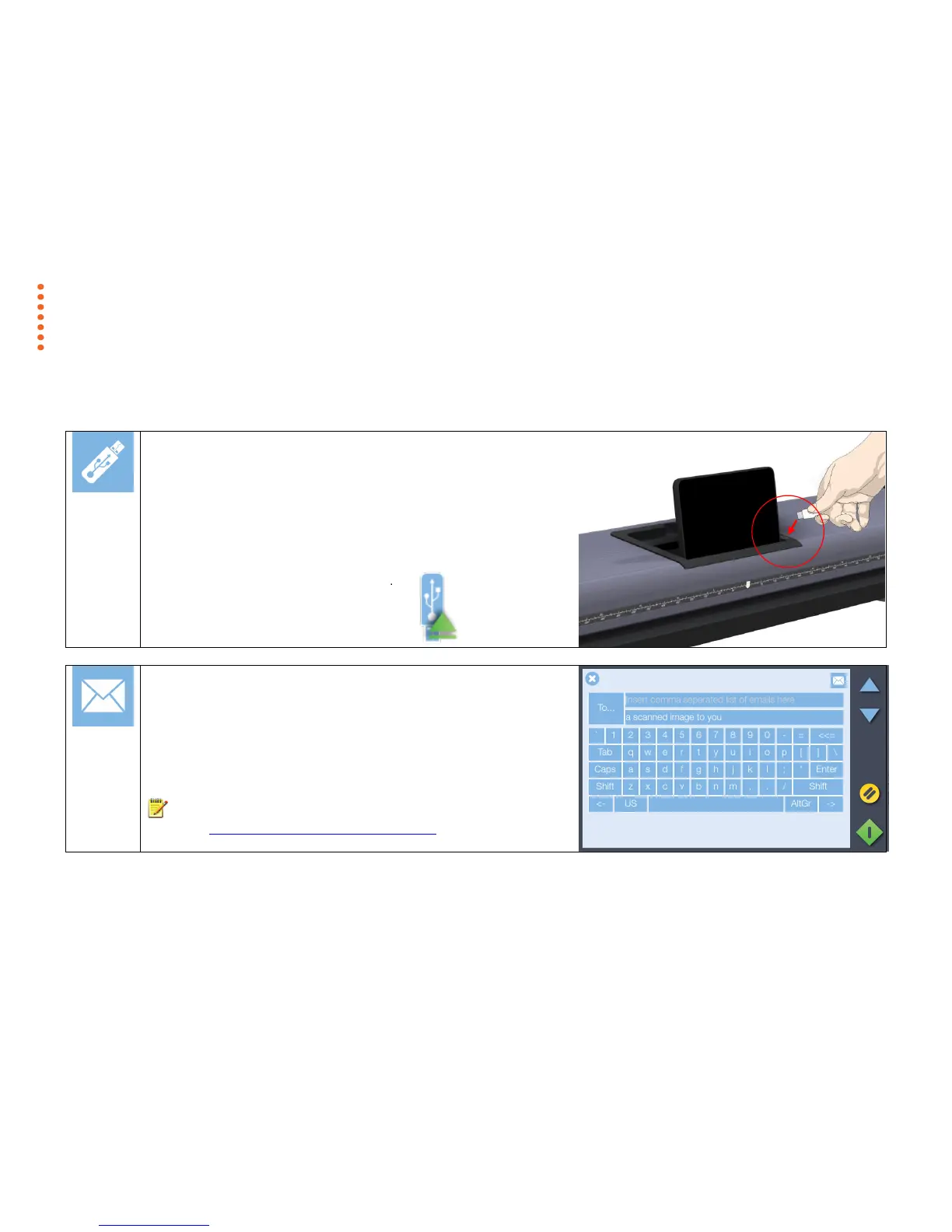
Scan to USB
Save the scan file to a USB memory stick.
1. Insert the USB stick into the USB slot on the top of the scanner.
2. Select the USB memory stick option in the scroll menu.
3. Choose your settings then press the scan button. The DCIM folder is the
always the default location for scans to memory stick.
4. After scanning be sure to touch the USB safe-ejection button if displayed
onscreen before removing the memory stick.
Scan to Email
Send the scan to an email address.
1. Press the email option.
2. Enter the target email address using the onscreen keyboard.
3. Choose your settings then press the scan button.
NOTE: Set up the scanner outgoing email parameters before using this option.
See section Installation - Enter your email server settings.



 To Next Page