91D-Link DSL-5300 User Manual
Section 5 - Connecting to a Wireless Network
When connecting to the DSL-5300 wirelessly for the rst time, you will need to input the wireless network name (SSID) and Wi-Fi password (security
key) of the device you are connecting to. If your product has a Wi-Fi conguration card, you can nd the default network name and Wi-Fi password
here. Otherwise, refer to the product label for the default Wi-Fi network SSID and password, or enter the Wi-Fi credentials set during the product
conguration.
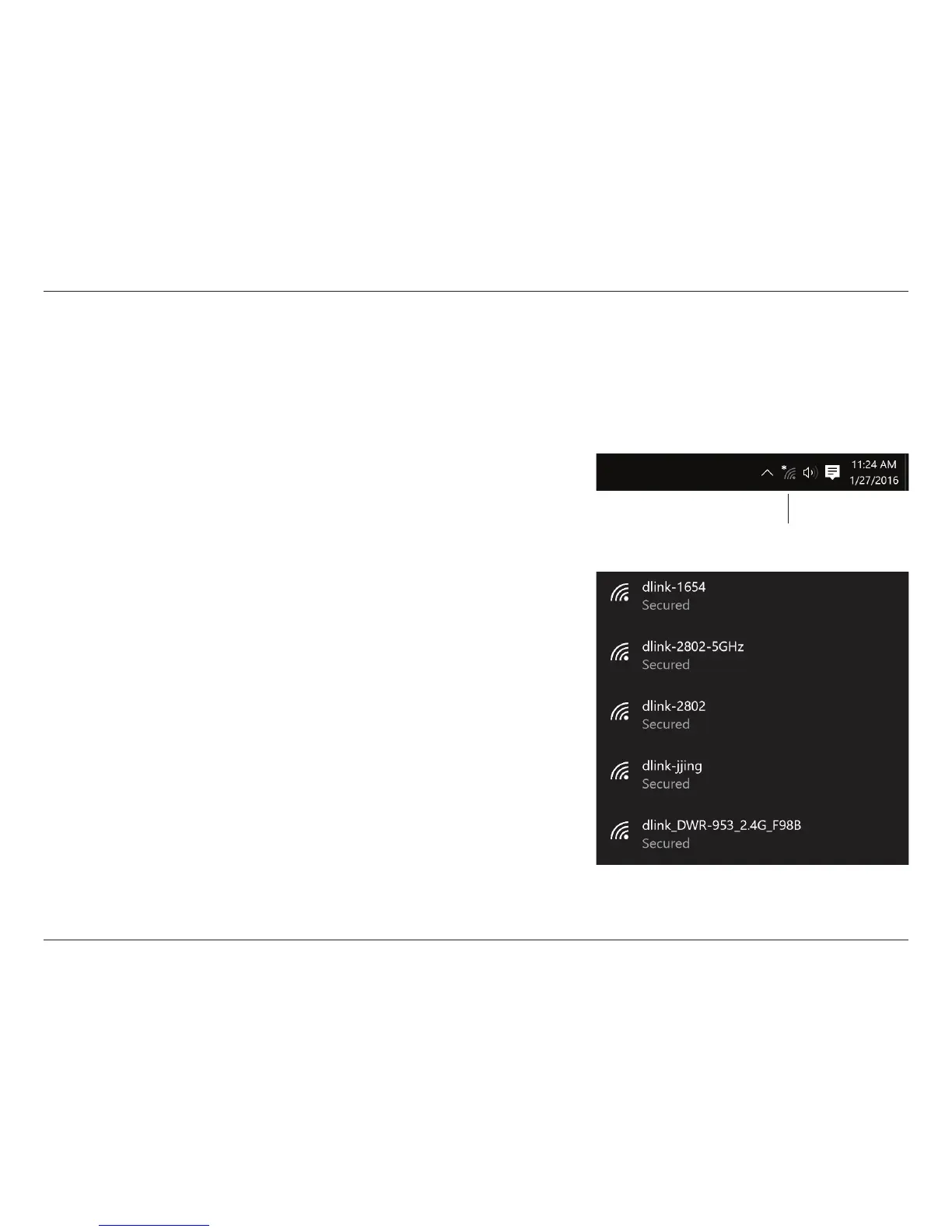
To join an existing network, locate the wireless network icon in the taskbar, next to the time
display, and click on it.
Wireless Icon
Clicking on this icon will display a list of wireless networks within range of your computer.
Select the desired network by clicking on the SSID.
Windows® 10


 To Next Page