41D-Link DSL-G225 Wireless N300 ADSL2+/VDSL2 Modem Router User Manual
Section 4 - Conguration
Connecting a 3G/4G USB Dongle
3G/4G Dongle Installation and Conguration
If you want to connect to the Internet using a 3G/4G connection on your DSL-G225, a 3G/4G USB dongle and SIM card with a
subscription to a mobile ISP is required. The following 3G/4G USB dongles have been tested to work with rmware 1.0.2. Refer
to www.dlink.com for the latest available rmware and information on compatible 3/4G USB dongles.
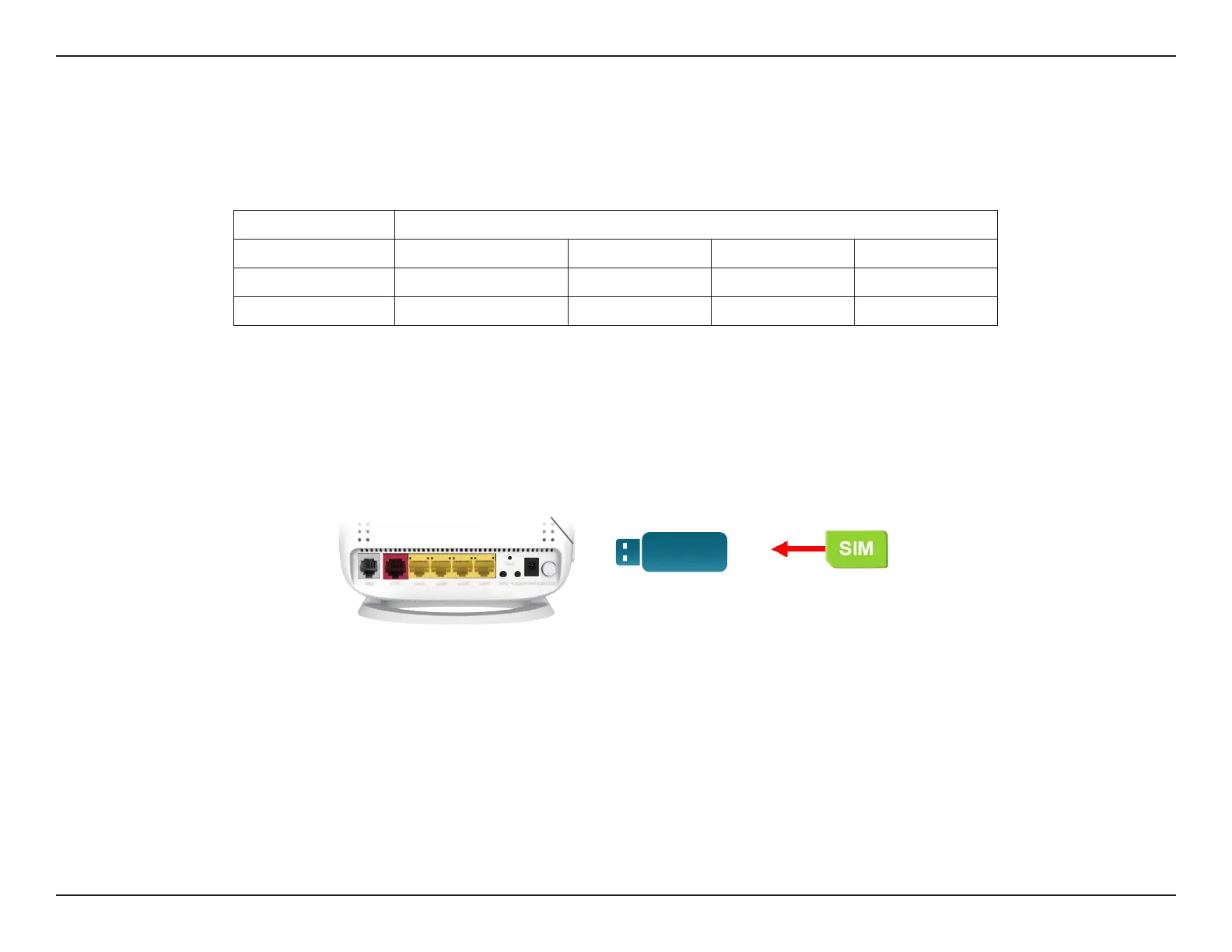
Step 1 - Refer to your USB dongle’s documentation for SIM card installation instructions.
Step 2 - Connect your compatible 3G/4G USB dongle to the USB port on the DSL-G225. Conrm the USB light on the display
panel is lit solid green.
Step 3 - Using the information provided by your ISP, navigate to Setup > 3G in the web conguration utility to congure your
connection. Refer to 3G/4G Network on page 41 for more information.
Step 5 - Navigate to Setup > Failover to congure your 3G/4G connection as either the primary link or backup connection.
Refer to Failover on page 41 for more information.
Step 4 - Navigate to Status > Device Info > Internet Info > Enabled WAN Connections to conrm your 3G/4G dongle is properly
installed, congured, and connected to the Internet.
Step 6 - Congratulations. Your 3G/4G USB dongle is now congured to work with your DSL-G225.
Manufacturer Compatible USB Dongle Models
ZTE AC796
Huawei EC169 EC315 EC397
D-Link DWM-156 A3
USB 3G/4G Dongle
SIM Card
USB Port


 To Next Page