Back to Contents Page
Operator Panel
Using the Operator Panel Buttons
Printing a Panel Settings Page
Using the Operator Panel Buttons
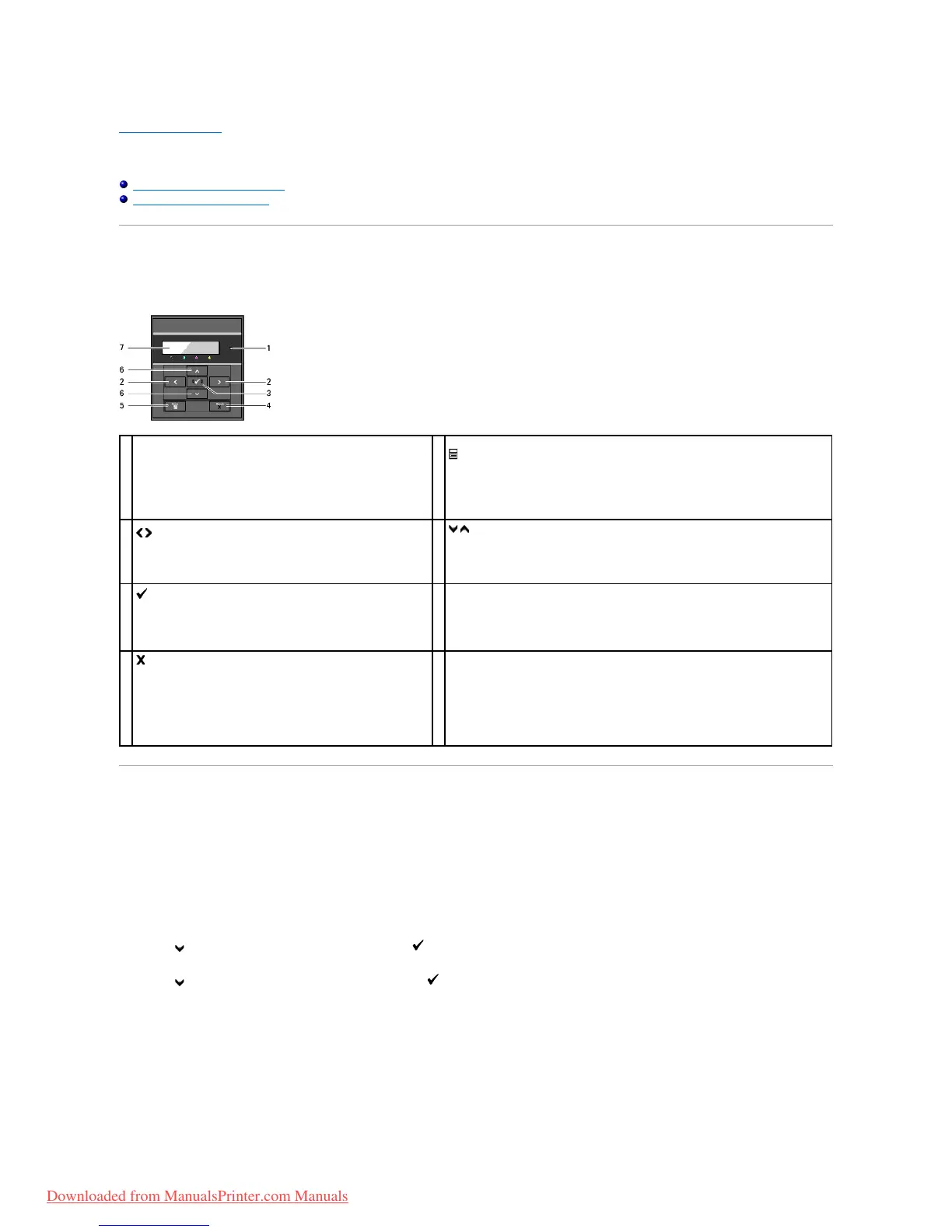
The printer operator panel has a 2-line by 16-character liquid crystal display (LCD), seven buttons, and two indicators that flash when the printer is ready to
print, and when an error occurs.
Printing a Panel Settings Page
The panel settings page shows current settings for the operator panel menus.
When Using the Operator Panel
1. Press Menu button.
2. Press button until Report/List appears, and then press (Set) button.
3. Press button until Panel Settings appears, and then press (Set) button.
When Using the Tool Box
1. Click start® All Programs® Dell Printers® Dell 2130cn Color Laser Printer® Tool Box.
The Select Printer dialog box opens.
Ready/Error indicator
l Lights green when the printer is ready or sleeping and
blinks when data is being received.
l Lights orange when an error occurs and blinks when an
unrecoverable print error occurs.
(Menu) button
l In the Print mode, switches to the Menu mode.
l In the Menu mode, switches to the Print mode.
buttons
l In the Menu mode, selects submenus or setting values.
buttons
l In the Menu mode, scrolls through menus or items. To enter numbers or
passwords for secure print jobs, press these buttons.
(Set) button
l In the Menu mode, displays the selected menu or item
and determines the selected value.
(Cancel) button
l Cancels the current print job.
l In the topmenu of the Menu mode, switches to the Print
mode.
l In the submenu of the Menu mode, switches to the upper
hierarchy of the menu.
Downloaded from ManualsPrinter.com Manuals



 To Next Page