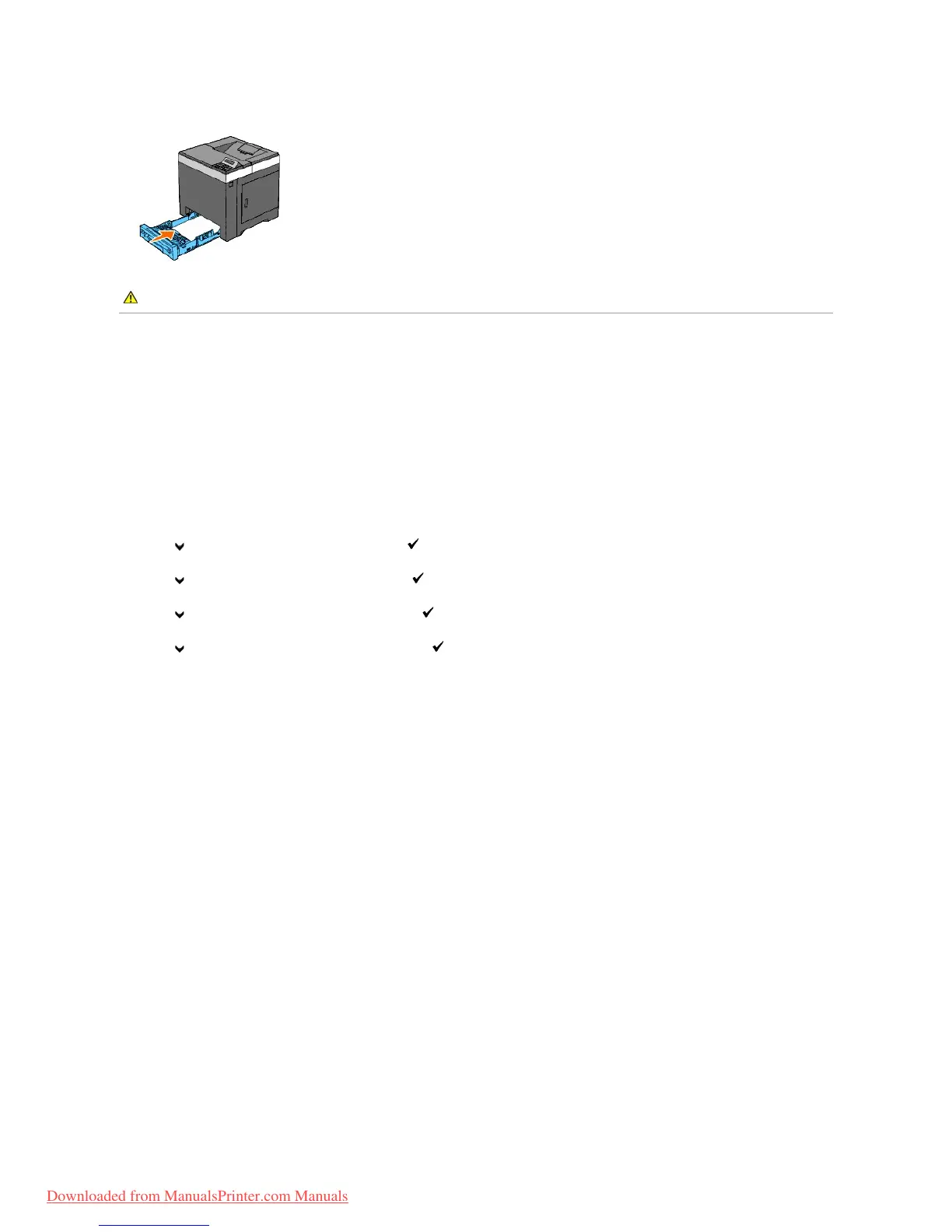
8. Insert the standard 250-sheet tray into the printer, and push until it stops.
Adjusting Color Registration
To adjust the color registration after moving it to a new location, follow the procedure below.
Printing the Color Registration Chart
When Using the Operator Panel
1. Press Menu button.
2. Press button until Admin Menu appears, and then press (Set) button.
3. Press button until Maintenance appears, and then press (Set) button.
4. Press button until Color Reg Adj appears, and then press (Set) button.
5. Press button until ColorRegi Chart appears, and then press (Set) button.
The color registration chart is printed.
When Using the Tool Box
1. Click start® All Programs® Dell Printers® Dell 2130cn Color Laser Printer® Tool Box.
The Select Printer dialog box opens.
2. Click the name of this printer listed in Printer Name, and then click OK.
The Tool Box opens.
3. Click the Printer Maintenance tab.
4. Select Registration Adjustment from the list at the left side of the page.
The Registration Adjustment page is displayed.
5. Click the Start button next to Color Regi Chart.
The color registration chart is printed.
Determining Values
On the color registration chart, there are two types of charts: Chart 1 (fast scan) and Chart 2 (slow scan).
The Chart 1 is used to adjust the color registration for the fast scan direction, which is vertical to paper feed direction. The Chart 2 is used to adjust the color
registration for the slow scan direction, which is horizontal to paper feed direction.



 To Next Page