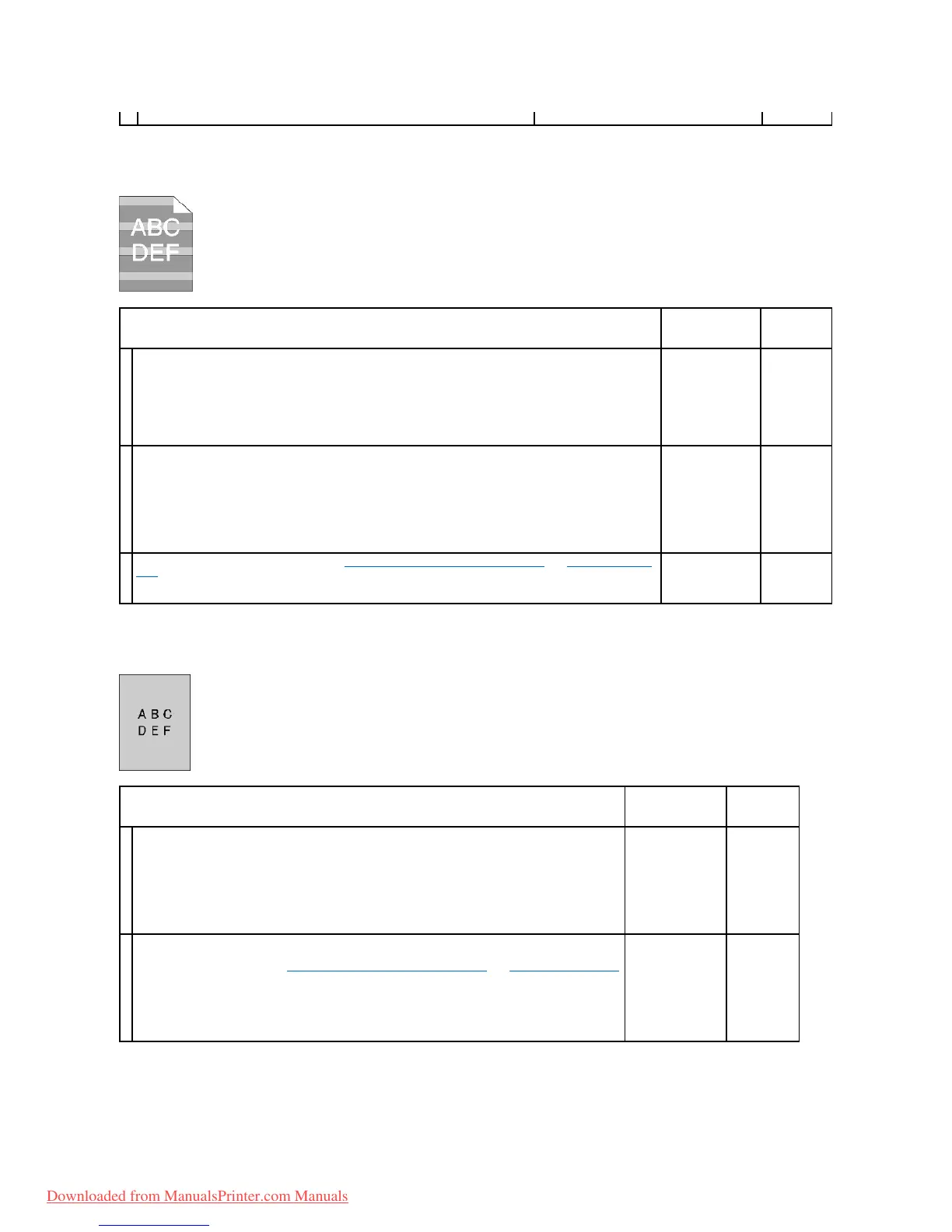
Light fatigue
Fog
Bead-Carry-Out (BCO)
Is the problem recovered?
Check the light fatigue pattern using the Pitch Configuration Chart.
1. Launch the Tool Box, and click Chart Print on the Diagnosis tab.
2. Click the Pitch Configuration Chart button.
The Pitch Configuration Chart is printed.
Does the pattern on the output match with that on the Pitch Configuration Chart?
Execute the PHD Refresh Mode.
1. Launch the Tool Box, and click Refresh Mode on the Diagnosis tab.
2. After you start the PHD Refresh Mode, click Chart Print on the Diagnosis tab.
3. Click the 4 Colors Configuration Chart button.
The 4 Colors Configuration Chart is printed.
Is the problem recovered?
Replace the PHD unit if you have a spare. See "Replacing the Print Head Device (PHD) Unit" and "Installing the PHD
Unit".
Is the problem recovered?
Execute the PHD Refresh Mode.
1. Launch the Tool Box, and click Refresh Mode on the Diagnosis tab.
2. After you start the PHD Refresh Mode, click Chart Print on the Diagnosis tab.
3. Click the 4 Colors Configuration Chart button.
The 4 Colors Configuration Chart is printed.
Is the problem recovered?
Replace the PHD unit if you have a spare.
1. Replace the PHD unit. See "Replacing the Print Head Device (PHD) Unit" and "Installing the PHD Unit".
2. After you replace the PHD unit, click Chart Print on the Diagnosis tab.
3. Click the 4 Colors Configuration Chart button.
The 4 Colors Configuration Chart is printed.
Is the problem recovered?
Downloaded from ManualsPrinter.com Manuals



 To Next Page