Printer Settings Utility
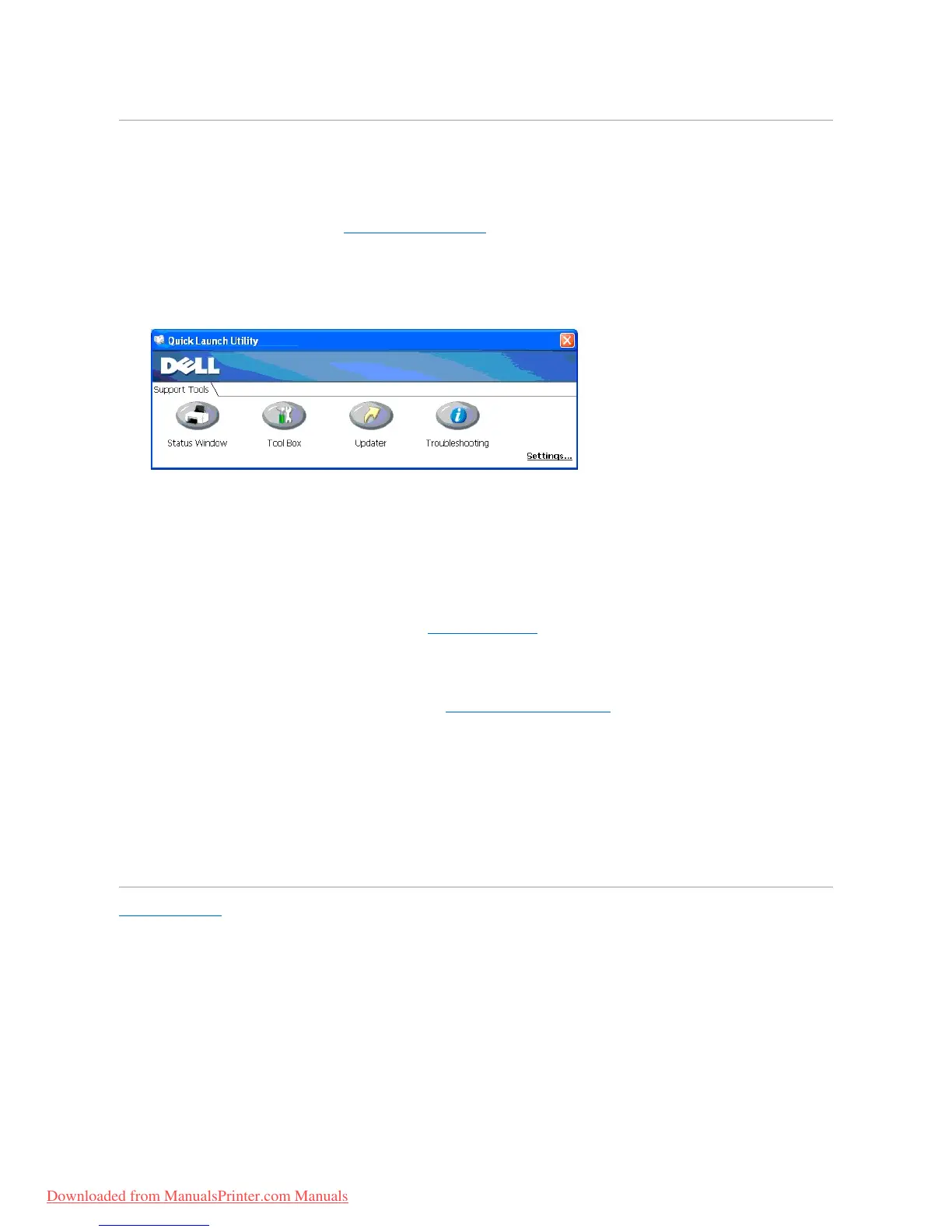
Using the Quick Launch Utility window, you can open Status Window, Tool Box, Updater and Troubleshooting.
When you install the Dell software, the Quick Launch Utility is automatically installed.
For information about installing the software, see "Setting Up for Shared Printing".
To open the Quick Launch Utility window:
1. Click start® All Programs® Dell Printers® Additional Color Laser Software® Quick Launch Utility.
The Quick Launch Utility dialog box opens.
2. The Quick Launch Utility window provides four buttons; Status Window, Tool Box, Updater, and Troubleshooting.
To exit, click the X button at the top-right of the window.
For details, click the Help button of each application.
Status Window
The Status Window button opens the Printing Status Window. See "Printer Status Window".
Tool Box
You can use the Tool Box to specify various settings for the printer. See "Understanding the Tool Box Menus".
Updater
The Updater button updates the settings for the printer driver.
Troubleshooting
The Troubleshooting button opens the Troubleshooting Guide, which allows you to recover problems by yourself.
Back to Contents Page



 To Next Page