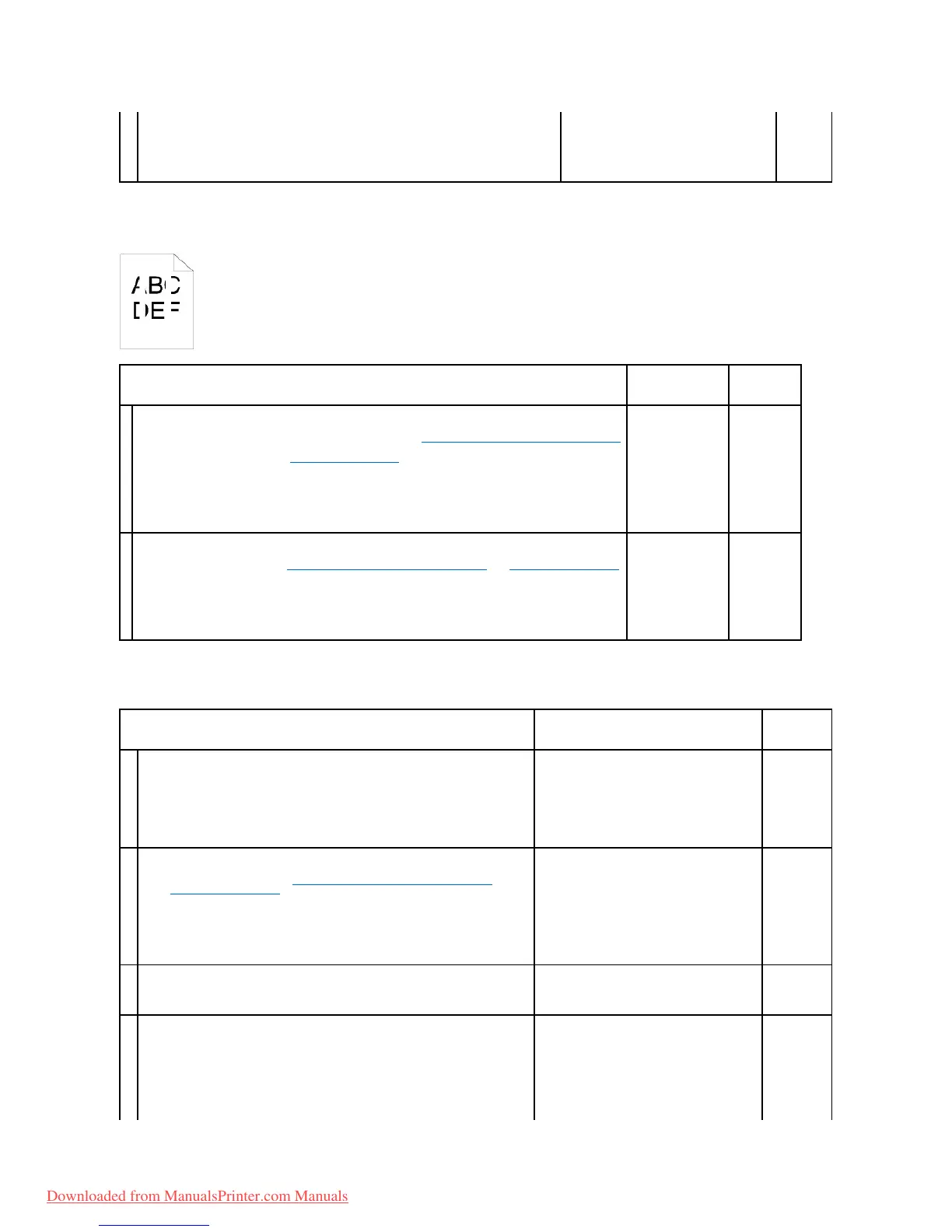
Vertical blanks
Ghosting
2. After you replace the fuser, click Chart Print on the Diagnosis tab.
3. Click the Pitch Configuration Chart button.
The Pitch Configuration Chart is printed.
Is the problem recovered?
Ensure the light path is not covered.
1. Remove the PHD unit, and keep it in the dark place. See "Replacing the Print Head Device (PHD) Unit".
2. Check the light path, and then remove the shielding.
3. Reinstall the PHD unit. See "Installing the PHD Unit".
4. Launch the Tool Box, and click Chart Print on the Diagnosis tab.
5. Click the Pitch Configuration Chart button.
The Pitch Configuration Chart is printed.
Is the problem recovered?
Replace the PHD unit if you have a spare.
1. Replace the PHD unit. See "Replacing the Print Head Device (PHD) Unit" and "Installing the PHD Unit".
2. After you replace the PHD unit, click Chart Print on the Diagnosis tab.
3. Click the Pitch Configuration Chart button.
The Pitch Configuration Chart is printed.
Is the problem recovered?
Locate the cause of the problem using the Ghost Configuration Chart.
1. Launch the Tool Box, and click Chart Print on the Diagnosis tab.
2. Click the Ghost Configuration Chart button.
The Ghost Configuration Chart is printed.
Is the type of ghosting identified?
Proceed to the action corresponding to the type
of ghosting.
Positive ghost - 2a
Negative ghost - 2b
Replace the PHD unit if you have a spare.
1. Replace the PHD unit. See "Replacing the Print Head Device (PHD) Unit" and
"Installing the PHD Unit".
2. After you replace the PHD unit, click Chart Print on the Diagnosis tab.
3. Click the Ghost Configuration Chart button.
The Ghost Configuration Chart is printed.
Is the problem recovered?
If using non-recommended print media, use the print media recommended for the
printer.
Is the problem recovered?
Adjust the transfer bias.
1. On the operator panel, select Admin Menu ® Maintenance ® Adjust BTR.
2. Adjust the setting for the type of print media being used.
3. Launch the Tool Box, and click Chart Print on the Diagnosis tab.
4. Click the Ghost Configuration Chart button.
The Ghost Configuration Chart is printed.
Downloaded from ManualsPrinter.com Manuals



 To Next Page