EasyManua.ls Logo

Dell E310dw - User Manual

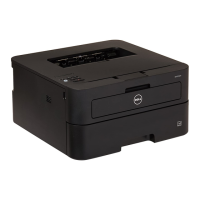
Dell E310dw
216 pages
Print Icon
To Next Page IconTo Next Page
Loading...
Dell Printer | E310dw
Users Guide
Regulatory Model: Dell E130dw

Table of Contents

Other manuals for Dell E310dw

Questions and Answers

  • L
    Luke OchoaAug 15, 2025
    Why is my Dell E310dw not printing anything?
    • J
      John TorresAug 16, 2025
      If your Dell Printer E310dw isn't printing, first ensure the correct printer driver is installed and selected. Check the Status Monitor (Macintosh only) or the printer's control panel for any error messages. Also, verify the printer is online. For Windows 7 and Windows Server 2008 R2, go to Start > Devices and Printers, right-click your printer, and select 'See what's printing'. Then, click 'Printer' in the menu bar and ensure 'Use Printer Offline' is unchecked. For other Windows versions, similar steps apply to ensure the printer is online and not set to offline mode. Lastly, make sure the printer is not in Power Off mode; if it is, press and hold the power button, and then resend the print data.
  • J
    Johnny MartinezAug 18, 2025
    Why won't my Dell E310dw turn on?
    • L
      Luis ChavezAug 18, 2025
      Adverse conditions on the power connection, such as lightning or a power surge, may have triggered the printer's internal safety mechanisms. Unplug the power cord, wait ten minutes, then plug it back in and press the power button. If that doesn't work, press and hold the power button to turn off the printer. If you're using a backup battery or surge suppressor, disconnect it and plug the printer directly into a different, known working wall outlet.
  • V
    Vanessa RodgersAug 22, 2025
    What to do if my Dell E310dw is printing unexpectedly or printing garbage?
    • M
      Mr. Ruben TorresAug 22, 2025
      If your Dell printer is printing unexpectedly or printing garbage, immediately cancel the current print job by pressing and holding the X (Cancel) button for about two seconds. Also, check the settings in your application to ensure they are correctly configured to work with your printer.
  • P
    Patricia GilbertAug 25, 2025
    What to do if my Dell E310dw is not feeding paper?
    • J
      Jon LongAug 26, 2025
      If your Dell printer isn't feeding paper, first ensure the paper in the tray is straight and not curled. Try removing the paper, turning the stack over, and placing it back in the tray. Reduce the amount of paper in the tray. Also, check that 'Manual' is not selected as the Paper Source in the printer driver and clean the paper pick-up rollers.
  • M
    Matthew SanchezAug 28, 2025
    How to fix slow print speed on Dell E310dw?
    • C
      Charles LevyAug 28, 2025
      If your Dell printer's print speed is too slow, try changing the printer driver setting. Keep in mind that the highest resolution requires longer data processing, sending, and printing time.
  • J
    Joel Braun Jr.Aug 31, 2025
    What to do if my Dell E310dw is not feeding envelopes?
    • C
      cunninghammichaelAug 31, 2025
      When feeding envelopes into your Dell printer, load one envelope at a time into the manual feed slot. Ensure your application is set to print the envelope size you are using, typically found in the Page Setup or Document Setup menu.
  • G
    gardnerdanielSep 2, 2025
    Why does my Dell E310dw Printer print some pages with missing text?
    • D
      doconnellSep 2, 2025
      If your Dell printer prints the first few pages correctly but then some pages have missing text, ensure the interface cable is correctly connected. This issue may arise if your computer isn't fully recognizing the printer's input buffer signal.
  • M
    Margaret WilliamsSep 6, 2025
    How to fix Dell E310dw not printing on both sides?
    • B
      Beth AyalaSep 6, 2025
      If your Dell printer isn't printing on both sides even with the 2-sided setting enabled, check the paper size setting in the printer driver. Ensure you've selected Letter, Legal, or Folio paper (for the US region; A4 for the EU region) with a weight of 16 to 28 lb (60 to 105 g/m2).
  • A
    Amber AndersonSep 9, 2025
    How to load paper in the manual feed slot of my Dell E310dw?
    • K
      Kristi RobertsSep 9, 2025
      To load paper in the manual feed slot of your Dell printer, use both hands to firmly push one sheet of paper into the slot until the top edge presses against the paper feed rollers. Continue pressing the paper against the rollers until the printer grabs it and pulls it in further. Ensure you are only inserting one sheet of paper at a time and that 'Manual' is selected for Paper Source in the printer driver.
  • A
    Amanda HarperSep 12, 2025
    Why don't headers or footers show up when printing from my Dell E310dw?
    • A
      Aaron HallSep 12, 2025
      If headers or footers appear on your screen but don't print, adjust the top and bottom margins in your document to account for the unprintable area at the top and bottom of the page.

Summary

Paper Handling

Load and Print using the Paper Tray

Step-by-step instructions for loading paper into the main paper tray.

Print

Print from Your Computer (Windows)

Comprehensive guide on printing from Windows, covering basic and advanced methods.

Print from Your Computer (Macintosh)

Instructions for printing documents and adjusting print options on Macintosh systems.

Adjust Print Settings from the Machine’s Control Panel

How to modify print settings like 2-sided printing and cancel jobs directly on the machine.

Network

Select Your Network Connection Type

Guides users to identify and choose between wired or wireless network connections.

Additional Methods of Configuring Your Dell Machine for a Wireless Network

Covers various wireless setup methods including WPS, Ad-Hoc, and manual configuration.

Network Menu on the Dell Control Panel

Explains the network configuration options available through the printer's control panel.

Security

Lock the Machine Settings

How to set and manage a password to prevent unauthorized access to machine settings.

Troubleshooting

Printing Problems

Guides users through common printing issues like no printout or garbled output.

Network Problems

Addresses issues related to network connectivity, driver installation, and printing over the network.

Error and Maintenance Messages

Explains common error messages and provides actions to resolve them.

Clear the Paper Jam

Step-by-step instructions for safely removing paper jams from various locations in the machine.

Improve the Print Quality

Provides solutions for print quality issues such as faint prints, ghosting, and streaks.

Routine Maintenance

Replace Supplies

Instructions for replacing consumables like toner cartridges and drum units.

Clean the Machine

Procedures for cleaning the printer's exterior and interior surfaces.

Machine Settings

Dell E310dw Specifications

General IconGeneral
ColorNo
Duplex printingYes
Print technologyLaser
Maximum resolution600 x 600 DPI
Print speed (black, normal quality, A4/US Letter)27 ppm
Duplex print speed (black, normal quality, A4/US Letter)15 ppm
Printing colorsBlack
Maximum duty cycle10000 pages per month
Recommended duty cycle250 - 1000 pages per month
Number of print cartridges1
Page description languagesMicrosoft XPS, PCL 6
Paper input typePaper tray, Sheetfed
Total input capacity250 sheets
Total output capacity100 sheets
Maximum input capacity251 sheets
Envelopes sizes10, C5, DL, Monarch
Paper tray media typesPlain paper, Recycled paper
Paper tray media weight80 - 60 g/m²
Non-ISO print media sizesExecutive (184 x 267mm), Folio (media size), Letter (media size), Legal (media size)
ISO A-series sizes (A0...A9)A4, A5, A6
ISO C-series sizes (C0...C9)C5
JIS B-series sizes (B0...B9)B5
Multi-purpose tray media typesBond paper, Envelopes, Labels, Plain paper, Recycled paper, Thick paper
Maximum ISO A-series paper sizeA4
Paper tray media weight (imperial)16 - 28 lbs
Wi-Fi standards802.11b, 802.11g, Wi-Fi 4 (802.11n)
Mobile printing technologiesApple AirPrint, Dell Mobile Print, Google Cloud Print, Mopria Print Service
Supported network protocols (IPv4)WPA2.0, WPS 2.0
Standard interfacesEthernet, USB 2.0, Wireless LAN
USB 2.0 ports quantityUSB 2.0 ports have a data transmission speed of 480 Mbps, and are backwards compatible with USB 1.1 ports. You can connect all kinds of peripheral devices to them.
Maximum internal memory- MB
Sound power level (standby)31 dB
Sound pressure level (printing)50 dB
DisplayLCD
CertificationUL/cTUVus, FDA, CB, CE, R&TTE, Ctick, A-Tick, Nom, Semko, ICASA, IEC60650-1, CIPSR22, 24, FCC, VCCI, ErP Lot 6 Tier 2(2013), ErP Lot 4 (2012), RoHS-compliant, WEEE, ErP Lot 26 Tier 1 and Tier 2
Display number of lines1 lines
AC input frequency50 - 60 Hz
Power consumption (max)468 W
Power consumption (standby)58 W
Power consumption (printing)455 W
Sustainability certificatesENERGY STAR
Linux operating systems supportedRedHat EL Linux 6.0, SuSE Linux 11, Ubuntu 12.04
Server operating systems supportedWindows Server 2003, Windows Server 2003 x64, Windows Server 2008, Windows Server 2008 R2, Windows Server 2012, Windows Server 2012 R2
Windows operating systems supportedWindows 7 Enterprise, Windows 7 Enterprise x64, Windows 7 Home Basic, Windows 7 Home Basic x64, Windows 7 Home Premium, Windows 7 Home Premium x64, Windows 7 Professional, Windows 7 Professional x64, Windows 7 Starter, Windows 7 Starter x64, Windows 7 Ultimate, Windows 7 Ultimate x64, Windows 8, Windows 8 Enterprise, Windows 8 Enterprise x64, Windows 8 Pro, Windows 8 Pro x64, Windows 8 x64, Windows 8.1, Windows 8.1 Enterprise, Windows 8.1 Enterprise x64, Windows 8.1 Pro, Windows 8.1 Pro x64, Windows 8.1 x64, Windows Vista Business, Windows Vista Business x64, Windows Vista Enterprise, Windows Vista Enterprise x64, Windows Vista Home Basic, Windows Vista Home Basic x64, Windows Vista Home Premium, Windows Vista Home Premium x64, Windows Vista Ultimate, Windows Vista Ultimate x64
Operating altitude0 - 2000 m
Storage temperature (T-T)0 - 35 °C
Operating temperature (T-T)10 - 32.5 °C
Storage relative humidity (H-H)10 - 80 %
Operating relative humidity (H-H)20 - 85 %
Package depth391 mm
Package width451 mm
Package height529 mm
Package weight9000 g
Cables includedAC
Languages supportDAN, DEU, DUT, ENG, ESP, FRE, ITA, NOR, SWE
Printer managementDell Printer Hub, Dell Open Print Driver (OPD), Dell OpenManage Printer Manager v2 (OMPM), Standard Printer MIB
Weight and Dimensions IconWeight and Dimensions
Depth183 mm
Width360 mm
Height356 mm

Related product manuals