20 Introduction to Your Dell Machine
Control Panel Overview
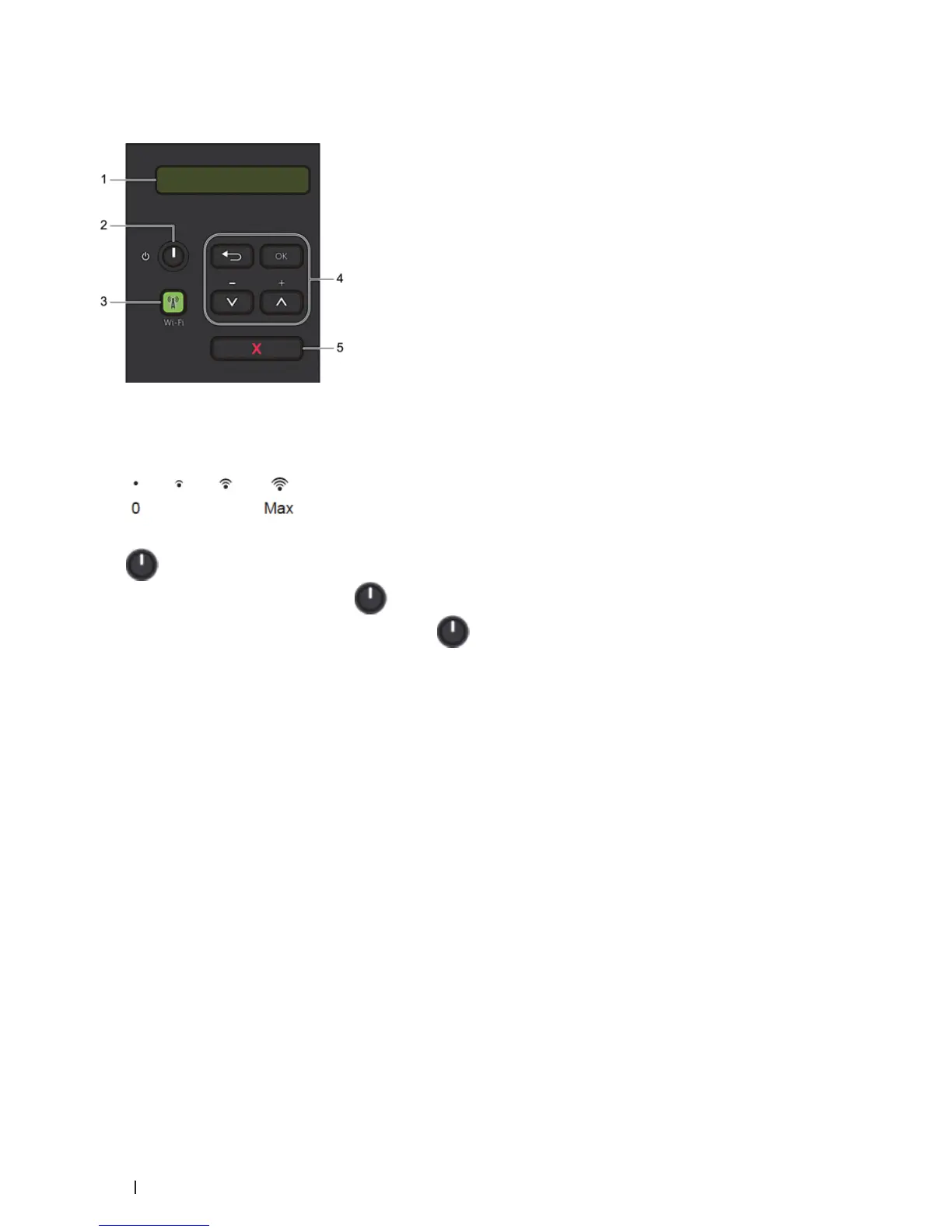
1. LCD (Liquid Crystal Display)
Displays messages to help you set up and use your machine.
A four-level indicator shows the wireless signal strength if you are using a wireless connection.
2. Power On/Off Button
• Turn on the machine by pressing
.
• Turn off the machine by pressing and holding
. The LCD displays Shutting Down for a few seconds
before going off.
3. Network Button
Wi-Fi
Press the Wi-Fi button and launch the wireless installer on your computer. Follow the on-screen instructions to
set up a wireless connection between your machine and your network.
When the Wi-Fi light is on, your Dell machine is connected to a wireless access point. When the Wi-Fi light
blinks, the wireless connection is down, or your machine is in the process of connecting to a wireless access point.
4. Menu Buttons
OK
Press to store your machine settings. After you change a setting, the machine returns to the previous menu level.
Back
• Press to go back one level in the menu.
• Press to select the previous digit when setting numbers.
porq( + or - )
• Press to scroll through menus and options.
• Press to enter a number or to increase or decrease the number. Hold down p or q to scroll faster. When you
see the number you want, press OK.


 To Next Page