53Print
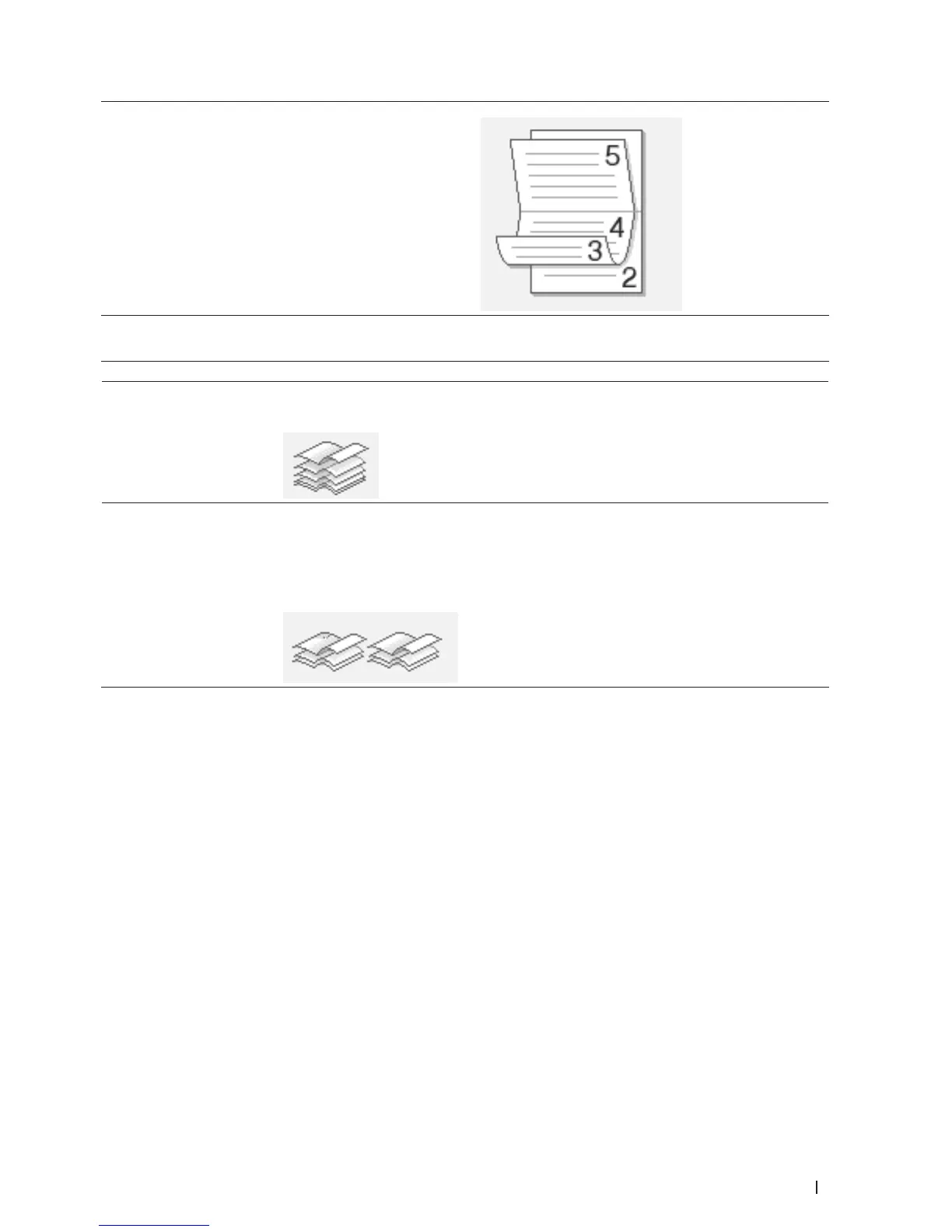
Bottom Binding
7. Select one of the options from the Booklet Printing Method menu.
Option Description
All Pages at Once
Every page will be printed in booklet format (four pages to every piece of paper, two
pages per side). Fold your printout in the middle to create the booklet.
Divide into Sets
This option prints the whole booklet in smaller individual booklet sets, allowing you
to fold at the center of the smaller individual booklet sets without having to change
the order of the printed pages. You can specify the number of sheets in each smaller
booklet set (from 1-15). This option can be helpful when folding a printed booklet
that has a large number of pages.
8. Select the Binding Offset check box if you want to specify the offset for binding in inches or millimeters.
9. Change other printer settings if needed.
10. Click OK.
11. Do one of the following:
• For automatic booklet printing, click OK again, and then complete your print operation.
• For manual booklet printing, click OK again and follow the screen instructions.
Change the Paper Source (Windows
®
)
Select a paper source setting that matches your print conditions or purpose.
1. Select the print command in your application.
2. Select Dell Printer E310dw, and then click the printing properties or preferences button.
The printer driver window appears.
3. Click the First Page and Other Pages drop-down lists to select your paper tray from each list.


 To Next Page