47Print
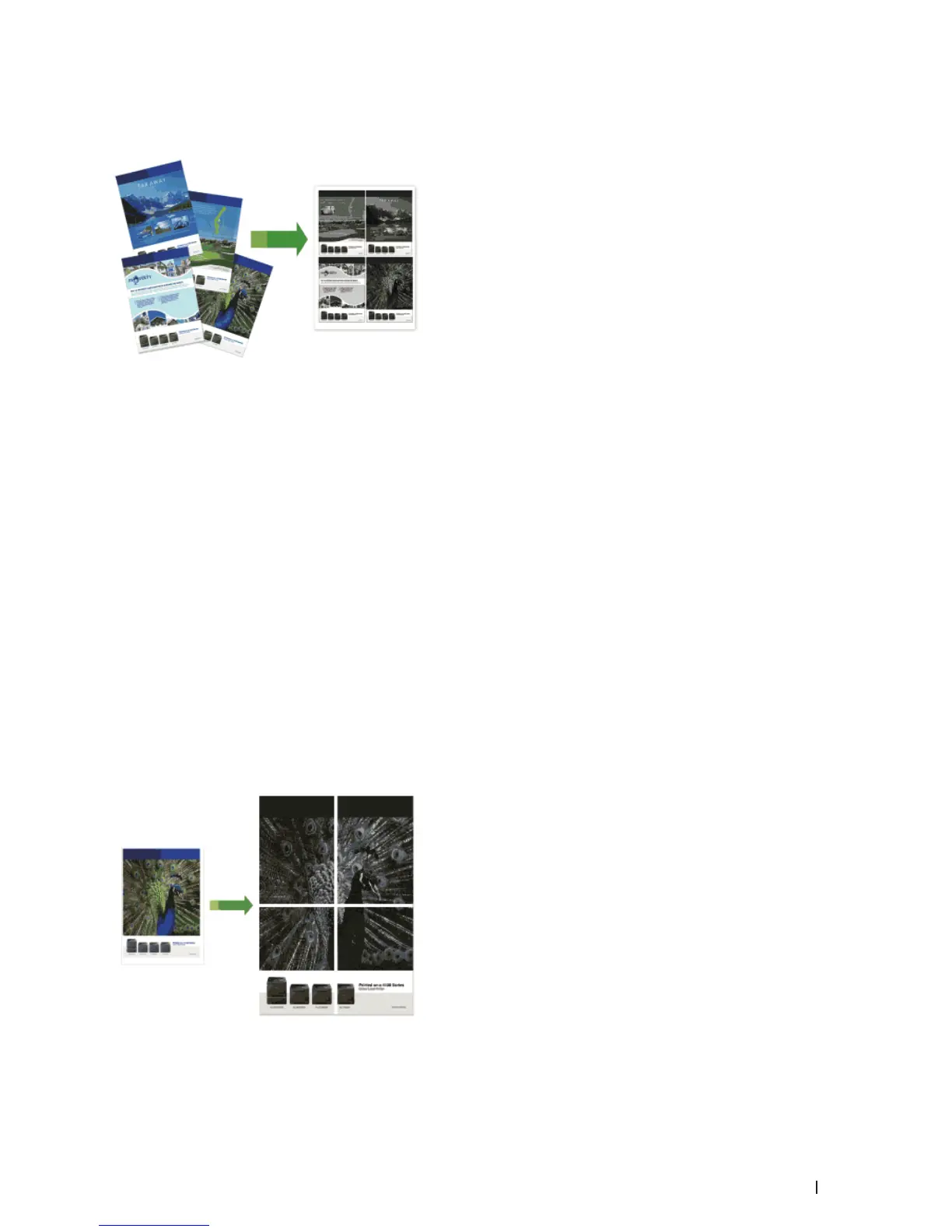
Print More Than One Page on a Single Sheet of Paper (N in 1) (Windows
®
)
1. Select the print command in your application.
2. Select Dell Printer E310dw, and then click the printing properties or preferences button.
The printer driver window appears.
3. Click the Portrait or Landscape option to set the orientation of your printout.
NOTE: If your application software contains a similar layout feature, we recommend using the one in the
application.
4. Click the Multiple Page drop-down list, and then select the 2 in 1 , 4 in 1 , 9 in 1 , 16 in 1 , or 25 in 1 option.
5. Click the Page Order drop-down list, and then select your page order.
6. Click the Border Line drop-down list, and then select your border line type.
7. Change other printer settings if needed.
8. Click OK.
9. Complete your print operation.
Print as a Poster (Windows
®
)
Enlarge your print size and print the document in poster mode.
1. Select the print command in your application.


 To Next Page