137Troubleshooting
Toner Ended(Continue
mode)
It is time to replace the toner cartridge. Replace the toner cartridge with a new one.
Toner Low
If the LCD displays this message you can still
print. The toner cartridge is near the end of its
life.
Order a new toner cartridge now so you have it
when the LCD displays Replace Toner.
Clear the Paper Jam
Always remove the remaining paper from the paper tray and straighten the stack when you are adding new paper.
This helps prevent multiple sheets of paper from feeding through the machine at one time and prevents paper jams.
• Paper is Jammed in the Paper Tray
• Paper is Jammed at the Back of the Machine
• Paper is Jammed inside the Machine
• Paper is Jammed in the 2-sided Tray
Paper is Jammed in the Paper Tray
If the machine's control panel or the Status Monitor (for Macintosh only) displays there is a jam in the paper tray, do
the following steps.
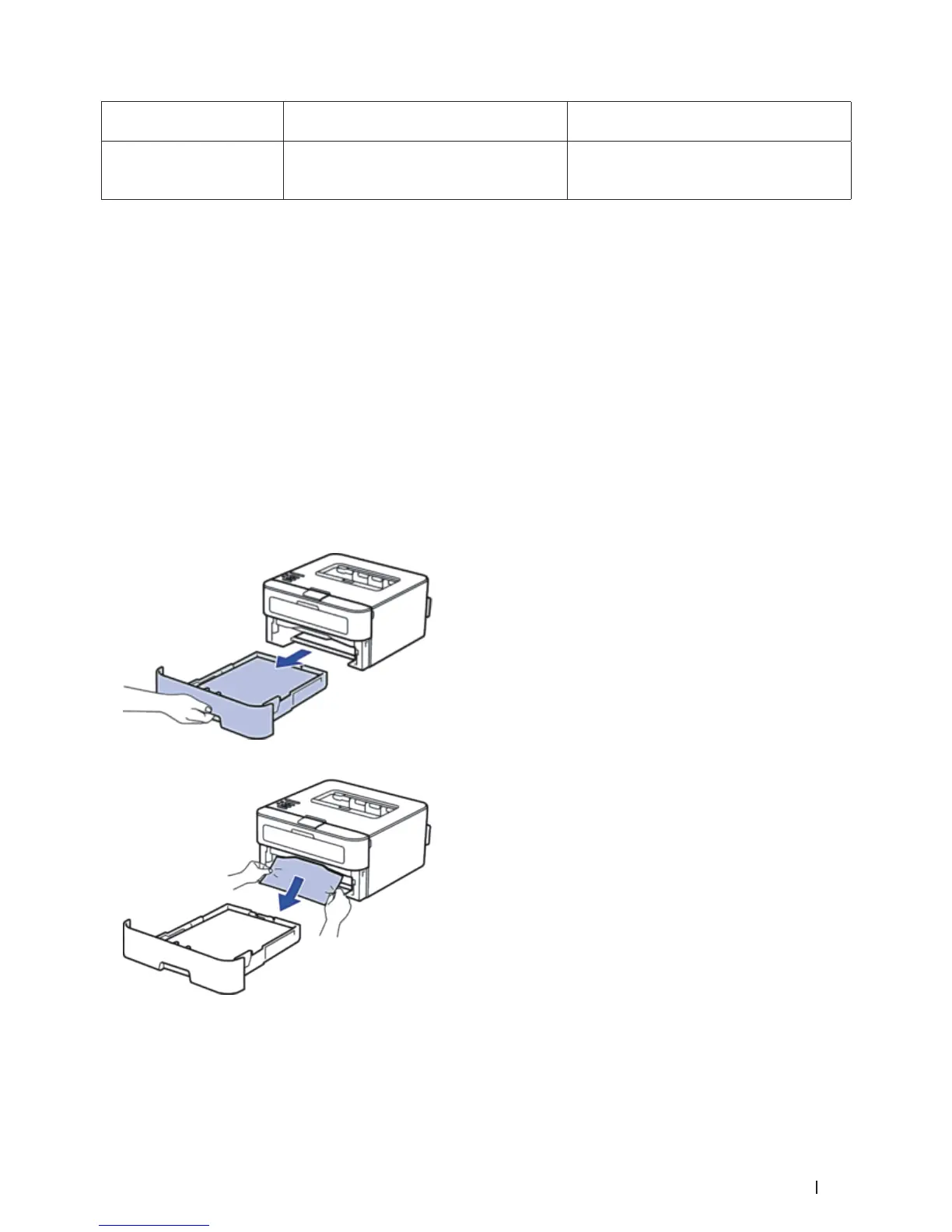
1. Pull the paper tray completely out of the machine.
2. Slowly pull out the jammed paper.
Pulling the jammed paper downward using both hands allows you to remove the paper more easily.
3. Fan the stack of paper to prevent further jams, and slide the paper guides to fit the paper size.


 To Next Page