69Print
7. Change other printer settings if needed.
8. Click Print.
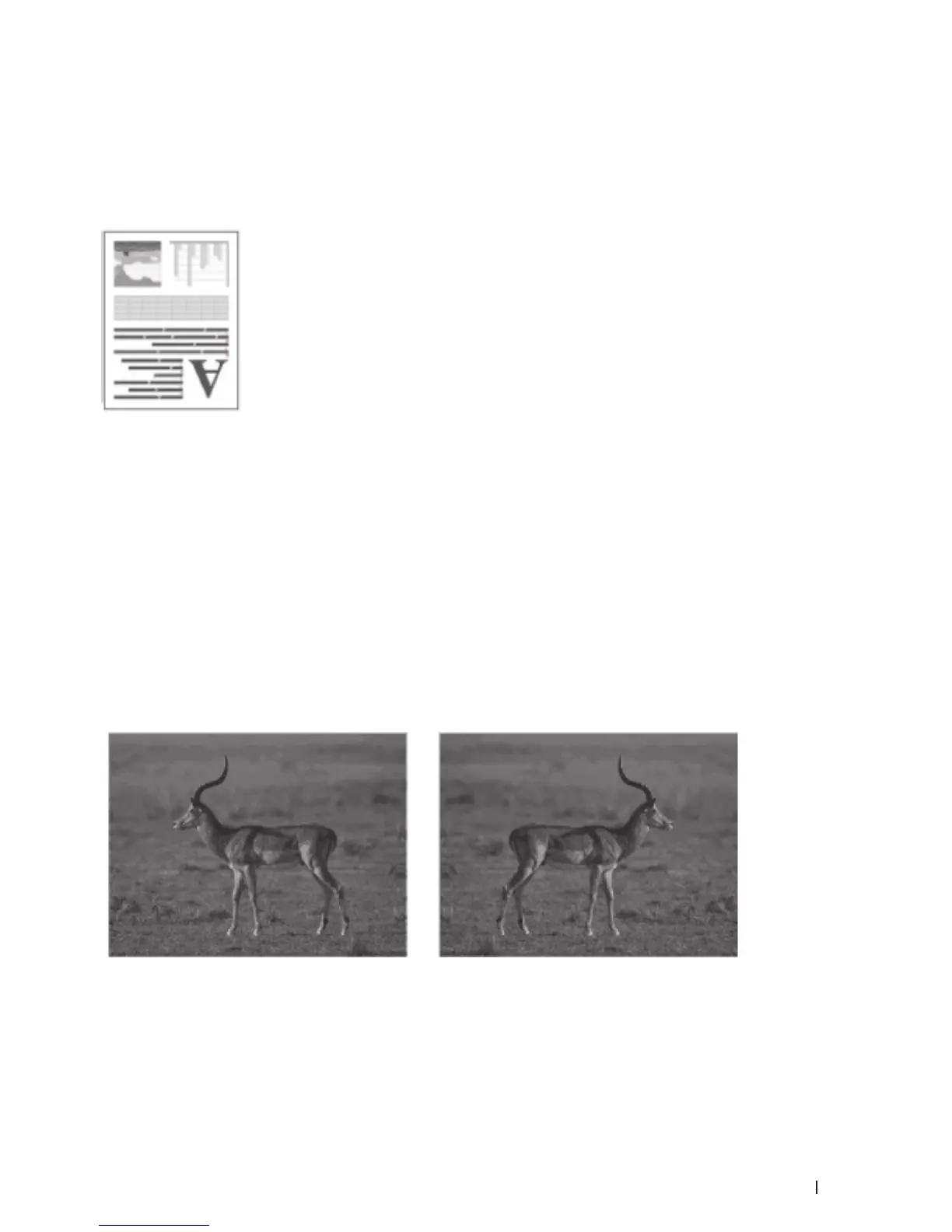
Reverse Print (Macintosh)
This setting rotates the printed image 180 degrees.
1. From an application, such as Apple TextEdit, click the File menu, and then select Print.
2. Select Dell Printer E310dw.
NOTE: For more page setup options, click the Show Details button.
3. Click the application pop-up menu, and then select Layout.
The Layout setting options appear.
4. Select the Reverse page orientation check box.
5. Change other printer settings, if needed.
6. Click Print.
Flip Horizontally (Macintosh)
The Flip horizontally option reverses the printout horizontally from left to right.
1. From an application, such as Apple TextEdit, click the File menu, and then select Print.
2. Select Dell Printer E310dw.
NOTE: For more page setup options, click the Show Details button.


 To Next Page