145Troubleshooting
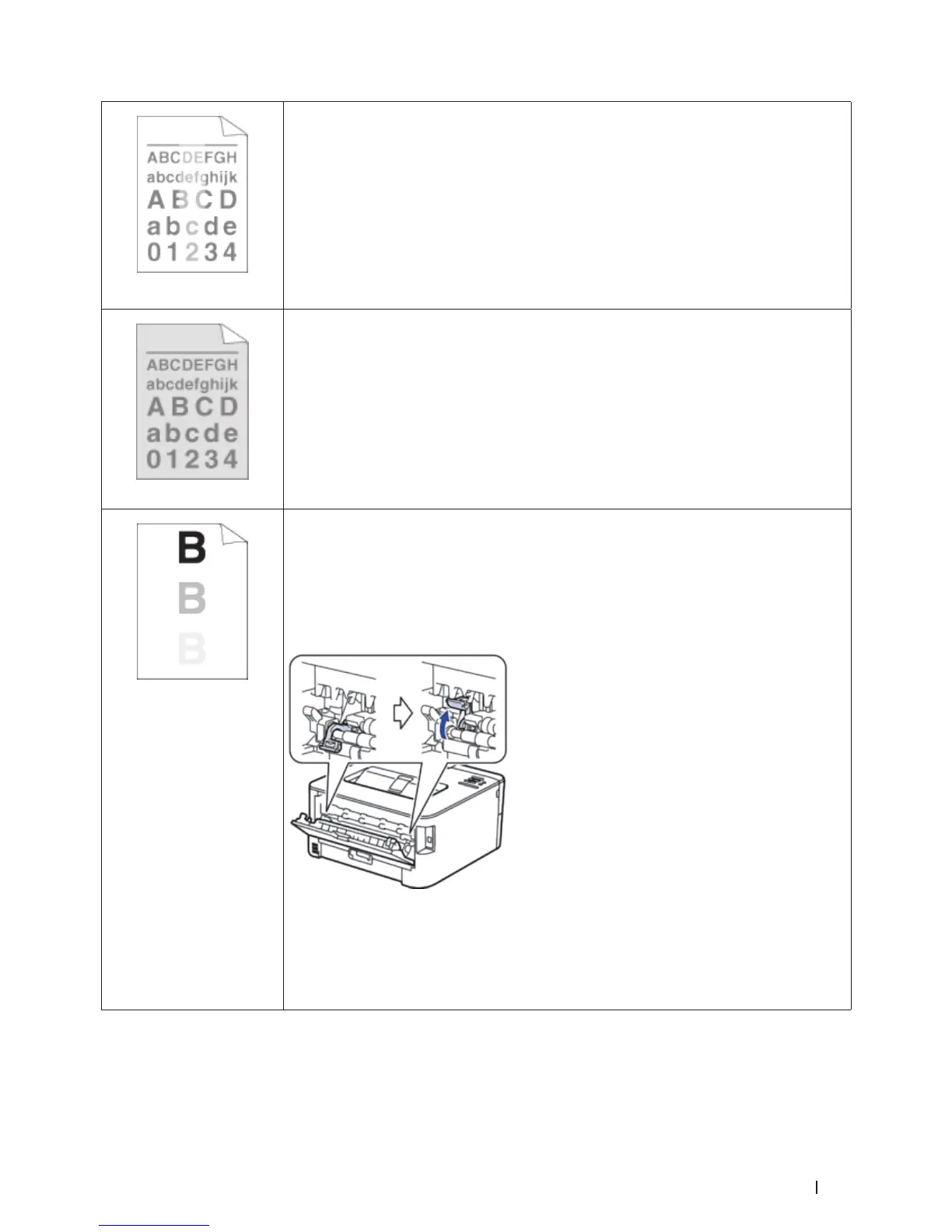
Faint
• If the machine indicates Replace Toner status, put in a new toner cartridge.
• Check the machine's environment. Conditions such as humidity, high temperatures, and so
on, may cause this print fault.
• If the whole page is too light, Toner Save may be turned on. Turn off Toner Save mode in
the machine's menu settings or the printer driver.
• Clean the drum unit.
• Clean the corona wire of the drum unit.
• Replace the toner cartridge with a new toner cartridge.
• Replace the drum unit with a new drum unit.
Gray background
• Check the machine's environment. Conditions such as high temperatures and high
humidity can increase the amount of background shading.
• Clean the drum unit.
• Replace the toner cartridge with a new toner cartridge.
• Replace the drum unit with a new drum unit.
Ghost
• Check the machine's environment. Conditions such as low humidity and low temperatures
may cause this print quality problem.
• Select the appropriate media type in the printer driver.
• Select the appropriate media type in the menu setting.
• Make sure the two levers inside the back cover are in the up position. Pull up the two levers
until they stop.
• Clean the drum unit.
• Replace the drum unit with a new drum unit.
• Replace the toner cartridge with a new toner cartridge.
• The fusing unit may be contaminated.
Contact Dell Customer Service.


 To Next Page