About your monitor │ 13
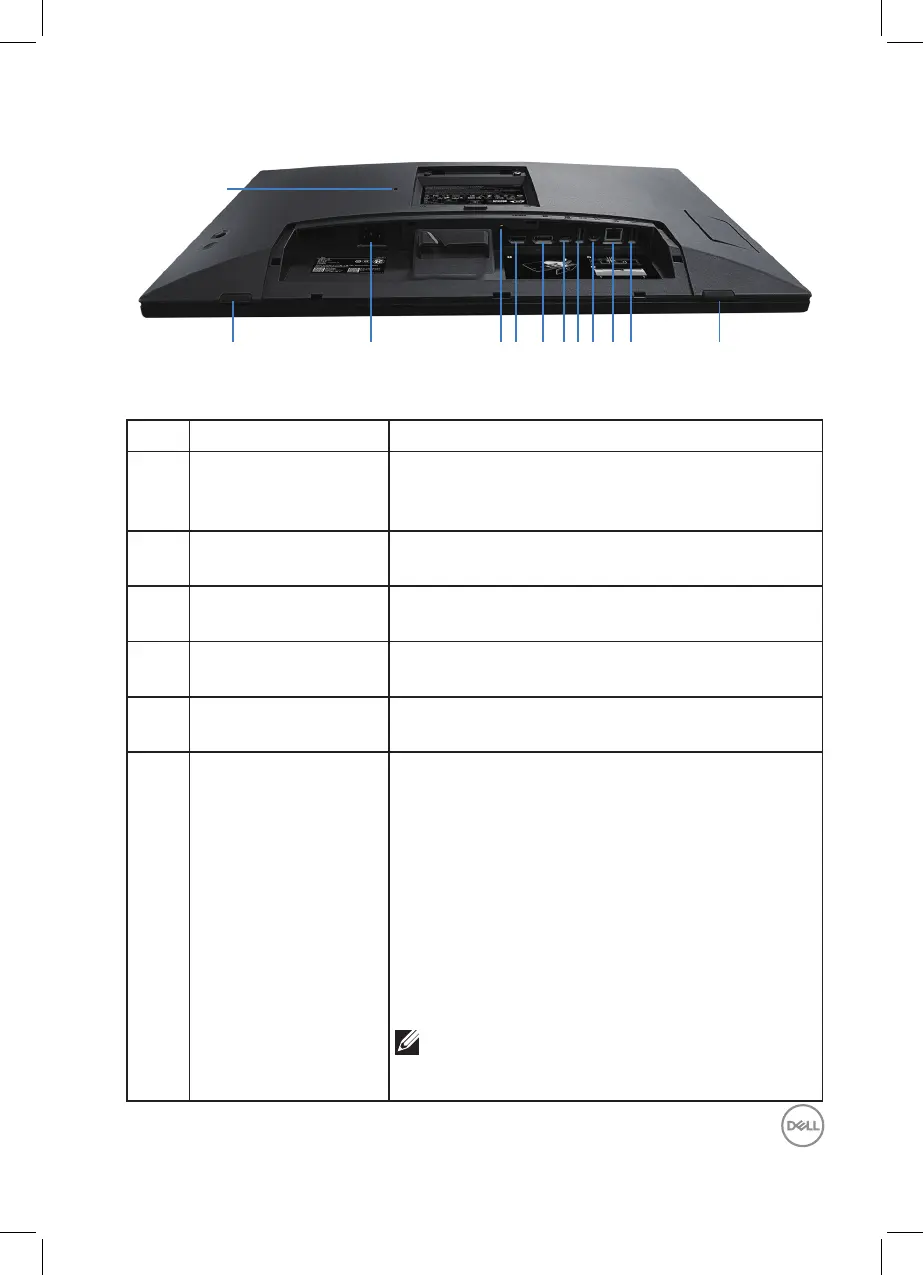
Bottom view
1
Bottom view without monitor stand
Label Description Use
1 Security lock slot
(based on Kensington
Security Slot)
Secure your monitor using a security lock
(purchased separately) to prevent unauthorized
movement of your monitor.
2 Power connector Connect the power cable (shipped with your
monitor).
3 Stand lock Lock the stand to the monitor using a M3 x 6 mm
screw (screw not included).
4 HDMI port Connect to your computer using a HDMI cable
(purchased separately).
5 DisplayPort Connect your computer with the DisplayPort cable
(shipped with your monitor).
6 USB-C upstream port Connect the USB-C (C-C) or (C-A) cable that
came with your monitor to the computer. Once
this cable is connected, you can use the USB
downstream connectors on the monitor and
the touch screen function on the monitor. This
port supports USB Power Delivery, Data, and
DisplayPort video signal. The SuperSpeed USB
5 Gbps (USB 3.2 Gen1) Type-C port supports
Alternate Mode DP1.2 with a maximum resolution
of 1920 x 1080 @ 60 Hz, PD 20 V/4.5 A, 15 V/3 A,
9 V/3 A, 5 V/3 A.
NOTE: USB-C is not supported on
versions of Windows prior to Windows
10.


 To Next Page