● Ensure any screws during the servicing of this product are not lost or misplaced, to prevent accidental
puncture or damage to the battery and other system components.
● If a battery gets stuck in a device as a result of swelling, do not try to free it as puncturing, bending, or
crushing a Lithium-ion battery can be dangerous. In such an instance, contact for assistance and further
instructions.
● If the battery gets stuck inside your computer as a result of swelling, do not try to release it as puncturing,
bending, or crushing a lithium-ion battery can be dangerous. In such an instance, contact Dell technical
support for assistance. See https://www.dell.com/support.
● Always purchase genuine batteries from https://www.dell.com or authorized Dell partners and resellers.
Removing battery
1. Follow the procedure in Before working inside your computer.
2. Remove the:
a. Removing the SIM tray – WWAN models on page 12
b. base cover
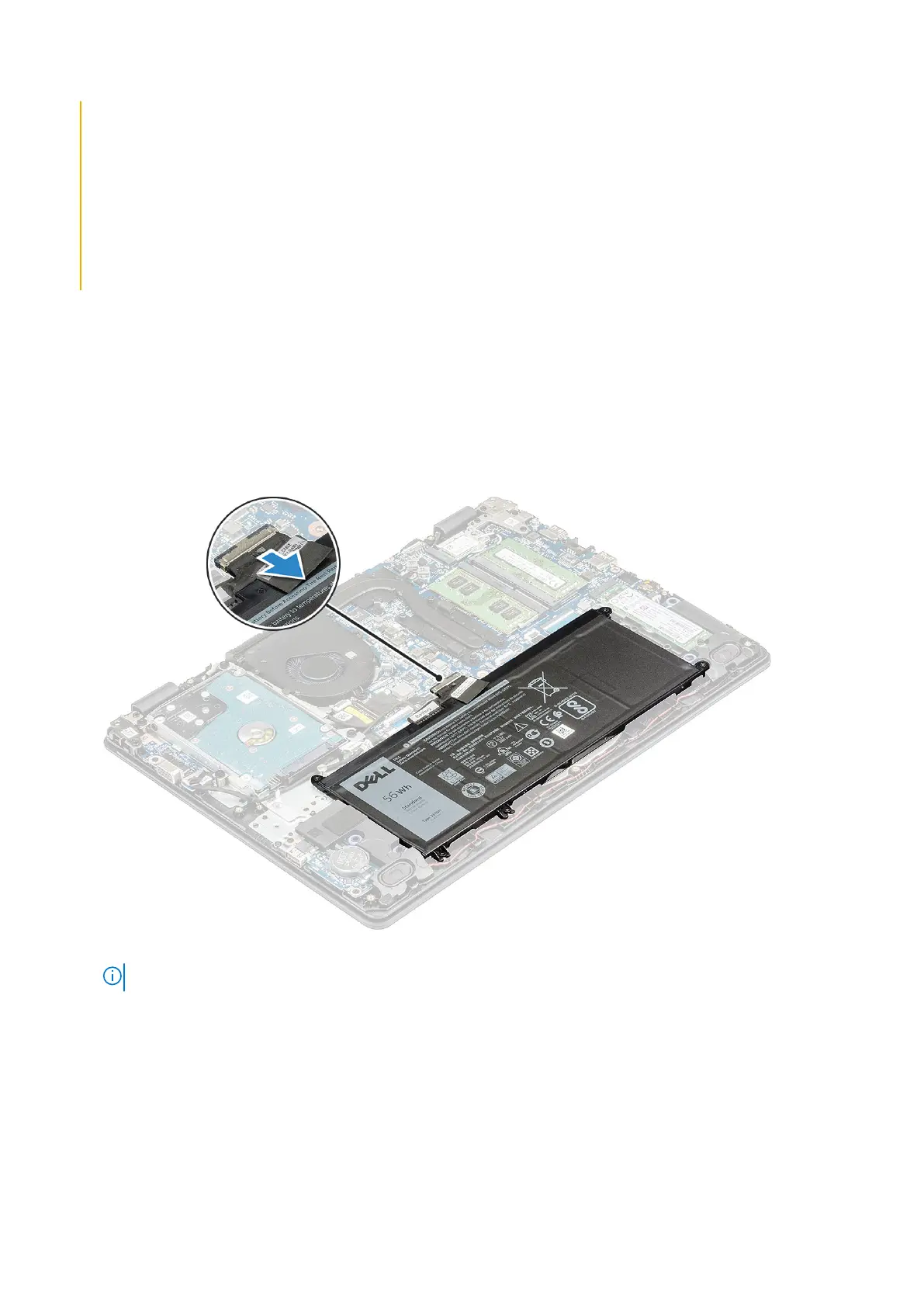
3. To remove the battery:
a. Disconnect the battery cable from the connector on the system board .
b. Remove the 5 M2x3 screws that secure the battery to the computer [1].
NOTE: The 3-cell battery has only 3 screws.
c. Lift the battery away from the computer [2].
Disassembly and reassembly
17




 To Next Page