EasyManua.ls Logo

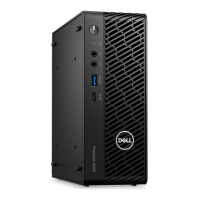
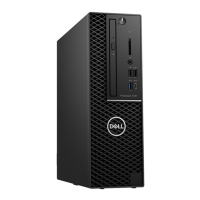
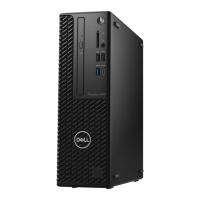
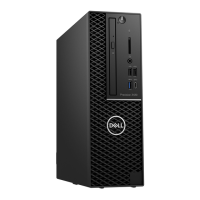
Dell Precision 3240 Compact - User Manual

Dell Precision 3240 Compact
79 pages
Print Icon
To Next Page IconTo Next Page
Loading...
Dell Precision 3240 Compact
Servisní manuál
Regulační model: D16S
Regulační typ: D16S001
August 2020
Rev. A00

Table of Contents

Other manuals for Dell Precision 3240 Compact

Questions and Answers

  • P
    Paul CookAug 30, 2025
    What to do if Dell Musical Instrument has Memory odd/even logic failure?
    • J
      Jerry WernerAug 30, 2025
      If your Dell Musical Instrument displays 'Memory odd/even logic failure at address, read value expecting value', reinstall the memory module or, if necessary, replace it.
  • A
    Ashley AcostaAug 31, 2025
    How to resolve 'Memory write/read failure' error on Dell Musical Instrument?
    • D
      Dr. Bradley LunaAug 31, 2025
      If your Dell Musical Instrument displays 'Memory write/read failure at address, read value expecting value', reinstall the memory module or, if necessary, replace it.
  • K
    Keith FlemingAug 25, 2025
    How to fix 'No memory/RAM detected' on Dell Musical Instrument?
    • D
      Donald HughesAug 25, 2025
      If your Dell Musical Instrument displays 'No memory/RAM detected', first confirm that the memory module is installed properly. If the problem persists, replace the memory module.
  • A
    Angela ClarkSep 1, 2025
    How to resolve 'Keyboard data line failure' error on Dell Musical Instrument?
    • L
      Lisa AndersonSep 1, 2025
      If your Dell Musical Instrument displays 'Keyboard data line failure', for external keyboards, check the cable connection. Run the Keyboard Controller test in Dell Diagnostics.
  • S
    Samuel McleanSep 2, 2025
    How to fix 'Keyboard stuck key failure' on Dell Musical Instrument?
    • P
      ppughSep 2, 2025
      If your Dell Musical Instrument displays 'Keyboard stuck key failure', for external keyboards or keypads, check the cable connection. Restart the computer, and avoid touching the keyboard or keys during the boot routine. Run the Stuck Key test in Dell Diagnostics.
  • C
    Christopher HendersonSep 2, 2025
    What to do if Dell Musical Instrument has Time-of-day clock stopped?
    • P
      Paige HardySep 3, 2025
      If your Dell Musical Instrument displays 'Time-of-day clock stopped', connect your computer to an electrical outlet to charge the battery.
  • R
    Robert BirdSep 3, 2025
    How to resolve 'Time-of-day not set' error on Dell Musical Instrument?
    • T
      tammyvargasSep 3, 2025
      If your Dell Musical Instrument displays 'Time-of-day not set-please run the system setup program', correct the settings for the Date and Time options.
  • B
    Bianca WilliamsSep 4, 2025
    What to do if file is too large for the destination drive on Dell Musical Instrument?
    • M
      Melanie TurnerSep 4, 2025
      If your Dell Musical Instrument shows 'The file being copied is too large for the destination drive', try copying the file to a different disk or use a larger capacity disk.
  • C
    Crystal MaciasSep 5, 2025
    How to fix 'No boot device available' on Dell Musical Instrument?
    • R
      Richard JimenezSep 5, 2025
      If your Dell Musical Instrument displays 'No boot device available', if the hard drive is your boot device, ensure that the drive is installed, properly seated, and partitioned as a boot device.
  • A
    Aaron ColemanSep 5, 2025
    How do I fix 'X:\ is not accessible. The device is not ready' on my Dell Musical Instrument?
    • M
      Mary RamirezSep 5, 2025
      If your Dell Musical Instrument displays the error message 'X:\ is not accessible. The device is not ready', insert a disk into the drive and try again.

Summary

Introduction and Safety Notes

Notes, Warnings, and Cautions

Explains key symbols like NOTES, WARNINGS, and CAUTIONS for safe operation.

Working Inside Your Computer

Safety Instructions

Guidelines to prevent computer damage and ensure user safety during handling.

Before Working Inside Your Computer

Procedures and precautions to take before starting any disassembly or repair.

Safety Precautions

Essential safety measures to follow before performing any disassembly or reassembly.

Antistatic Service Kit and ESD Protection

Information on using antistatic tools and protecting components from static discharge.

After Working Inside Your Computer

Steps to follow after completing internal work on the computer system.

Technology and Components

DDR4 Memory Technology

Details on DDR4 memory, its features, and differences from older generations.

Graphics Card Variants

Overview of available graphics card options, including Intel UHD and NVIDIA Quadro.

System Management Features

Explains Dell Client Command Suite for system management and In-Band/Out-of-Band capabilities.

USB Interface Features

Details on USB interface evolution, speeds, and compatibility, including USB 3.2.

System Components

Overview of System Components

Identifies and lists the main components of the computer system with their locations.

Removal and Replacement

Recommended Tools and Screw List

Lists necessary tools and the types of screws used for component removal and installation.

Top Cover and Side Bezel Removal

Step-by-step guide for removing and installing the top cover (side bezel) of the system.

Side Cover Removal and Installation

Procedures for removing and installing the side cover of the computer.

Front Bezel Removal and Installation

Instructions for removing and installing the front bezel of the system.

Hard Drive Assembly and Bracket

Guides for removing and installing the hard drive assembly and its bracket.

M.2 SSD Removal and Installation

Steps for removing and installing the M.2 PCIe solid-state drive.

WLAN Card Removal and Installation

Procedures for removing and installing the wireless network card.

Speaker Removal and Installation

Instructions for removing and installing the system's internal speaker.

Fan Assembly Removal and Installation

Steps for removing and installing the system's fan assembly.

Coin Cell Battery Removal and Installation

Guides for removing and installing the coin cell battery.

Memory Module Removal and Installation

Procedures for removing and installing the system's memory modules.

Riser Card Removal and Installation

Steps for removing and installing the riser card.

Dell Ultra-Speed Drive Removal and Installation

Guides for removing and installing the Dell Ultra-Speed Drive.

Graphics Card Removal and Installation

Procedures for removing and installing the system's graphics card.

Heatsink Removal and Installation

Steps for removing and installing the system's heatsink.

Interposer Module Removal and Installation

Guides for removing and installing the interposer module.

Processor Removal and Installation

Procedures for removing and installing the system's processor.

System Board Removal and Installation

Steps for removing and installing the system board.

Internal Antenna Removal and Installation

Procedures for removing and installing the internal antenna.

Troubleshooting

Operating System Recovery

How to recover the operating system using Dell SupportAssist OS Recovery.

Diagnostic LED Behavior

Explains the meaning of diagnostic LED blink sequences and error indications.

Diagnostic Error Messages

Lists common diagnostic error messages and their recommended solutions.

Restarting the Wi-Fi Power

Steps to restart the Wi-Fi power to resolve connectivity issues.

Help and Contacting Dell

Resources for Finding Help

Information on accessing Dell's online support resources and knowledge base.

Contacting Dell

How to contact Dell support via online channels or phone for assistance.

Dell Precision 3240 Compact Specifications

General IconGeneral
ChipsetIntel W480
WirelessIntel Wi-Fi 6 AX201, Bluetooth 5.1
Processor Options10th Gen Intel Core i5, i7, i9; Xeon W-1200 series
Processor ModelsIntel Core i3, i5, i7, i9; Intel Xeon W-1250, W-1270, W-1290
MemoryUp to 64GB DDR4
Storage Options2.5" HDD/SSD, M.2 PCIe NVMe SSD
Graphics OptionsIntel UHD Graphics 630; NVIDIA Quadro P1000
Operating SystemWindows 10 Pro; Ubuntu Linux
Power Supply180W or 240W external adapter
PortsHDMI 2.0, DisplayPort 1.4, RJ-45, audio jack

Related product manuals