Using Your Projector 59
3D FORMAT—Allows you to select the 3D format. Options are: Side By Side,
Side By Side Full, Frame Sequential, Field Sequential, Top/Bottom, and
Top/Bottom Full.
3D S
YNC INVERT—If you see a discrete or overlapping image while
wearing DLP 3D goggles, you may need to execute 'Invert' to get best
match of left/right image sequence to get the correct image. (For DLP
3D goggles)
D
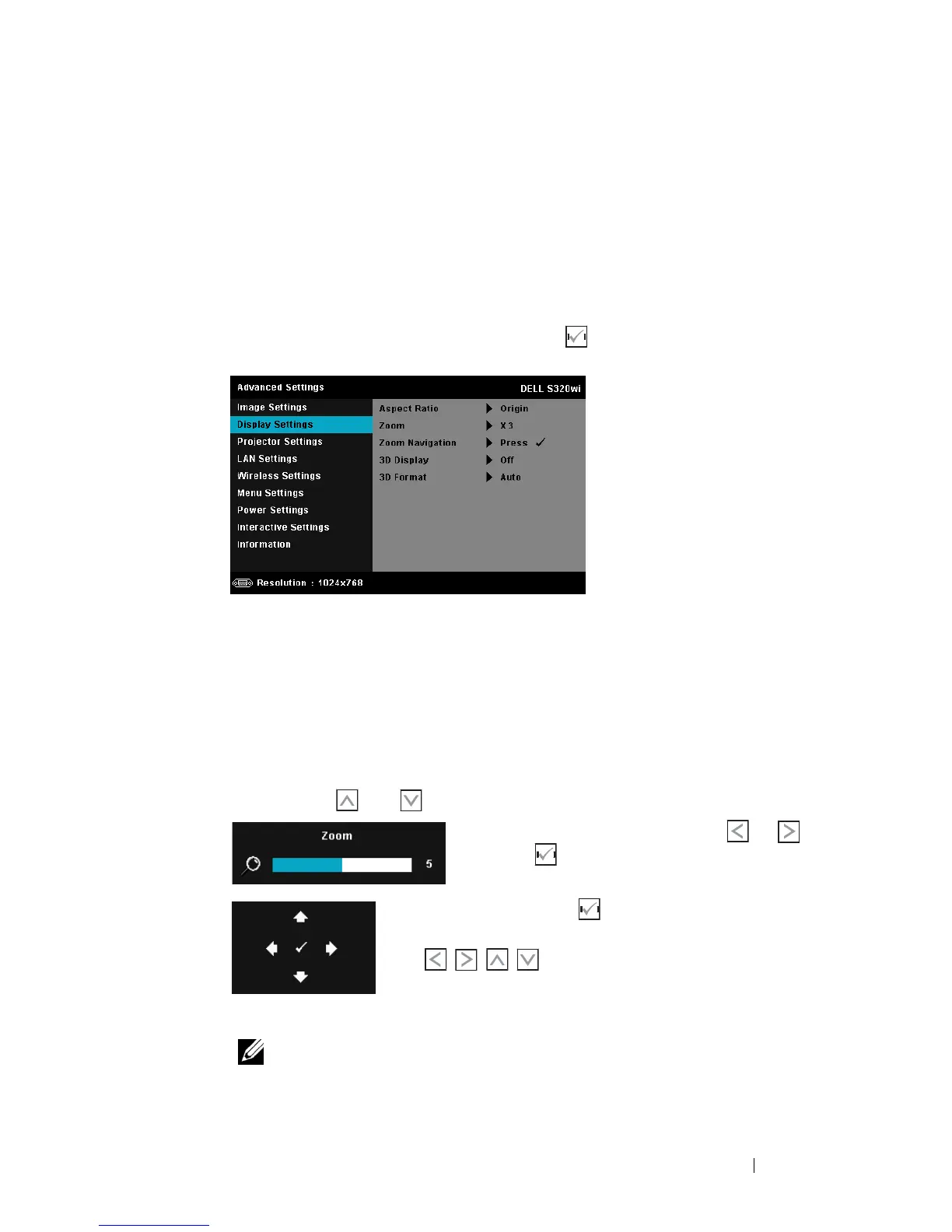
ISPLAY SETTINGS (IN VIDEO MODE)—Select and press to activate display settings.
The display settings menu provides the following options:
A
SPECT RATIO—Allows you to select the aspect ratio to adjust how the image
appears. Options are: Origin, 16:9, and 4:3.
•Origin — Select Origin to maintain the aspect ratio of image projector
according to the input source.
•16:9 — The input source scales to fit the width of the screen to project a
16:9 screen image.
•4:3 — The input source scales to fit the screen and projects a 4:3 image.
ZOOM—Press and to zoom and view the image.
Adjust the image scale by pressing or
and press to view on your remote control
only.
Z
OOM NAVIGATION—Press to activate the Zoom
Navigation menu.
Use to navigate the projection screen.
3D D
ISPLAY—Select On to start the 3D display function (default is Off).
NOTE:
1. When you want to create a 3D experience, you will need a few other
components including:




 To Next Page