Using Your Projector 71
•Switch Windows (Alt + Tab)
—
Function as toggling among
windows, acting as the keyboard shortcut Alt + Tab.
•Esc
—
Function as the keyboard Esc button.
•Show Desktop (Cmd + D)
—
Function as showing desktop,
minimizing all windows.
•Open Windows Explorer (Cmd + E)
—
Set the function as opening
the Windows Explorer.
•Middle Mouse
—
Set the function as the scroll wheel of the mouse.
•Double Click
—
Set the function as double-clicking.
•Disable
—
Disable the Function button.
P
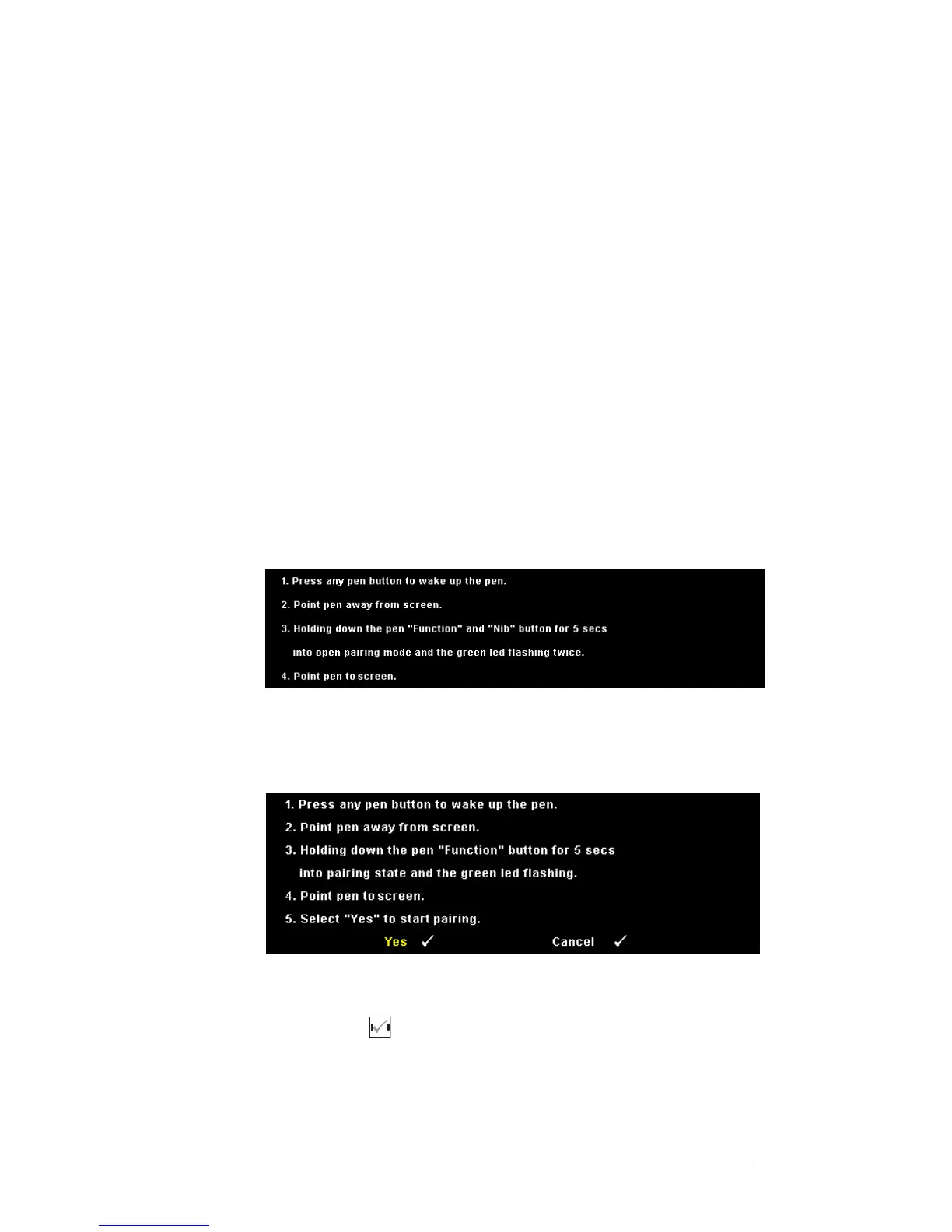
AIRING MODE—Allows you to set the pairing mode selection as Open or
Fixed.
•Pairing Mode
—
When you select Open, follow the on-screen steps
to set your Interactive Pen into the open mode. (This mode can let you
use your Interactive Pen with any Dell interactive projector when the
pen points to the screen.)
•Fixed Mode
—
When you select Fixed, follow the on-screen steps to
complete the pairing between Projector and Interactive Pen. (This
mode is to make sure your Interactive Pen pairing with your designated
projector.)
Once paired, the Pen will automatically fix to the projector every time
it turns on.
R
ESET—Press and select Confirm option to reset the Pen settings.




 To Next Page