Print jobs do not print
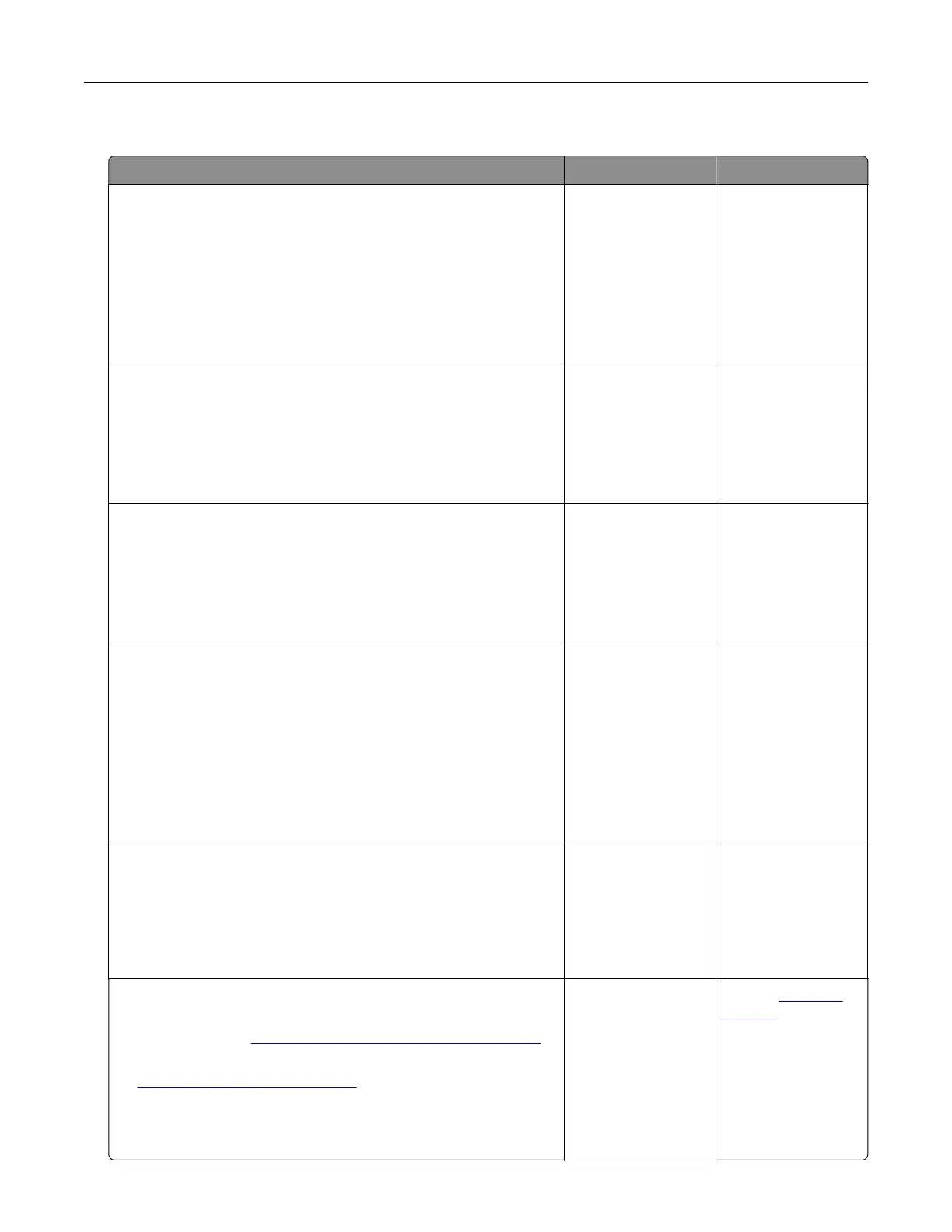
Action Yes No
Step 1
a From the document you are trying to print, open the Print dialog
and check if you have selected the correct printer.
Note: If the printer is not the default printer, then you must
select the printer for each document that you want to print.
b Resend the print job.
Do the jobs print?
The problem is
solved.
Go to step 2.
Step 2
a Check if the printer is plugged in and turned on, and if Ready
appears on the printer display.
b Resend the print job.
Do the jobs print?
The problem is
solved.
Go to step 3.
Step 3
If an error message appears on the printer display, then clear the
message.
Note: The printer continues to print after clearing the message.
Do the jobs print?
The problem is
solved.
Go to step 4.
Step 4
a Check if the ports (USB, serial, or Ethernet) are working and if
the cables are securely connected to the computer and the
printer.
Note: For more information, see the setup documentation
that came with the printer.
b Resend the print job.
Do the jobs print?
The problem is
solved.
Go to step 5.
Step 5
a Turn o the printer, wait for about 10 seconds, and then turn the
printer back on.
b Resend the print job.
Do the jobs print?
The problem is
solved.
Go to step 6.
Step 6
a Remove, and then reinstall the printer software. For more
information, see
“Installing the printer software” on page 41.
Note: The printer software is available at
www.dell.com/support/printers.
b Resend the print job.
Do the jobs print?
The problem is
solved.
Contact
technical
support.
Troubleshooting 200


 To Next Page