38
Pad Modes
The eight performance pads on each deck have different functions in each pad mode. The Parameter / buttons
will make adjustments specific to each pad mode.
To enter each pad mode, press the corresponding button:
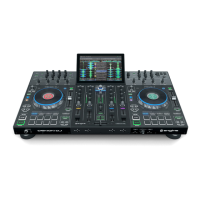
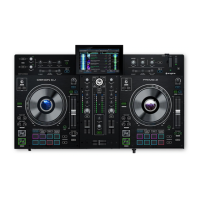
• PRIME 4/PRIME 2: Hot Cue, Loop, Roll, or Slicer.
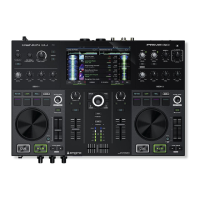
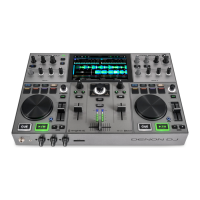
• PRIME GO: Hot Cue, Loop, or Roll.
Hot Cue Mode
In Hot Cue Mode, you can use each pad to jump to an assigned hot cue point.
Tip: You can use the Engine DJ software to set, name, and assign colors to your hot cue points. The names and
colors will appear in the display for reference.
To assign a hot cue to a pad, press an unlit pad at the desired location in the track. The pad will light up when a hot
cue point is assigned.
To jump to a hot cue point, press the corresponding pad.
To clear a hot cue from a pad, press Shift and the desired pad. The pad will turn off when there is no hot cue point
assigned to it.
Loop Modes
In Manual Loop Mode, you can use each pad to enable an assigned loop. Pressing Loop for the first time will always
enter Manual Loop Mode.
Tip: You can use the Engine DJ software to set and name your loops. The names will appear in the display for
reference.
To assign a loop to a pad and enable it, press an unlit pad to create a Loop In point at the current location, and
then press it again to create the Loop Out point at another location. You can also assign an auto loop to a
pad by pressing an unlit pad while in the auto loop. The loop will activate immediately, and the pad will light
up.
To enable a loop, press the corresponding pad. Once a loop has been created, you can also retrigger it by
pressing the corresponding pad again, depending on the Saved Loop Behavior setting in the User Profile.
To enable an active loop, press and hold the Parameter button and press a pad with a saved loop. Active
loops will begin looping automatically as soon as they are reached, and are shown with a striped pattern in the
track waveform. You can also set these in the Engine DJ software.
To delete a loop, press Shift and the desired pad.
In Auto Loop Mode, you can use each pad to create and activate an auto loop. Pressing Loop while in Manual Loop
Mode will enter Auto Loop Mode.
To activate an auto loop, press a pad. The display will show the length of the auto loop for each pad.
To deactivate an auto loop, press the pad again.
Use the parameter buttons to increase or decrease the length of the loop. Hold Shift and use the parameter
buttons while a loop is engaged to shift the loop region forward or backward.




 To Next Page