50
Source
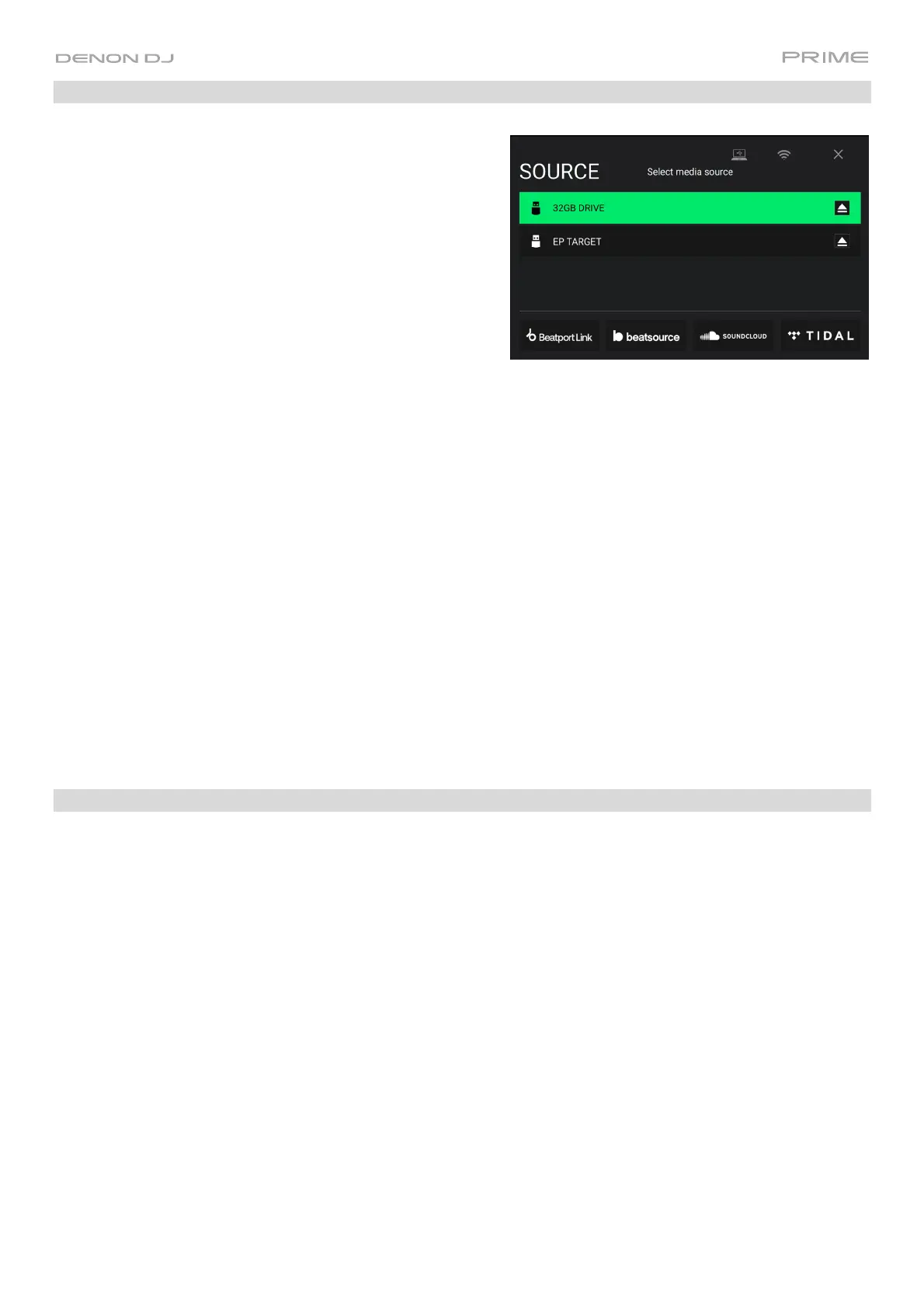
The Source menu allows you to select a connected media
device, streaming service, or cloud service for use with your
PRIME hardware. All connected media sources will be shown in
the top part of the display, and available streaming and cloud
service partners at the bottom of the display.
Tap the device name to select it as your media source. The
currently selected source device, if any, will show Source
next to its name. The currently selected recording device, if
any, will show Rec next to its name.
Tap the streaming or cloud service name to select it as your
media source. If you have not set up a connection to the
service yet, you will be prompted to sign in with your
username and password or given a web link and code in
order to activate your device. Once signed in or activated,
you can use the streaming or cloud service to browse and
add tracks. Streaming and cloud services may be enabled or
disabled in the Settings menu.
Tap the Wi-Fi icon at the top of the display to open the Wi-Fi
connection menu.
Tap the computer icon at the top of the display to switch your
PRIME hardware to computer mode. In computer mode, you
can use your PRIME hardware to send and receive MIDI
messages to and from your computer.
Tap the eject icon next to a drive name to eject that source. If a
track from the selected source is currently in use, an alert will
appear to note that the tracks will be unloaded. Tap Eject
Anyway to continue or tap Cancel to return to the Source
menu.
Tap the X to exit the Source menu.
Wi-Fi
The Wi-Fi page allows you to connect to a local internet network so you can browse connected streaming and cloud
services.
Tap the Wi-Fi icon at the top of the page to enable Wi-Fi. Once enabled, a list of local networks will appear on the
display.
Tap the desired network name to establish a connection. If a password is required, you will be prompted to enter it.
Once a connection is established, Connected will appear next to the network name.
Tap the gear icon next to the network name to view information about the network.
Tap the Auto Connect On/Off buttons to enable or disable automatic connection to the network
Tap Forget to forget the network login credentials.
Tap Close or anywhere outside the menu to close the Wi-Fi information menu.
You can also disable Wi-Fi from within this menu by tapping the icon at the top of the display again.




 To Next Page