19
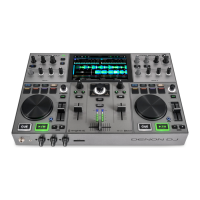
PRIME GO
Top Panel
29
30
31
32
33
36
34
36
38
39
40
41
42
37
37
2
3 4
5
6
7
8
9
10
11 12
13
14
15
14
10
11 12
13
1313
16
17 18
19
20
21
22
23
24
25
26
27
28
16
17 18
19
20
21
22
23
24
25
26
27 28
1
35
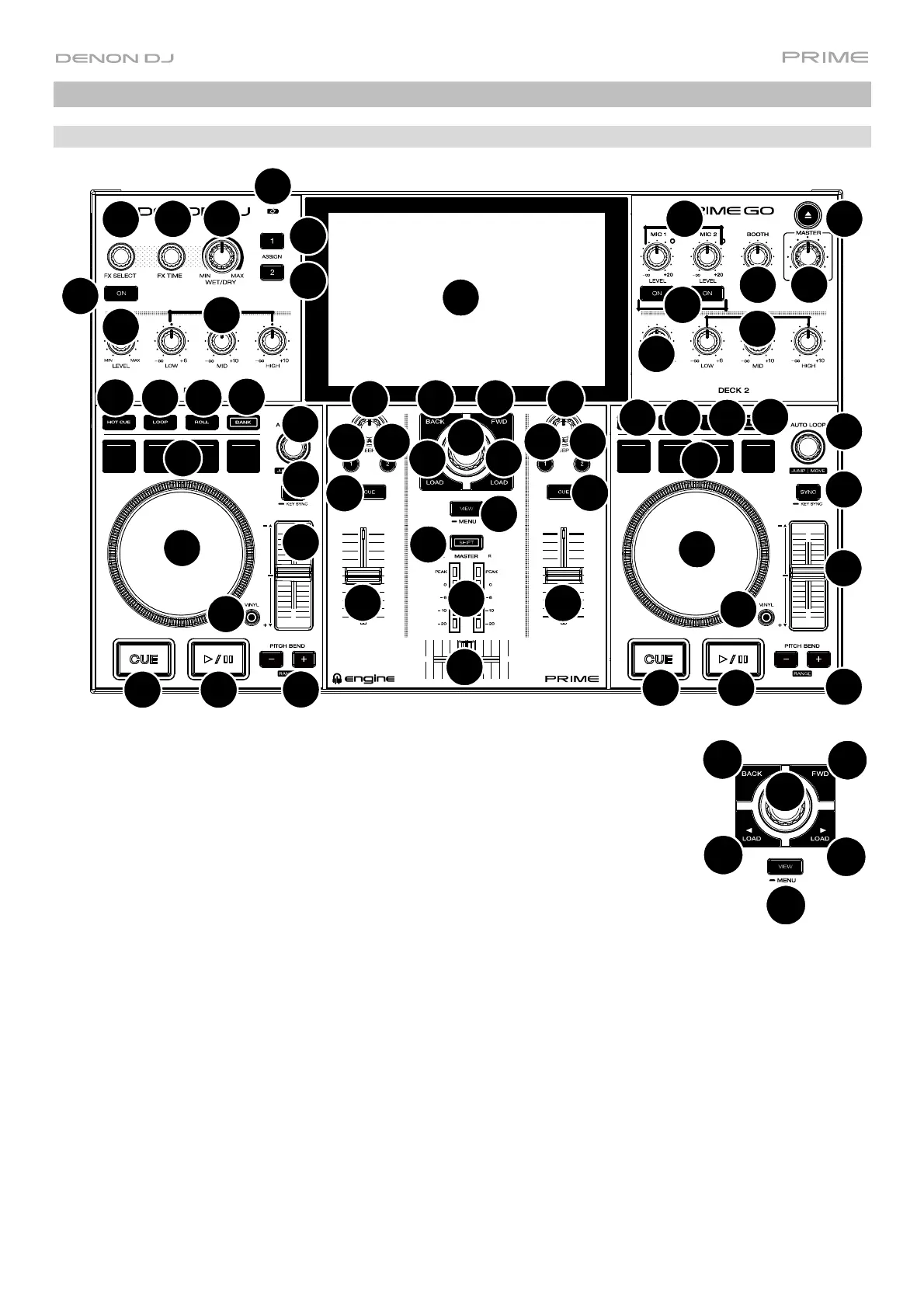
1. Touchscreen: This full-color, multi-touch display shows information relevant to
PRIME GO's current operation. Touch the touchscreen (and use the hardware
controls) to control the PRIME GO interface. See Touchscreen Overview for more
information.
2. Browse Knob: Turn this knob to navigate through lists. Press the knob to move
forward in the touchscreen or select a song to load on either deck.
Hold Shift and press the Browse knob to add a track to the Prepare list.
3. Back: While in Library View, press this button to move to the previous window. While in
Performance View, press this button to enter Library View.
4. Forward (FWD): While in Library View, press this button to move to the next window.
While in Performance View, press this button to enter Library View.
Hold Shift and press FWD to turn Quantize on/off.
5. Load : Press this button to load the selected track to Deck 1.
Quickly double-press this button to instant double the track currently playing on Deck 2 to Deck 1.
6. Load : Press this button to load the selected track to Deck 2. Quickly double-press this button to instant double
the track currently playing on Deck 1 to Deck 2.
7. View: Press this button to cycle between Library View and Performance View. Double-press this button to enter
the Engine Lighting view.
Press and hold this button to show the Control Center, which includes quick links to other menus such as Source,
Record, User Profile and Settings. See Control Center for more information.
Hold Shift and press the View button to switch between horizontal and vertical waveform views in Performance
View.
2
3
4
5
6
7




 To Next Page