48
About / Update
This page displays the product name, current firmware version, and other device information.
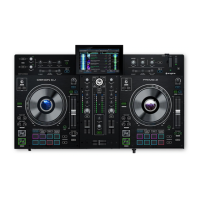
• Update Firmware Version: If you are not running the latest firmware, tap Reboot to restart PRIME 2 in Update
Mode, which enables you to update its firmware. Follow the firmware update instructions included with the
firmware update package you downloaded.
• Settings: Tap Reset to default to restore the default factory settings for your device.
• Send Anonymous Usage Statistics: This determines whether or not your usage statistics will be sent
occasionally to us, enabling us to improve the PRIME experience.
• Legal: Tap here to view the Denon DJ EULA and patent list.
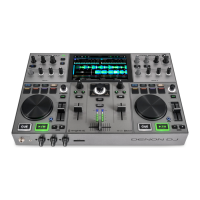
PRIME GO
Device Settings
• Wi-Fi: This determines whether Wi-Fi connectivity is enabled (On) or disabled (Off). Tap the gear icon to open
the Wi-Fi settings. See Control Center > Wi-Fi for more information about the Wi-Fi menu.
• Time/Date: This displays the current local time and date. Tap Sync Time when connected to the internet to
automatically sync the time.
• Time Zone: Displays the current time zone, formatted as Continent / City.
• Set time zone manually: Enable this setting and then tap the gear icon to manually set your local time zone.
• Track Preview: When active, Track Preview will reveal a play button for each song in the library, allowing the
songs to be auditioned in the cue without loading a song to the deck. Select On or Off.
• Screen (Plugged In): This setting determines the brightness of the main display when the power cable is
plugged in: Low, Mid, High, or Max.
• Screen (Battery): This setting determines the brightness of the main display when running on battery power:
Low, Mid, High, or Max.
Mixer Settings
• Playlist Deck Crossfade Time: Use this slider to adjust the amount of crossfade between tracks when using the
playlist deck.
• EQ Type: This setting determines the type of equalization for the Channel EQ knobs. Select Isolate for EQ
bands with infinite cut for full band "kills," or select Norm for EQ bands with limited cut.
• ISO EQ High Xover: When EQ Type is set to Isolate, this setting determines the crossover frequency between
the Mid and High EQ bands, from
1000 to 8000 Hz.
• ISO EQ Low Xover: When EQ Type is set to Isolate, this setting determines the crossover frequency between
the Low and Mid EQ bands, from 100 to 800 Hz.
• Filter Resonance: This setting determines the amount of resonance of the filter, from 0 to 15.
• Filter Extreme Type: This setting determines the effect of the Sweep Filters at the extreme low and high ends.
Select Kill for the filter extremes to end in silence, or select Bleed to allow the extreme end of the filter to play.
• Cue Solo Mode: This setting determines how many channels can be sent to the cue mix. Set to On to have only
one channel at a time in the cue mix, or set to Off to cue multiple channels at a time.
• Split Cue Output: This setting determines the stereo positioning of the pre-fader cueing mix and main mix when
Split Cue is enabled. When set to Normal, the pre-fader cue mix will be stereo left and the main mix will be
stereo right. When set to Invert, the pre-fader cue mix will be stereo right and the main mix will be stereo left.
• Split Cue: This setting enables or disables Split Cue, which will split the stereo signal between the main mix and
pre-fader cue mix.




 To Next Page