8
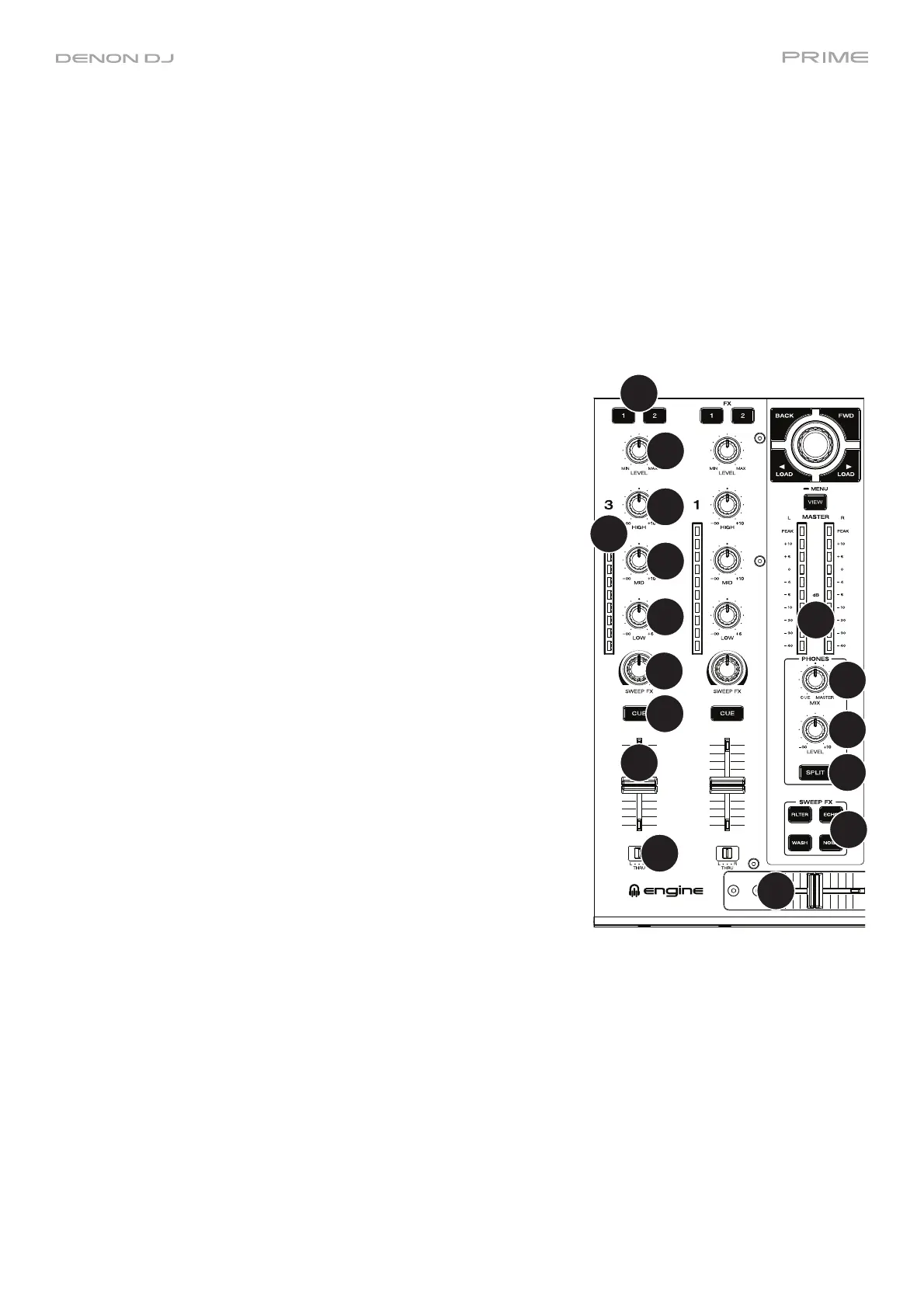
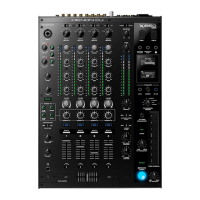
8. Channel FX: Use these buttons to route audio from the corresponding
channel to the Effect 1 or 2 module.
9. Channel Level: Turn this knob to adjust the level of the pre-fader,
pre-EQ audio signal for the channel.
10. Channel Level Meters: These LEDs display the audio signal level of
the channel.
11. Channel EQ: Turn these knobs to boost or cut the high, mid-range,
and low frequencies for the channel.
12. Sweep FX: Turn this knob to control the effect selected by the Sweep
FX buttons.
13. Channel Cue: Press this button to send the channel’s pre-fader
signal to the headphones’ cue channel.
14. Channel Fader: Use this fader to adjust the channel’s volume level.
15. Crossfader Assign: Routes the audio playing on the corresponding
channel to either side of the crossfader (L or R), or bypasses the
crossfader and sends the audio directly to the program mix (center,
Thru).
16. Crossfader: Use this crossfader to mix between channels assigned
to the left and right sides of the crossfader.
17. Master Level Meters: These LEDs display the audio signal level of
the master mix (sent out of the Master Outputs).
18. Phones Mix: Adjusts the software’s audio output to the headphones,
mixing between the cue output and the master mix output.
19. Phones Level: Adjusts the volume of the headphones.
20. Split Cue: When this button is On (fully lit), the headphone audio will
be “split” such that all channels sent to cue channel are summed to
mono and sent to the left headphone channel and the master mix is
summed to mono and sent to the right channel. When this button is
Off (dim), the cue channel and master mix will be “blended”
together. You can swap the left/right position of these channels in
the Settings menu.
21. Sweep FX Buttons: Press one of these buttons to enable or disable
an effect that you can control with the Sweep FX knobs. Only one
of these buttons can be enabled at a time.
• Filter: This effect applies a filter to the channel. Starting from the
center (12:00) position, turn a Sweep FX knob counter-clockwise
to apply a low-pass filter, or turn it clockwise to apply a high-pass
filter.
• Echo: This effect is a brief echo. Starting from the center (12:00)
position, turn a Sweep FX knob counterclockwise to decrease
the length of the delay and increase the feedback, or turn it
clockwise to increase the length of the delay as well as the
feedback.
• Noise: This effect adds noise to the signal. Starting from the
center (12:00) position, turn a Sweep FX knob counterclockwise
to add pink noise, or turn it clockwise to add white noise.
• Wash Out: This creates a transition effect. Turn a Sweep FX
knob to its most counter-clockwise (minimum) position to apply
a 1-beat echo that will also mute the channel’s normal audio
signal, or turn it to its most clockwise (maximum) position to
apply a 1/2-beat echo.
10
8
9
12
11
13
14
15
11
11
16
17
18
19
20
21




 To Next Page