ineo+ 224/284/364/454/554 4-9
4.3 Registering directly entered destinations in Address Book
4
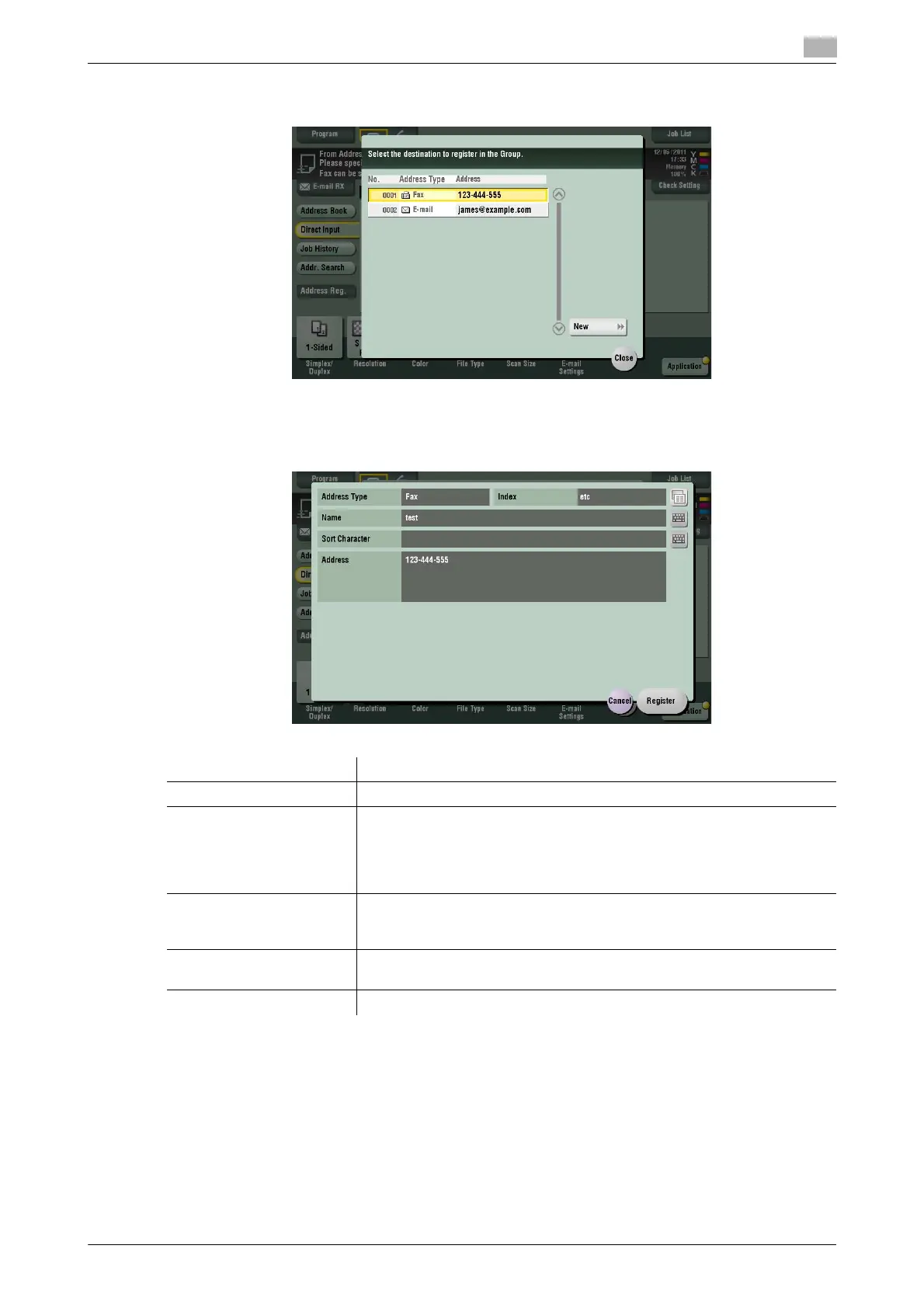
4 Select a destination you want to register with the address book, then tap [New].
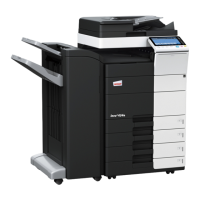
5 Tap the keyboard icon for [Name], and enter the registered name of the destination.
% Add an index key or enter a sort Character as necessary.
6 Tap [Register] then [Close].
When a fax transmission to the destination which is specified by direct input is complete, tap [Address
Book] and check that the destination is registered.
Settings Description
[Address Type] The destination type selected in the [Direct Input] are displayed.
[Index] Select a corresponding character so that the destination can be index-
searched by registration name.
• For a frequently used destination, select also [Favorites]. If [Favorites]
is selected, the destination will appear on the main screen in fax/scan
mode, enabling the user to easily specify an address.
[Name] Enter the destination name to be displayed on the Touch Panel (using up
to 24 characters).
Assign a name that helps you easily identify the destination.
[Sort Character] Enter the same one as the registered name (using up to 24 characters).
You can sort destinations by registration name.
[Address] The destination which is specified by direct input is displayed.



 To Next Page