C|24 Guide52
Zoom Switch
The Zoom switch puts the Arrow switches in
Zoom mode.
Navigate Switch
The Navigate switch puts the Arrow switches in
Navigate mode.
Arrow Switches
The function of the Arrow switches depends on
the current mode.
Zoom Mode In Zoom Mode, the Up and Down
Arrow switches change the vertical zoom and
the Previous (Left) and Next (Right) Arrow
switches change the horizontal zoom in the
Pro Tools Edit window.
Navigate Mode In Navigate mode, the Up and
Down Arrow switches move the edit cursor up
and down among tracks, and the Previous (Left)
and Next (Right) Arrow switches move the edit
cursor left and right among region boundaries
or transients (according to the Tab to Transients
setting).
Pro Tools Window Text Entry In both Zoom or
Navigate modes, the Arrow switches can be used
to navigate on-screen text fields.
Dialog Box Navigation In Pro Tools, the Arrow
switches can be used to navigate through folders
in dialog boxes such the Open Session dialog.
Edit Window Navigation In the Edit window, the
Arrow switches let you page the Edit window
forward and backward.
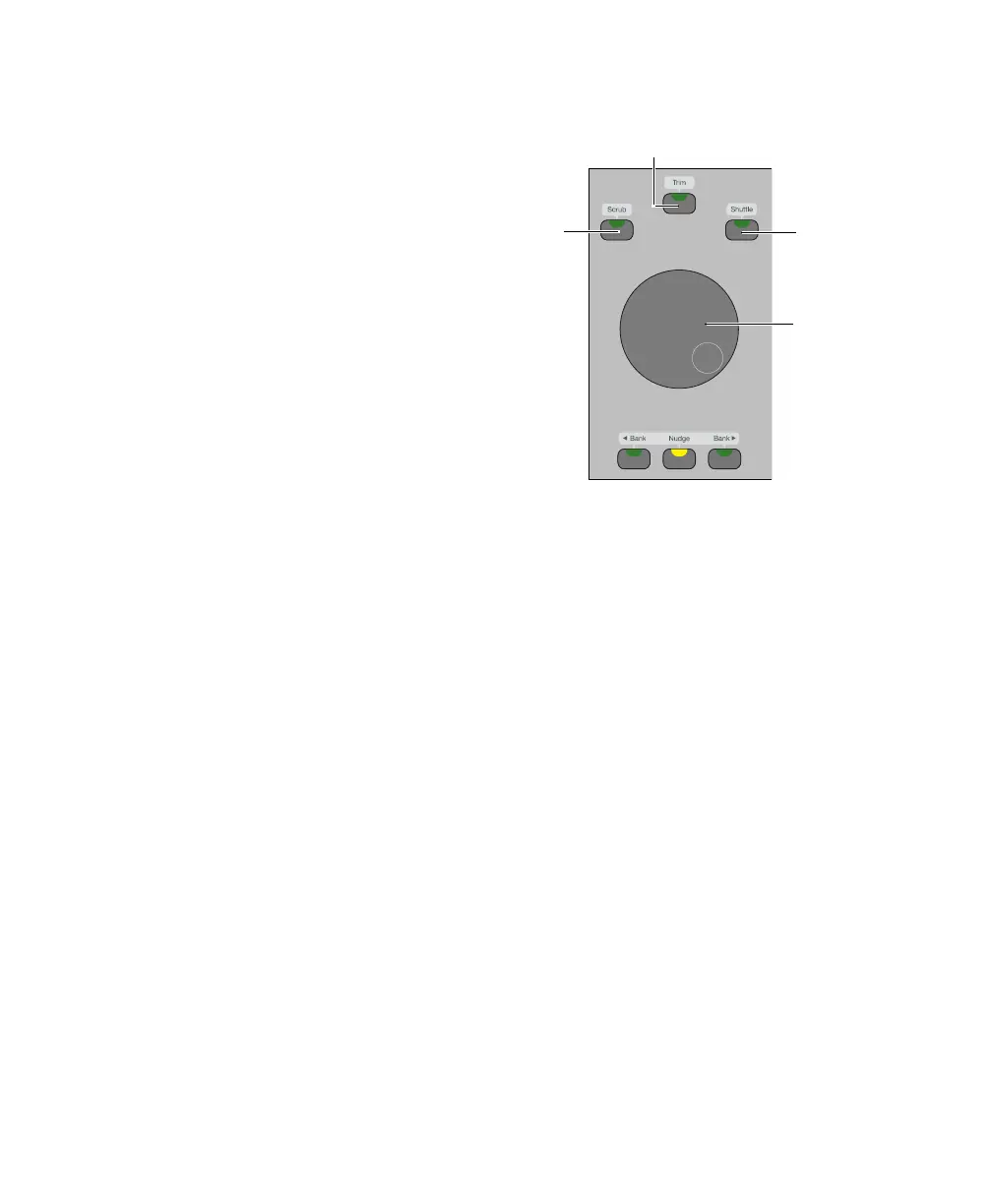
Scrub/Shuttle Controls
Scrub/Shuttle Wheel
The Scrub/Shuttle wheel is used for cursor loca-
tion, scrubbing, zooming, window navigation,
and banking faders.
Scrub Switch
The Scrub switch places the transport in Scrub
mode, which lets you scrub from the cursor po-
sition or across a selection.
Trim Switch
(Pro Tools HD Only)
The Trim switch places the transport in
Trim/Scrub mode, which lets you scrub to locate
an edit point, then trim to that point.
Shuttle Switch
(Pro Tools HD Only)
The Shuttle switch places the transport in Shut-
tle mode, which lets you scrub at several times
normal speed.
Scrub/Shuttle controls
Trim switch
Shuttle
switch
Scrub
switch
Scrub/
Shuttle
wheel



 To Next Page