19
1-800-245-9917
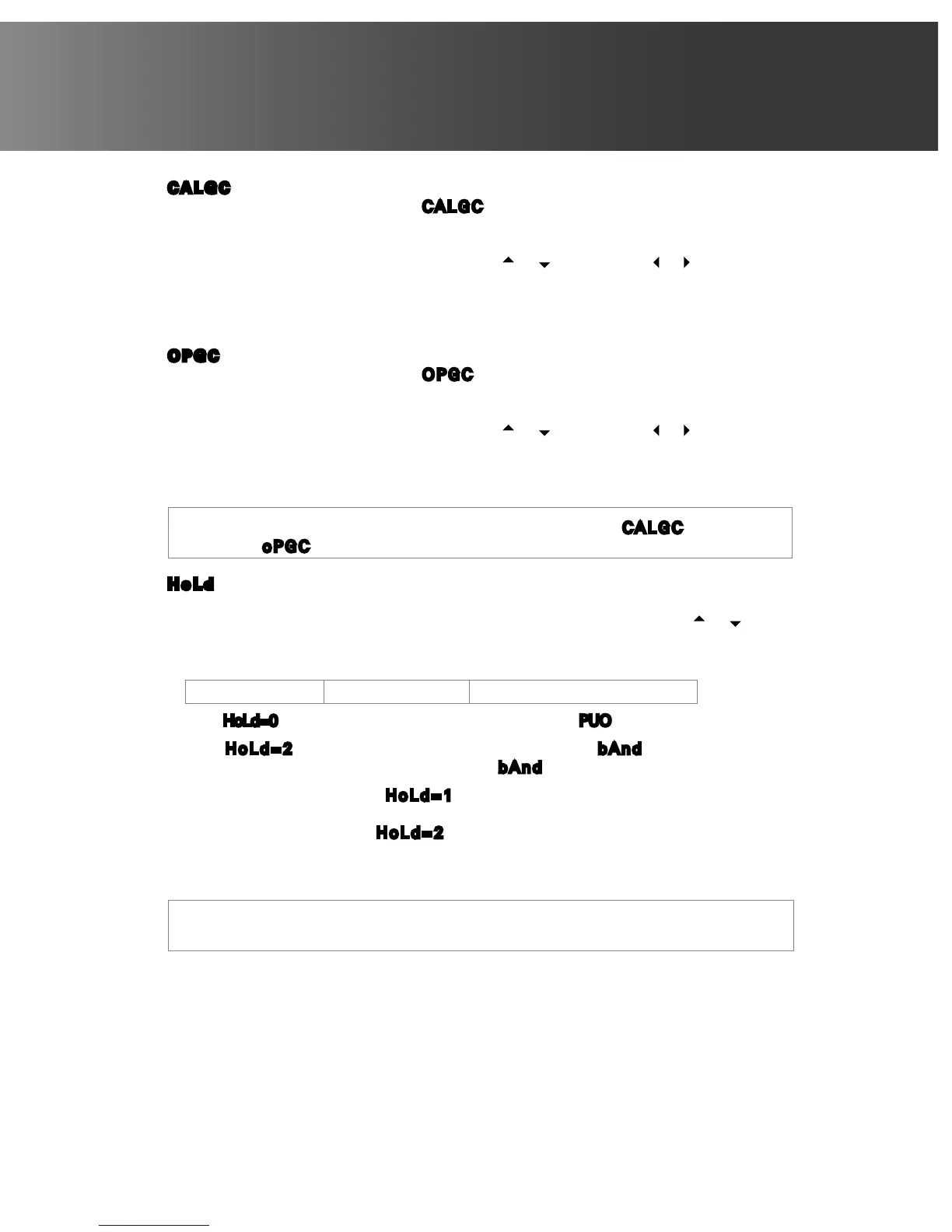
CALGC= (CALIBRATED GRAVITY CONSTANT)
The display will change to show CALGC=. Press the ENTER/PRINT key to show
the current setting. This is the acceleration of gravity value of the location where
the scale was calibrated. If the value displayed is acceptable, press the ENTER/
PRINT key to save it. Otherwise, press the or keys and the or keys to scroll
through and select a new value and then press the ENTER/PRINT key to save it and
proceed to the next prompt. Consult Direct Supply Equipment & Furnishings for the
Acceleration of Gravity value for your location.
OPGC= (OPERATING GRAVITY CONSTANT)
The display will change to show OPGC=. Press the ENTER/PRINT key to show
the current setting. This is the acceleration of gravity value for the location where
the scale will be operated. If the value displayed is acceptable, press the ENTER/
PRINT key to save it. Otherwise, press the or keys and the or keys to scroll
through and select a new value and then press the ENTER/PRINT key to save it and
proceed to the next prompt. Consult Direct Supply Equipment & Furnishings for the
Acceleration of Gravity value for your location.
NOTE! Once the Gravity Constant has been set, both CALGC= and
oPGC= must be set to the same value to disable it.
HoLd= (HOLD MODE)
Press the ENTER/PRINT key to view the current setting. If the value displayed is
acceptable, press the ENTER/PRINT key again. Otherwise, press the or keys to
scroll through and select a new value and then press the ENTER/PRINT key to save
it and proceed to the next prompt. Allowable values are: 0, 1 or 2.
0 = NO (disable) 1 = YES (enable) 2 = AUTO (Automatic Hold)
• If HoLd=0 or 1 (NO or YES) is selected, proceed to the PUO= (Power Up Zero) prompt.
• If HoLd=2 (AUTO) is selected, an additional prompt bAnd= (Auto Lock Reset
Band) will be displayed. Proceed to the bAnd= prompt to continue setup.
With Hold feature enabled (HoLd=1), the indicator will lock the displayed weight on
the display when LOCK/RELEASE key is pressed. Pressing the key again will unlock
display. If automatic hold (HoLd=2) is selected, the indicator will automatically lock
the weight on the display after obtaining a stable weight value that exceeds the
Auto Lock Reset Band value. Refer to Auto Lock Reset Band setup below.
NOTE! The HOLD mode of operation is only used in non-commercial applications
and must be DISABLED (set to 0 = NO) for “Legal for Trade” applications.



 To Next Page