31
Wally User Guide
Watching Pay-Per-View Programs
5
Recording Pay-Per-View
If you have an external hard drive connected to your Wally, you can record pay-per-view programs.
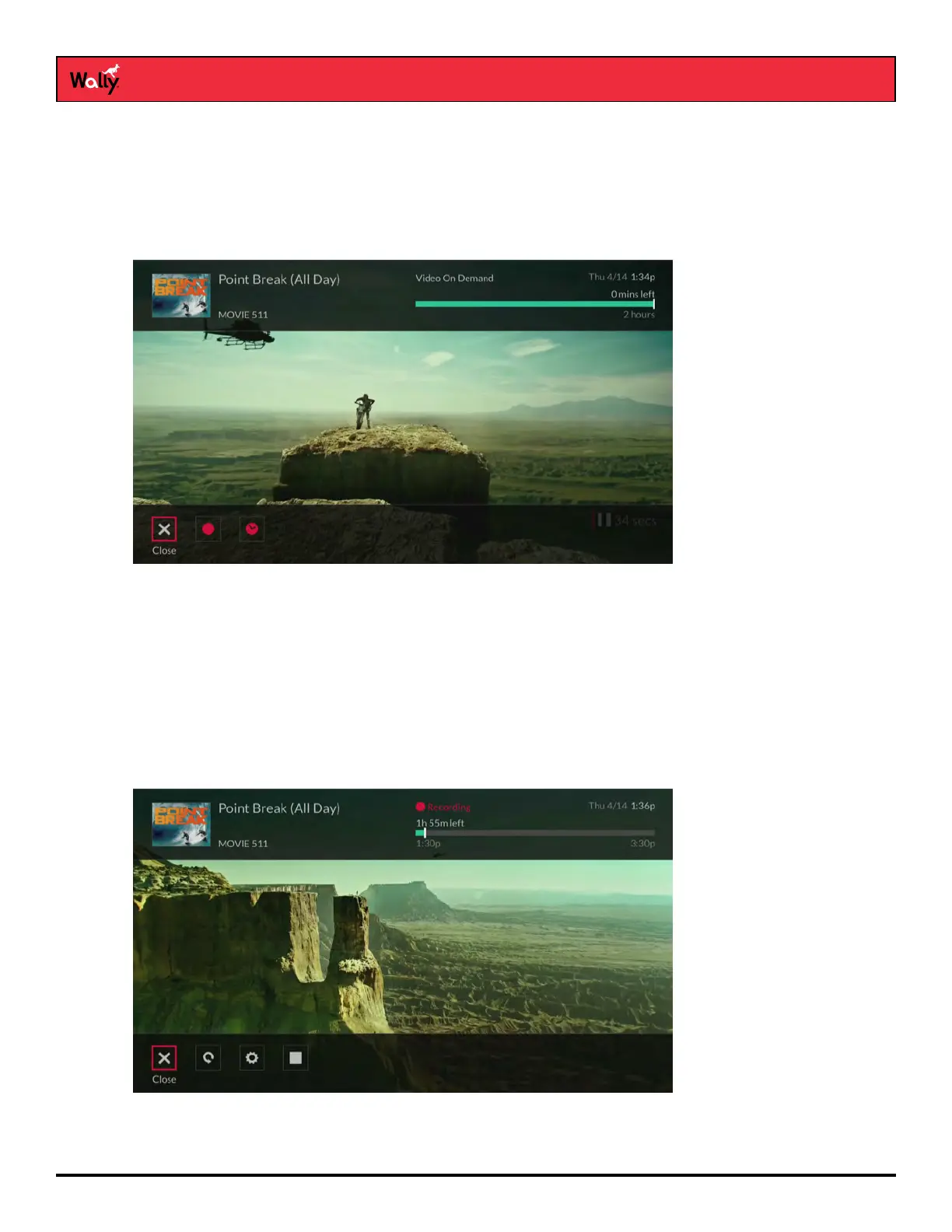
To record a pay-per-view program from the point where you’re watching:
• Press SELECT on the remote to display an options bar at the bottom of the screen, then select the
Record This icon.
or
• Press INFO on the remote to display the program info screen, then select Record This.
To record a pay-per-view program from the point where you started watching:
• Rewind the program as far as you can go, press SELECT, and select the Record This icon.
or
• Rewind the program as far as you can go, press INFO, and select Record This.
To stop recording a pay-per-view program:
• Press SELECT on the remote, select the Stop Recording icon, then select Yes on the popup that displays.
or
• Press INFO and select Stop Recording. On the popup that displays, select the Stop icon to stop recording.









 To Next Page