41
Wally User Guide
Recording and Watching DVR Programs
6
Function(s) Button How To Use
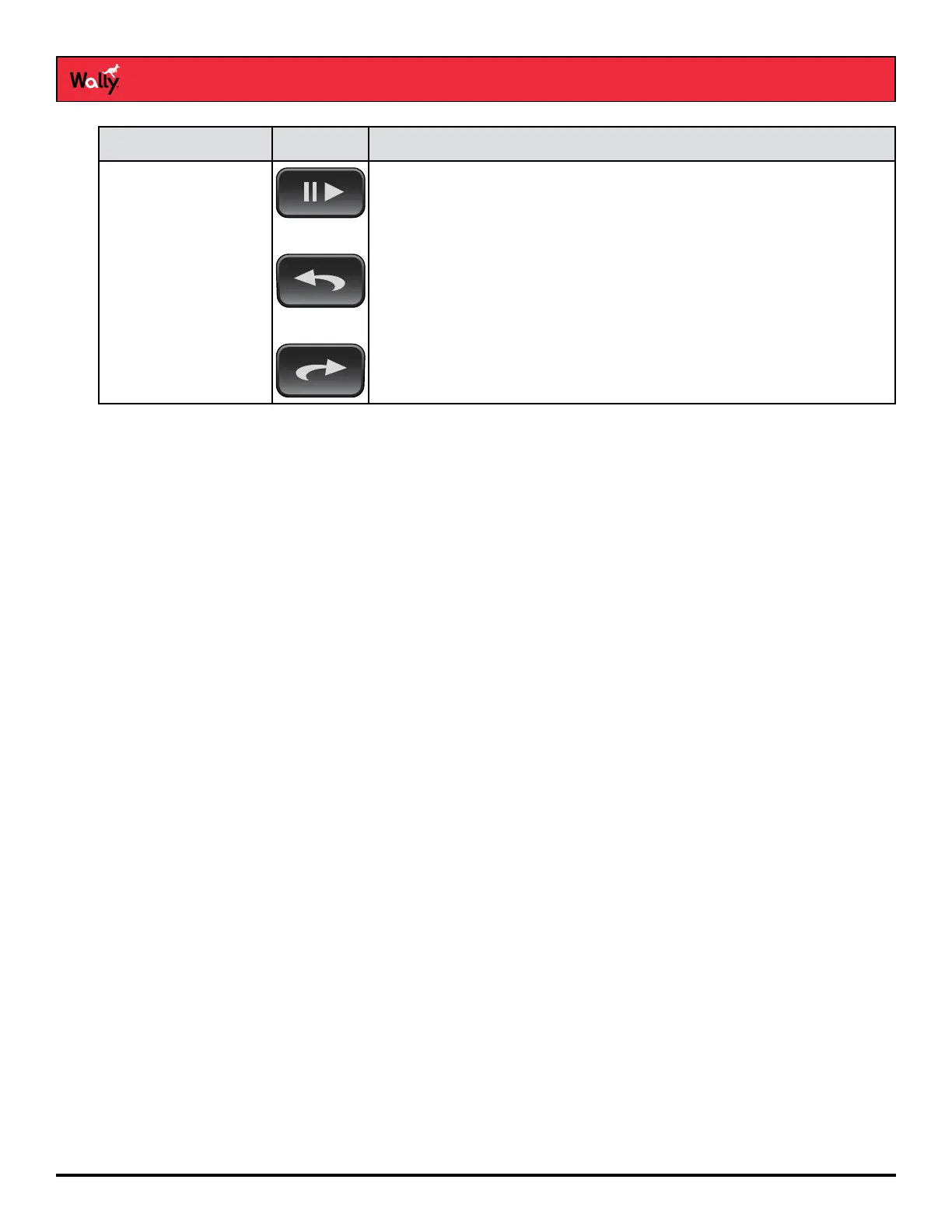
Slow Motion
then
or
Slow-Motion Rewind
• Press PAUSE/PLAY and then press SKIP BACK to rewind the program
in slow motion.
• Press PAUSE/PLAY to exit.
Slow-Motion Forward
• Press PAUSE/PLAY and then press SKIP FORWARD to advance the
program in slow motion.
• Press PAUSE/PLAY to exit.
Managing Recordings
Grouping and Sorting Recordings
1 Press the DVR button on the remote.
2 On the DVR screen that displays, press OPTIONS.
3 On the DVR Recording Options popup that displays, select RECORDED DATE / Sort.
4 Select one of the following options:
• A-Z – Sort your recordings alphabetically.
• Recorded Date – Sort your recordings according to the most recent date when they were recorded.
Deleting a Recording
1 Press the DVR button on the remote.
2 On the DVR screen that displays, select the recording that you want to delete.
3 On the information screen for that program, select Delete.
Restoring a Deleted Recording
If you accidentally delete a recording, you can restore it to your DVR within 48 hours by following this procedure:
1 Press the DVR button on the remote.
2 On the DVR screen that displays, select the Trash tab.
3 Select the deleted recording that you want to restore. On the popup that displays, select Restore. The recording
will be moved to the Recordings tab of the DVR screen.
Note: You may not be able to restore deleted recordings if your external hard drive is full.









 To Next Page