14
Software Upgrade
Carry out the following procedures to upgrade the soft-
ware. For update of printer driver, refer to the instruction
manual of your printer driver.
Update of Status Monitor
1.
Start Windows and place the "CX-120 Card
Printer CD-ROM" into the computer.
2.
Double-click "XXXXXXX" on the CD-ROM to
launch the status monitor installer.
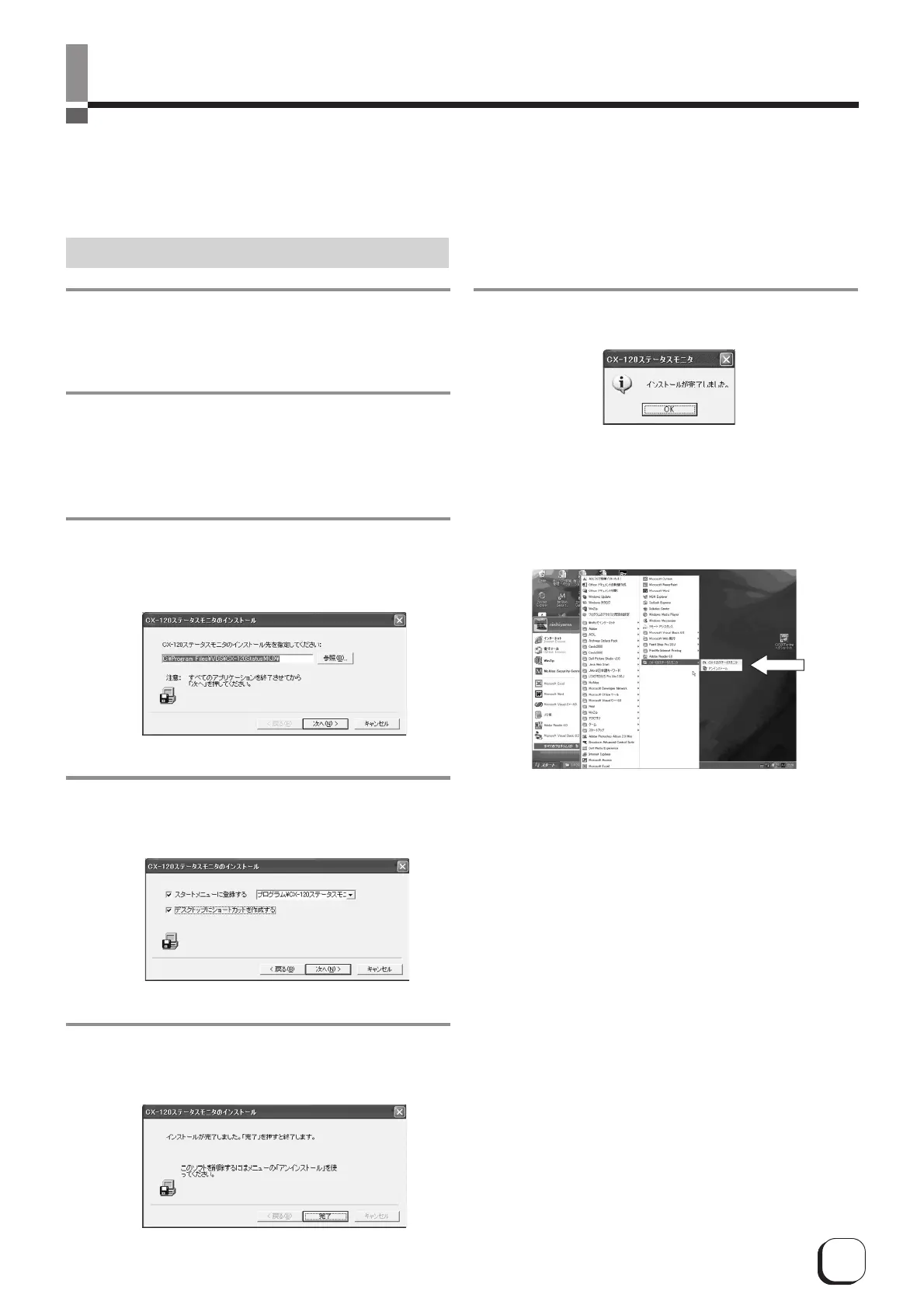
3.
An Installer screen will be displayed. Con-
firm the directory for installation and click
on the "Next" button.
4.
Confirm setting and click on the "Next"
button. Installation begins.
Once installation is completed, the Status Monitor can
be launched from the Start menu.
5.
A confirmation screen will be displayed
upon completion. Click on the "Finish"
button.
6.
Click the "OK" button. Installation is now
complete.


 To Next Page