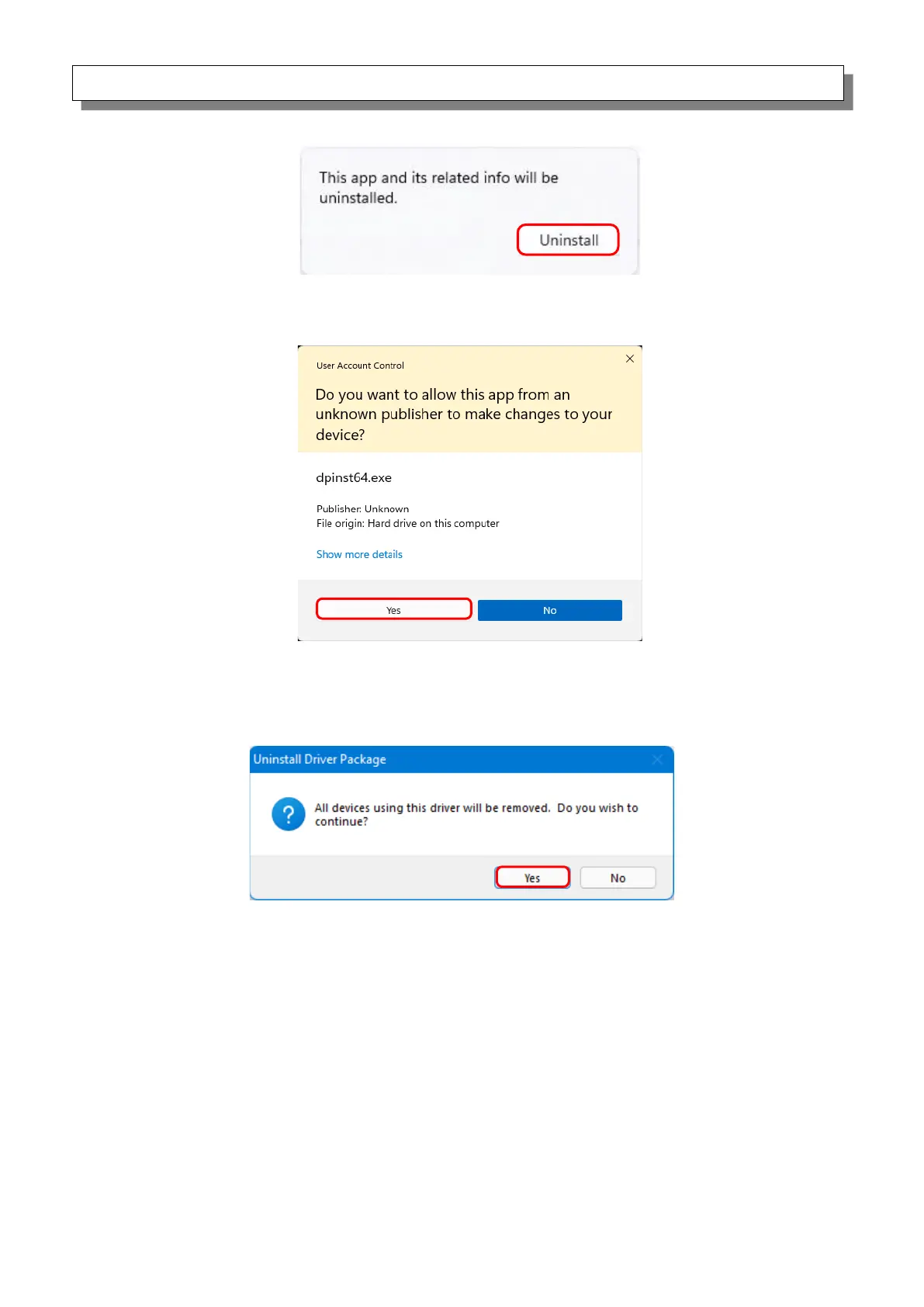
When the “This app and its related info will be uninstalled.” message appears, click “Uninstall”.
Figure 3.11 Uninstallation confirmation screen
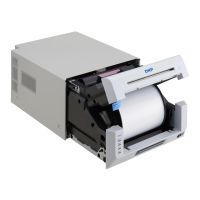
If the User Account Control dialog box appears, click “Yes”.
Figure 3.12 User Account Control
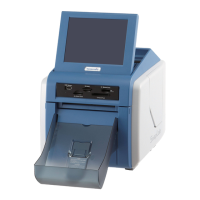
3) The “Uninstall Driver Package” screen appears. Click “Yes”.
The program has been uninstalled.
After uninstalling the printer package, restart the computer.
Figure 3.13 Uninstallation confirmation
3. Install an upgrade for the printer driver
After deleting the printer and the printer driver, install the new printer driver. For the installation
procedure, see “Chapter 1 Installation”.
4. Restart the computer
After the installation of the printer driver is complete, always restart the computer.
(Do not print just after installation. Always restart the computer once.)



 To Next Page