14
Saw Operation, Job Entry, Machine Setup, I/O Status
1. When the operator selects one of these choices,
there is a group of sub-menus screens in which to
set saw parameters and/or job data. Use the Next
Screen function key to scroll through these group
of sub-menus screens. When the last sub-menu
screen is shown, pressing the Next Screen function
key will bring the operator back to the rst screen
again. Then the operator may choose another
function.
2. Pressing the "4" key takes the operator to a group
of sub-menus that allows the operator to set cer-
tain machine parameters. These parameters were
described in the previous section.
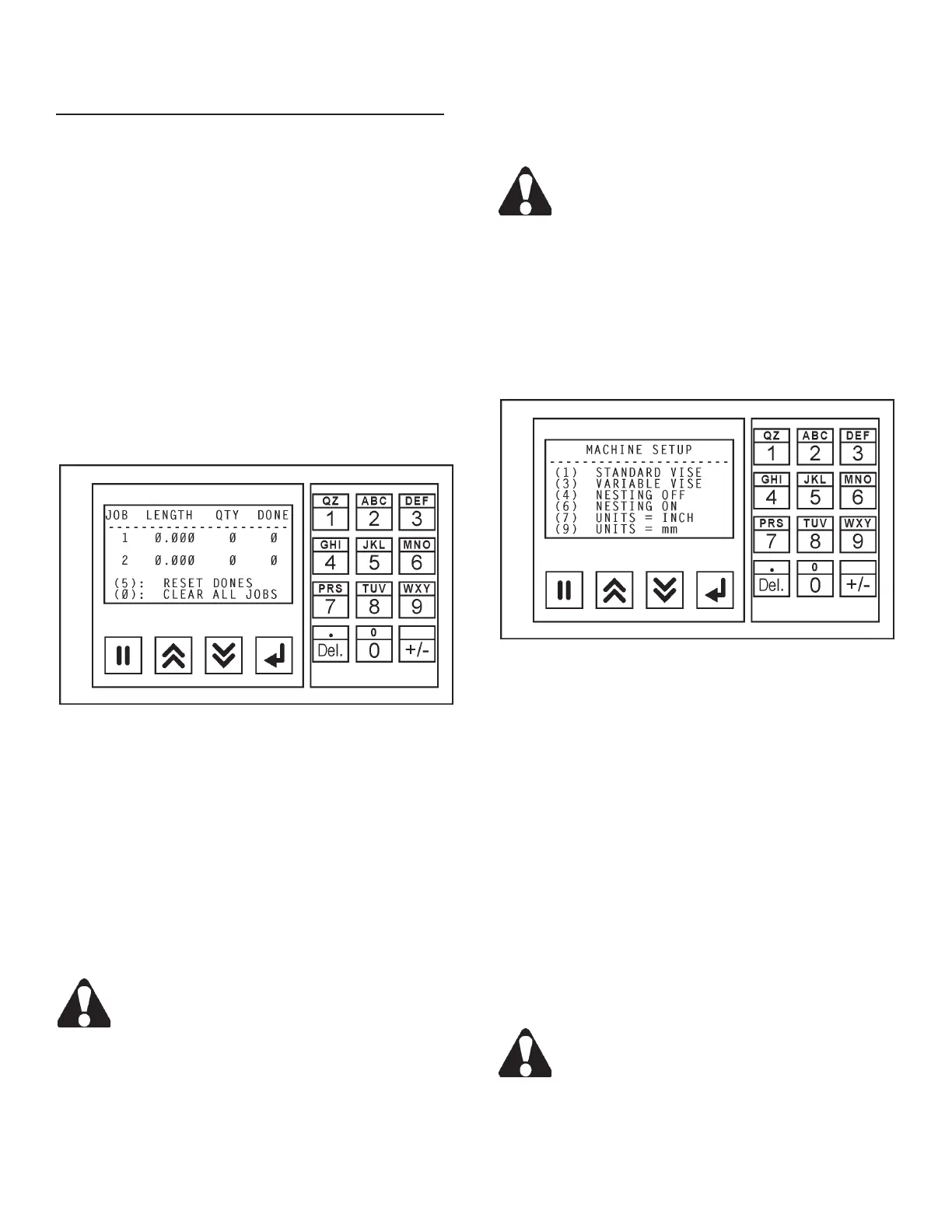
3. Press the "6" key to see the JOB ENTRY group of
sub-menu screens.
Job Entry Screen.
• To enter data, press the Data Entry function key.
Then: (a) With the length eld highlighted, enter
the length of the cut using the numeric keypad; (b)
Press the Accept function key to enter the data
into memory; (c) With the quanitity eld highlighted,
enter the number of cuts using the numeric keypad;
(d) Press the Accept function key to enter the data
into memory;(e) With the next job's eld highlighted,
continue as above; (d) When there is no highlighted
eld, press the NextScreen key to move to the next
set of two (2) jobs to be programmed.
If you make an error in entering data, just press
the Data Enter key again, change your entry
and then press the Accept key.
• Continue the sequence as described until all jobs
desired are entered. The operator can exit the
screen by using either the NextScreen or Previous
Screen function keys through the sub-menu and the
operator will be brought back to the rst screen.
• To RESET DONES, press the "5" key on the numeric
keypad.
• To CLEAR ALL JOBS, press the "0" (zero) key on
the numeric keypad.
Pressing the CLEAR ALL JOBS will completely
clear the contents of the job list. All data will
be lost.
• To skip a job or jobs in a list, set the quantities to
"0" (zero) on those jobs to be skipped.
4. Press the "7" key to see the MACHINE SETUP
group of sub-menu screens.
• A blinling star symbol after a selection indicates that
this control is in operation.
Machine Setup Screen.
• Press the "1" key on the numeric keypad for STAN-
DARD VISE pressure; press the "3" key for VARI-
ABLE VISE pressure (see "Accessories" section in
this manual for use of the Variable Vise Pressure
feature).
• Press the "4" key on the numeric keypad for
NESTING OFF (which means the optional nesting
clamping bar is NOT operational); press the "6" key
for NESTING ON for vise sequence which allows
a time delay for the nesting clamping bar to clamp
the material. One vise is always clamped to keep
the bundled material in place.
• To use and display INCH measurements, press the
"7" key on the numeric keypad; for metric measure-
ments (mm), press the "9" key.
Changing between the INCH and mm settings
will require that any data entered for cut length
and kerf width will need to be changed also.
Forexample,a6inchcutwillswitchtoa6mm
cut and vice versa.
MACHINE CONTROLS (Continued....)



 To Next Page