Vigor2950 Series User’s Guide
108
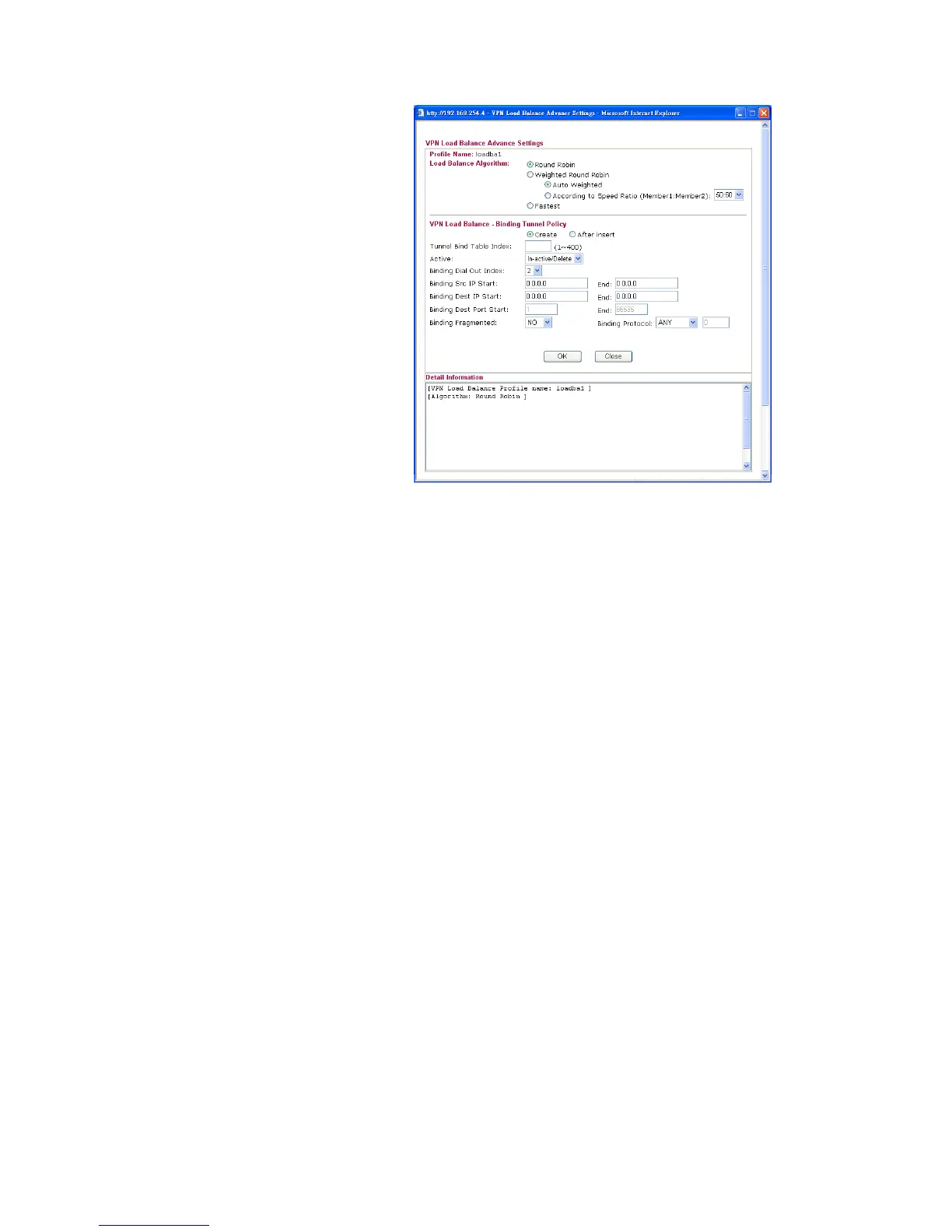
Detailed information for this dialog, see later section -
Advanced Load Balance and Backup.
General Setup Status- After choosing one of the profile listed above, please
click Enable to activate this profile. If you click Disable, the
selected or current used VPN TRUNK-Backup/Load Balance
mechanism profile will not have any effect for VPN tunnel.
Profile Name - Type a name for VPN TRUNK profile. Each
profile can group two VPN connections set in LAN-to-LAN.
The saved VPN profiles in LAN-to-LAN will be shown on
Member1 and Member2 fields.
Member 1/Member2 - Display the selection for
LAN-to-LAN dial-out profiles (configured in VPN and
Remote Access >> LAN-to-LAN) for you to choose for
grouping under certain VPN TRUNK-VPN Backup/Load
Balance mechanism profile.
No - Index number of LAN-to-LAN dial-out profile.
Name - Profile name of LAN-to-LAN dial-out profile.
Connection Type - Connection type of LAN-to-LAN dial-out
profile.
VPN ServerIP (Private Network) - VPN Server IP of
LAN-to-LAN dial-out profiles.
Attribute Mode - Display available mode for you to choose.
Choose Backup or Load Balance for your router.
Add Add and save new profile to the backup profile list. The
corresponding members (LAN-to-LAN profiles) grouped in
such new VPN TRUNK – VPN Backup mechanism profile
will be locked. The profiles in LAN-to-LAN will be displayed
in red. VPN TRUNK – VPN Load Balance mechanism profile
will be locked. The profiles in LAN-to-LAN will be displayed
in blue.
Edit Click this button to save the changes to the Status (Enable or
Disable), profile name, member1 or member2.


 To Next Page
 Loading...