18 of 36
User Manual - ProVideo GUI v1.2.4
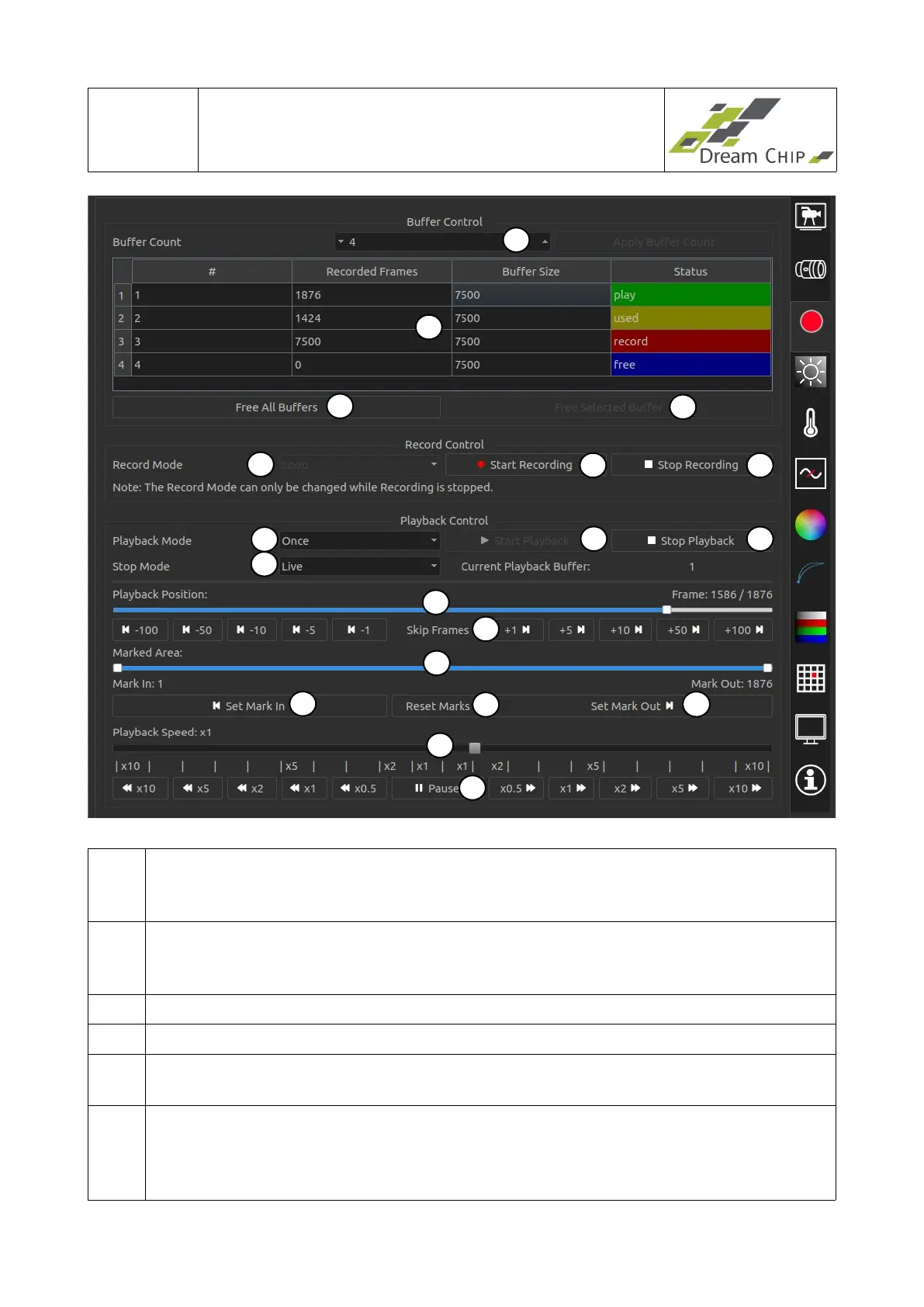
1 Change the amount of recording buffers. Since applying a new buffer count
deletes all recorded image data you have to confirm this setting by clicking the
“Apply Buffer Count” button to the right of the spin box.
2 The table shows the current state of the recording buffers. It is also used to select
a buffer for recording or playback. To do so click on the row of the buffer you want
to select and then click on button 6 or 10 to start record or playback.
3 Free all buffers at once. Caution: This clears all image data!
4 Free the selected buffer, only enabled if a buffer is selected in the buffer table.
5 Select the Record Mode which can be either “Loop” to overwrite old data once the
buffer is full or “Once” to stop recording when the end of the buffer is reached.
6 Start Recording into the next buffer. If no buffer is selected the next free buffer
(with the smallest index) will be used, otherwise the selected buffer is used.
Disabled if no free buffer is available (use the free buffer buttons first to clear an
old buffer).
1
2
4
5
8
9
6 7
11
10
12
13
15
14
17
16
3
18
19


 To Next Page