9 of 36
User Manual - ProVideo GUI v1.2.4
3.4 Debug Terminal
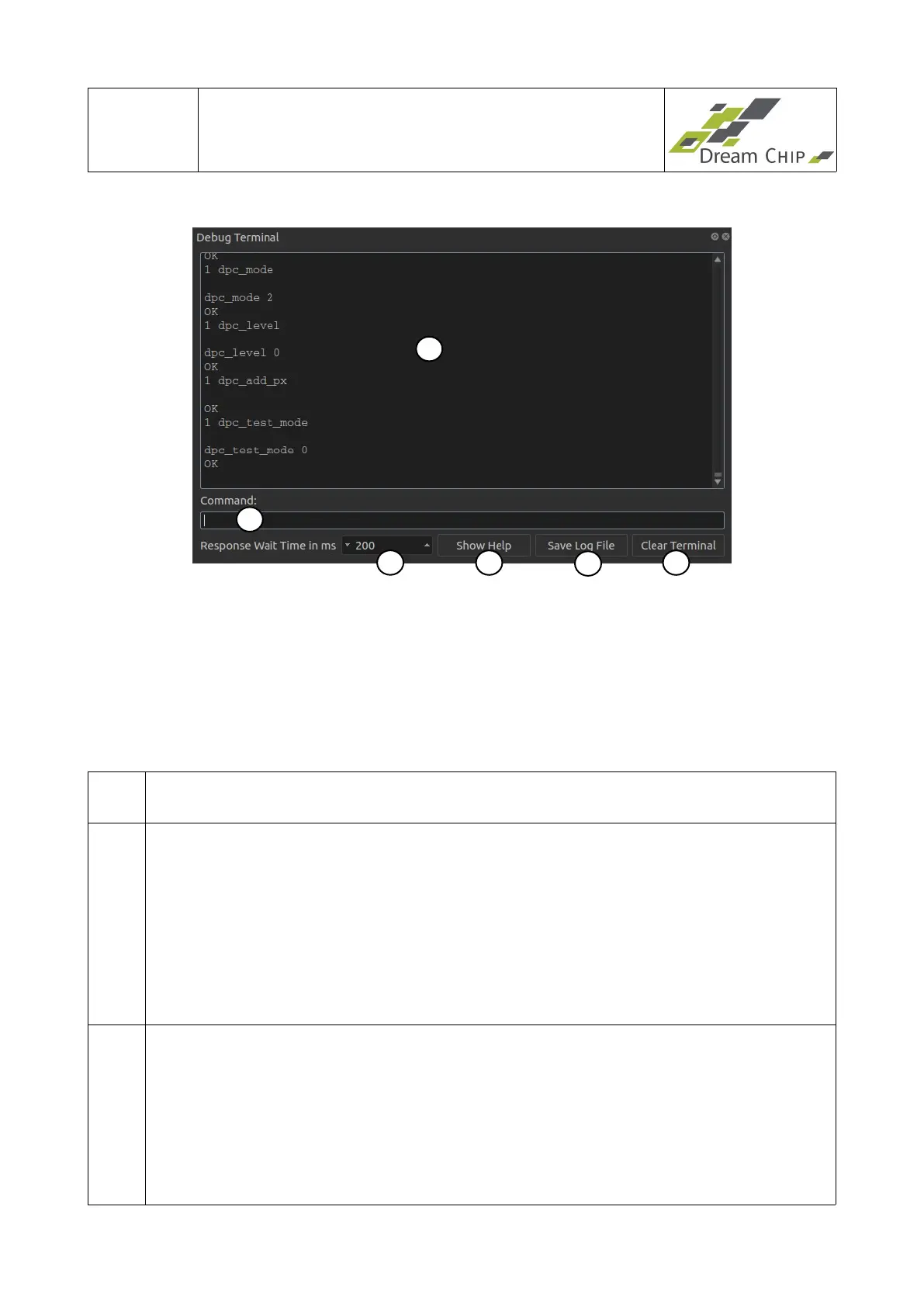
The Debug Terminal shows all commands which are send by the GUI. It can also be used
to manually send commands to the device.
By default the Debug Terminal opens as a docked widget of the main window. You can turn
it into a stand-alone window by grabbing it and dragging it away from the main window.
The Debug Terminal can be useful to understand how the ProVideo command system of
your device works. Simply open the debug terminal, make changes in the GUI and watch
the output.
1 History of send / received commands. This window shows a maximum of 10000
lines, older lines get deleted as soon as this limit is reached.
2 The command line can be used to enter your own commands (see the reference
manual of your device for a full list of the available commands). The command line
features a command history which you can access by pressing the Arrow Up and
Down keys on your keyboard while the command line is active. The command
history can contain up to 100 commands, older commands are deleted as soon as
this limit is reached.
You can also copy and paste a list of commands, e.g. from a text document to the
command line, all commands will then be executed. Please make sure that you
have selected an appropriate command response wait time (see point 3).
3 Since the Debug Terminal does not know how long a manually entered command
has to be processed in the device a maximum wait time has to be specified. For
most commands the default of 200ms is sufficient.
For long commands like storing the DPCC table or enabling Genlock you will have
to increase the wait time, otherwise you will not see the answer of the device. If
you run a script with multiple commands by pasting it into the command line make
sure to select a wait time which is long enough for the most time consuming
command in the script.
1
2
3 4
5
6


 To Next Page