34 of 36
User Manual - ProVideo GUI v1.2.4
point 4).
The maximum allowed temperature is displayed under “Shut-Down Temperature”.
The “Number of Over-Temperature Events” shows how often the device had
reached its critical operating temperature and had to enter the fail-safe mode.
The values are updated automatically every second, as long as the info tab is
opened.
3 Set the target system temperature for the fan controller (if device has a cooling
fan). The fan controller will try to keep all measured system temperatures below
the target value. If the value is set too low, the fan will always run at 100%.
4 Use the “Reset” button to reset the maximum temperature to the current
temperature.
5 Show the open source software license of the GUI software.
6 Show the open source software licenses of third party software, which is used in
the GUI.
7 Click the link to open the GitLab page of the ProVideo GUI.
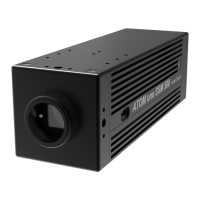
Note regarding ATOM one SSM500 cameras:
For the ATOM one SSM500 camera models additional “System Operations” are available:
• Shutdown: Power down the device, so that the power supply can be savely
disconnected. This should always be done before disconnecting the power
supply! Otherwise the recorded image data and the operating system can get
corrupted.
• Reboot: Reboots the device. If have unsaved changes, save your settings first.
• Reboot to Update Mode: Reboots the camera into the Update Mode, so that a
firmware update can be performed via the Web Interface. Please see the ATOM one
SSM500 Reference Manual for further instructions on the firmware update
procedure.
• Switch to Trigger Mode: Reboots the camera in Tigger Mode. This button is
disabled if Trigger Mode is already active.
• Switch to SSM Mode: Reboots the camera in SSM Mode. This button is disabled if
SSM Mode is already active.


 To Next Page