20EN
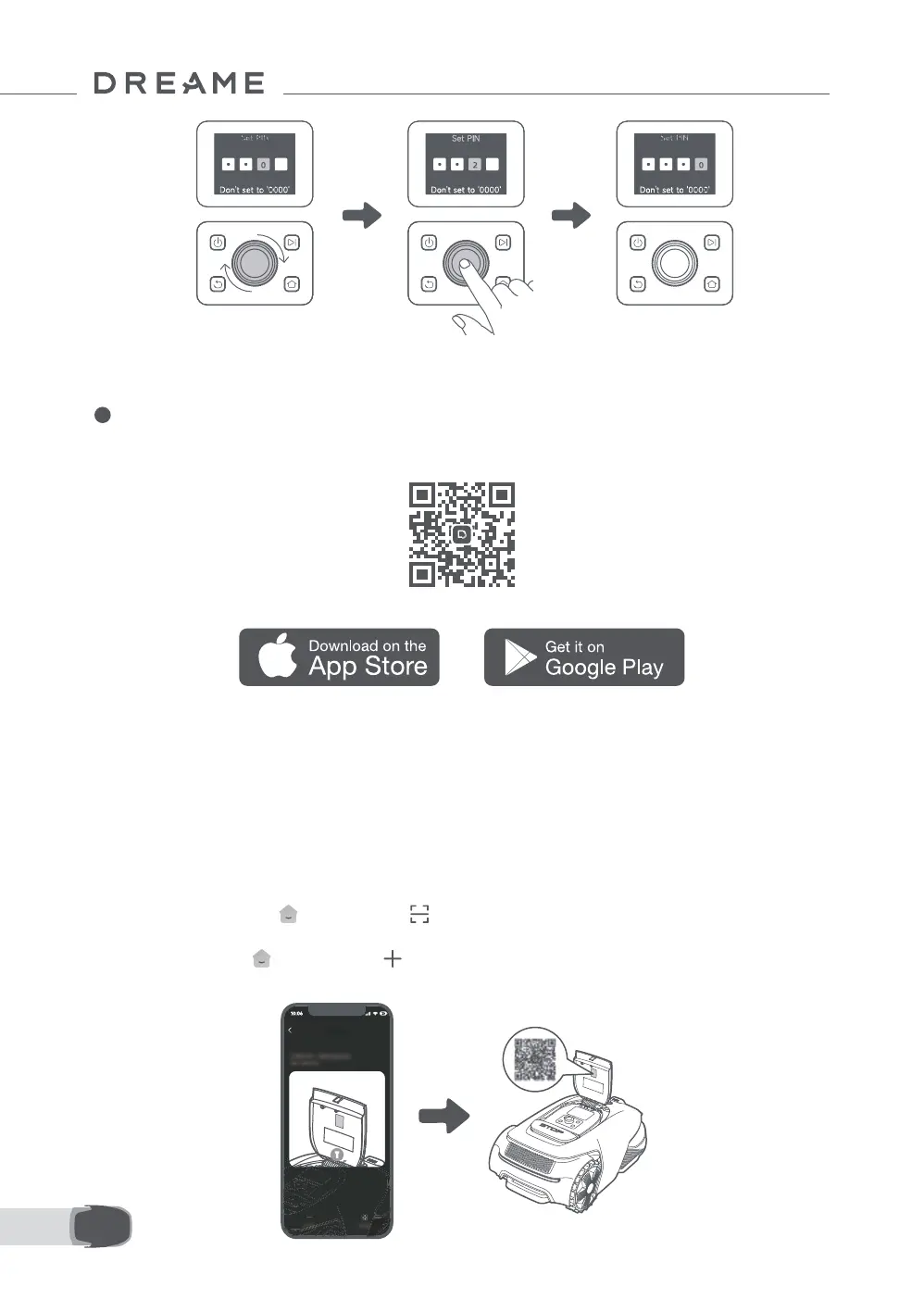
2. Enter the PIN code again to complete setting the PIN code.
Note: If two passwords do not match, please set the new password again.
5 Connect the Robot to the Internet
Please scan the QR code to download the Dreamehome app on your mobile device. After the installation,
please create an account and log in.
You can also download Dreamehome app from App Store or Google Play.
The robot is installed with the Link Module that supports 4G connectivity and includes built-in GPS. However,
for optimal performance, we recommend setting up a Wi-Fi connection.
Before network setup:
• Make sure the robot and your mobile device are on the same Wi-Fi network.
• Make sure that your mobile device is within 10 m of the robot.
• Enable Bluetooth function on your mobile device.
1. Open the Dreamehome app.
2. You can connect via one of the following methods:
a. Scan the QR Code: Go to Device and tap Scan QR code to connect. Scan the QR code located
inside the robot's top cover to connect.
b. Add Manually: Go to Device and tap Add. Then select your robot model to connect.
c. Automatic discovery: The robot will search for nearby devices. Tap your robot from the list of discovered
devices to connect.


 To Next Page